
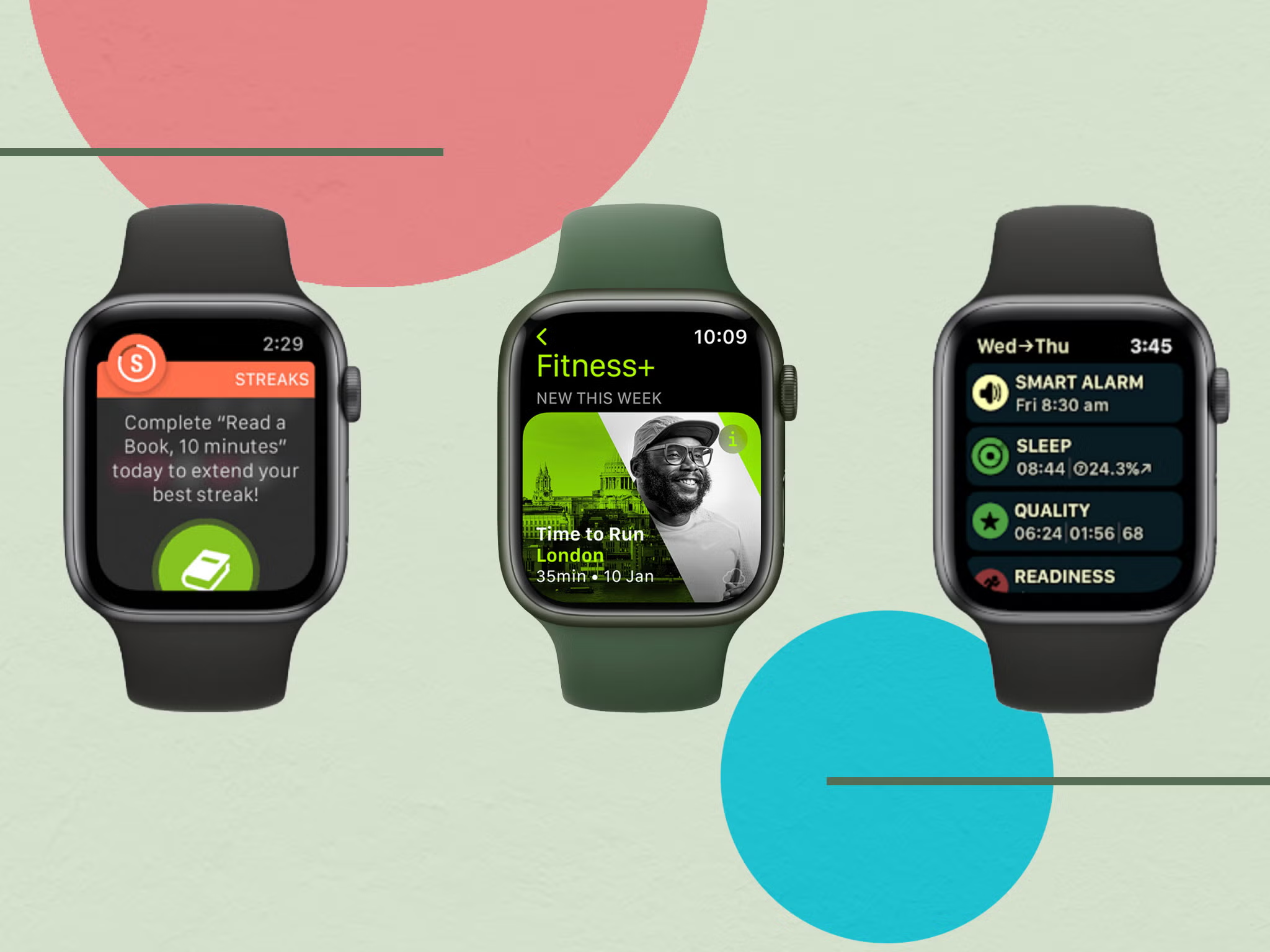
Download Apps on Apple Watch: A Step-by-step Guide
Are you excited about your new Apple Watch but unsure how to download apps? Look no further! In this article, we’ll guide you through the process of downloading apps on your Apple Watch using both your iPhone and the watch itself.
Why Download Apps on Apple Watch?
The Apple Watch is an excellent device for tracking fitness goals, receiving notifications, and controlling your music playback. However, to get the most out of your Apple Watch, it’s essential to download relevant apps that cater to your interests. With thousands of apps available in the App Store, you can find something that suits your needs.
Step 1: Prepare Your Devices
Before starting the app installation process, ensure your devices are connected and updated. Here’s what you need to do:
- Iphone: Make sure it’s running on iOS 14 or later.
- Apple Watch: Ensure it’s running on watchOS 7 or later.
- Connection: Both devices should be connected via Bluetooth and Wi-Fi for seamless app installation.
Step 2: Open The App Store
To download apps, you’ll need to access the App Store. Here’s how to do it:
- Iphone: Unlock your iPhone and navigate to the Home screen. Tap on the App Store icon.
- Apple Watch: Go to the Apple Watch app on your iPhone (it should be already installed). Locate the App Store within the Apple Watch app.
Step 3: Search For Apps
Now that you’re in the App Store, it’s time to search for apps. You can browse through categories or search for specific apps using keywords.
- Iphone: Tap on the “Search” tab at the bottom of the screen and enter your desired keywords.
- Apple Watch: Use voice commands or type in the search bar to find your preferred app.
Step 4: Install Apps
Once you’ve found an app, it’s time to install it. Here’s how:
- Iphone: Tap on the “Get” button next to the app icon.
- Apple Watch: Select the app and tap on the “Install” button.
How to Download Apps Directly From Apple Watch
If you prefer to download apps directly from your Apple Watch, follow these steps:
- Unlock your Apple Watch and navigate to the Home screen.
- Tap on the Digital Crown to access the menu.
- Locate the App Store icon and tap on it.
Troubleshooting Common Issues
Encountering issues while downloading apps? Don’t worry; we’ve got you covered! Here are some common problems and their solutions:
- App Not Installing: Check that your devices are connected via Bluetooth and Wi-Fi. Ensure that the app is compatible with your Apple Watch.
- App Store Unavailable: Restart your Apple Watch and try again.
Conclusion
Downloading apps on your Apple Watch is a straightforward process that can enhance your overall experience. By following these steps, you’ll be able to access a wide range of apps tailored to your interests.
Frequently Asked Questions (FAQs)
- Q: What Are The System Requirements For Downloading Apps on Apple Watch?
A: Your Apple Watch should run on watchOS 7 or later. - Q: Can I Download Apps Directly From my Apple Watch?
A: Yes, you can download apps directly from your Apple Watch using the App Store app. - Q: How do I Troubleshoot Common Issues While Downloading Apps?
A: Check that your devices are connected via Bluetooth and Wi-Fi, and ensure that the app is compatible with your Apple Watch.
By following this guide, you’ll be able to download apps on your Apple Watch using both your iPhone and the watch itself.


