
How to Download Apps on Your LG Smart TV
Are you tired of not being able to download your favorite apps on your old LG Smart TV? Well, you’re in luck! In this article, we’ll guide you through the process of downloading apps on your LG Smart TV.
Connecting Your LG Smart TV to The Internet
Before we dive into the world of app downloads, it’s essential to connect your LG Smart TV to the internet. This will allow you to access the LG Content Store, where you can download various apps.
To connect your LG Smart TV to the internet:
- Press the power button on your remote control to turn on your TV.
- Navigate to the menu by pressing the “Menu” button on your remote control.
- Select “Settings” and then choose “Network.”
- Choose “Wi-Fi” or “Ethernet” as your preferred connection method.
- Enter your Wi-Fi password, if prompted.
Accessing The LG Content Store
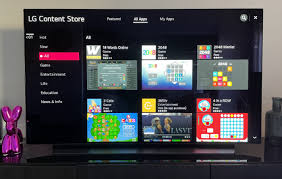
Now that you’ve connected your LG Smart TV to the internet, it’s time to access the LG Content Store. This is where you can download various apps, including Netflix, YouTube, and more.
To access the LG Content Store:
- Press the “Home” button on your remote control.
- Navigate to the menu by pressing the “Menu” button on your remote control.
- Select “LG Content Store.”
- Browse through the available apps and select the one you want to download.
Downloading Apps
Now that you’ve accessed the LG Content Store, it’s time to download your favorite apps. Here’s how:
- Search for the app you want to download by using the search bar.
- Select the app from the search results.
- Click on the “Install” button to start the download process.
- Wait for the app to download and install.
Troubleshooting Tips
If you encounter any issues while downloading apps, don’t worry! Here are some troubleshooting tips to help you out:
- Check your internet connection: Make sure your LG Smart TV is connected to the internet.
- Clear cache: Sometimes, clearing cache can resolve app download issues.
- Restart your TV: If none of the above steps work, try restarting your TV.
Alternative Ways to Watch Your Favorite Apps
If you’re unable to download apps on your old LG Smart TV, there are alternative ways to watch your favorite content:
- Use a streaming device: Consider using a streaming device like Chromecast or Amazon Fire Stick to access various streaming services.
- Use a smartphone app: Many apps have mobile versions that allow you to stream content directly to your TV.
Conclusion
In conclusion, downloading apps on your LG Smart TV is easier than ever! Simply connect your TV to the internet, access the LG Content Store, and search for your favorite apps. If you encounter any issues, try troubleshooting tips or consider alternative ways to watch your favorite content.
Faqs
- How do I Update my LG Smart Tv’s Software?
Answer: You can update your LG Smart TV’s software by navigating to the menu, selecting “Settings,” and then choosing “Software Update.” - Can I Download Apps on my Old LG Smart Tv?
Answer: Yes, you can download apps on your old LG Smart TV using a streaming device or smartphone app. - How do I Clear Cache on my LG Smart Tv?
Answer: To clear cache on your LG Smart TV, navigate to the menu, select “Settings,” and then choose “System” followed by “Clear Cache.” - Can I Watch Netflix on my LG Smart Tv?
Answer: Yes, you can watch Netflix on your LG Smart TV using their app. - How do I Troubleshoot Issues With Downloading Apps on my LG Smart Tv?
Answer: Try checking your internet connection, clearing cache, and restarting your TV to resolve any issues with downloading apps.
Additional Tips
- Always use a stable internet connection when downloading apps.
- Make sure you have enough storage space for app downloads.
- Clear cache regularly to maintain optimal performance.
- Restart your TV if none of the troubleshooting tips work.


