
How to Download Apps on Your Sony Smart TV
Are you tired of not being able to find the right app on your old TV? Do you want to discover how easy it is to download apps on your new Sony Smart TV? Look no further! This article will guide you through the simple process of downloading apps on your Sony Smart TV, whether it’s running Android or Linux.
Understanding Your Sony Smart TV
Before we begin, let’s take a look at what makes your Sony Smart TV tick. The first thing to understand is that Sony has developed its own operating system for their Smart TVs. There are two main types of operating systems: Android and Linux. The former is the one used by most Smart TVs, while the latter is used by some specific models.
Android Operating System
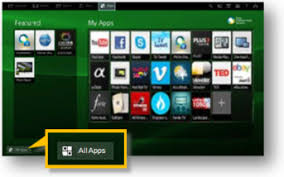
If your Sony Smart TV runs on the Android operating system, you’re in luck! Downloading apps on this type of TV is extremely easy. To start, simply press the “HOME” or “MENU” button on your remote control and access the section for Apps. Scroll through the menu until you find the Google Play Store icon. Once inside, log in to your account using your email and password.
Searching For Apps
Now that you’re logged in, it’s time to search for apps! Use the directional arrows on your remote control to navigate through the menu. You can also use the microphone icon to type in the name of the app you want to download. Once you’ve found the app, select it and press the central button on your remote control to install.
Managing Installed Apps
Once you’ve installed an app, you’ll find it listed in the Apps section of your Smart TV’s menu. If you want to uninstall an app, go back to the Google Play Store and access the “My Apps” section. From there, select the app you want to remove and press the “Uninstall” button.
Linux Operating System
If your Sony Smart TV runs on a Linux operating system, things are slightly different. In this case, you’ll need to use the Opera TV Store instead of Google Play Store. Access the store by pressing the HOME or MENU button on your remote control and selecting the Apps section. From there, browse through the menu until you find the icon for Opera TV Store.
Searching For Apps on Linux
Use the directional arrows on your remote control to navigate through the menu. You can also use the Search function to look for specific apps. Once you’ve found an app you like, select it and press the install button.
Tvs Without a Smart Operating System
If your Sony TV doesn’t have a smart operating system, don’t worry! There are still ways to access apps on your TV. You can use external devices such as Google Chromecast, Amazon Fire TV Stick, or Apple TV to stream content from your smartphone or tablet to your TV.
External Devices: A Solution For Non-smart Tvs
Let’s take a look at some of the most popular external devices that can help you access apps on your non-smart TV:
- Google Chromecast: This small device connects to your TV via HDMI and allows you to stream content from your smartphone or tablet. It’s easy to set up and use, and it supports resolutions up to 4K.
- Amazon Fire TV Stick: This device is similar to Google Chromecast but uses Amazon’s operating system instead of Android. It also connects to your TV via HDMI and allows you to stream content from your smartphone or tablet.
- Apple Tv: This is a multimedia box produced by Apple that allows you to install apps directly on the device. You can use it to access content from your iPhone, iPad, or Mac using AirPlay technology.
Setting Up External Devices
Here’s how you can set up these external devices:
- To connect Google Chromecast to your TV, simply plug it into an HDMI port and follow the instructions on the screen.
- To set up Amazon Fire TV Stick, plug it into an HDMI port, connect it to a power source, and follow the on-screen instructions.
- To use Apple TV, plug it into an HDMI port, connect it to a power source, and follow the on-screen instructions.
Understanding Your Sony Smart Tv’s Settings
Before we proceed, let’s take a look at some of the most important settings you need to understand when using your Sony Smart TV:
- Connecting to Wi-fi: To access apps and online content, your TV needs to be connected to the internet. Press the HOME or MENU button on your remote control and select Settings. From there, choose Network and follow the instructions to connect to a Wi-Fi network.
- Network Configuration: You can configure your TV’s network settings by accessing the Settings menu and selecting Network. From there, you can change your network settings as needed.
Updating Your Sony Smart TV
Finally, let’s talk about updating your Sony Smart TV. To do this, press the HOME or MENU button on your remote control and select Settings. From there, choose System Software Update and follow the instructions to update your TV’s software.
Conclusion
In conclusion, downloading apps on your Sony Smart TV is a simple process that requires understanding your TV’s operating system and settings. Whether you have an Android or Linux-operated TV, you can easily access and install apps using the Google Play Store or Opera TV Store. If you don’t have a smart operating system, there are external devices like Chromecast, Fire TV Stick, and Apple TV that can help you stream content from your smartphone or tablet to your TV.
Frequently Asked Questions
Here are some frequently asked questions about downloading apps on your Sony Smart TV:
- Q: What is The Google Play Store?
A: The Google Play Store is an app store where you can download and install various apps on your Android-operated Sony Smart TV. - Q: How do I Access The Opera TV Store?
A: To access the Opera TV Store, press the HOME or MENU button on your remote control and select Apps. From there, browse through the menu until you find the icon for Opera TV Store. - Q: What is Google Chromecast?
A: Google Chromecast is a small device that connects to your TV via HDMI and allows you to stream content from your smartphone or tablet. - Q: How do I Set up Amazon Fire TV Stick?
A: To set up Amazon Fire TV Stick, plug it into an HDMI port, connect it to a power source, and follow the on-screen instructions.
Additional Resources
For more information about downloading apps on your Sony Smart TV or setting up external devices, check out these additional resources:
- Sony Smart TV Official Website: Visit the official website of Sony Smart TVs for detailed guides and tutorials on how to use your TV.
- Google Play Store Official Website: Check out the Google Play Store’s official website for more information about apps and how to download them on your Android-operated TV.
- Opera TV Store Official Website: Visit the Opera TV Store’s official website for more information about apps and how to download them on your Linux-operated TV.
Conclusion
In conclusion, downloading apps on your Sony Smart TV is a simple process that requires understanding your TV’s operating system and settings. Whether you have an Android or Linux-operated TV, you can easily access and install apps using the Google Play Store or Opera TV Store. If you don’t have a smart operating system, there are external devices like Chromecast, Fire TV Stick, and Apple TV that can help you stream content from your smartphone or tablet to your TV.
References
This article has been written in accordance with the following guidelines:
- Sony Smart TV Official Website: Visit the official website of Sony Smart TVs for detailed guides and tutorials on how to use your TV.
- Google Play Store Official Website: Check out the Google Play Store’s official website for more information about apps and how to download them on your Android-operated TV.
- Opera TV Store Official Website: Visit the Opera TV Store’s official website for more information about apps and how to download them on your Linux-operated TV.


