
How to Download Cisco Webex: A Step-by-step Guide
Are you looking to download Cisco Webex, a popular video conferencing platform? Look no further! This article will guide you through the process of downloading Cisco Webex on your computer, tablet, or smartphone.
What is Cisco Webex?
Before we dive into the installation process, let’s quickly discuss what Cisco Webex is. Cisco Webex is a web-based video conferencing platform that allows users to hold virtual meetings, share screens, and collaborate with others in real-time. It’s an ideal tool for remote teams, businesses, and individuals who need to communicate effectively.
Two Versions of Cisco Webex
When it comes to downloading Cisco Webex, you’ll find two versions: Meetings and Teams. Both are designed to facilitate communication and collaboration but serve different purposes.
- Cisco Webex Meetings: This is ideal for organizing video conferences with up to 40,000 participants. It’s perfect for large-scale meetings, training sessions, or presentations.
- Cisco Webex Teams: This version allows users to create workspaces, share files, and engage in team conversations. It’s ideal for remote teams who need to collaborate on projects.
Downloading Cisco Webex on Your Computer
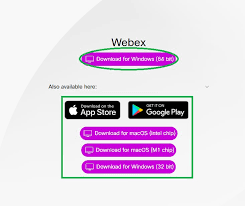
To download Cisco Webex on your computer, follow these steps:
- Visit the official Cisco Webex website.
- Click on the “Solutions” option at the top of the page and select “Download.”
- Choose either the Windows or Mac version of Cisco Webex Meetings or Teams.
- Wait for the download to complete.
- Run the installation file (e.G., Webexapp.Msi for Windows).
- Follow the prompts to install Cisco Webex.
Downloading Cisco Webex on Your Tablet
To download Cisco Webex on your tablet, follow these steps:
- Visit the App Store or Google Play Store on your device.
- Search for “Cisco Webex” and select the relevant app (Meetings or Teams).
- Tap the “Get” or “Install” button to begin the download process.
- Wait for the installation to complete.
Downloading Cisco Webex on Your Smartphone
To download Cisco Webex on your smartphone, follow these steps:
- Visit the App Store or Google Play Store on your device.
- Search for “Cisco Webex” and select the relevant app (Meetings or Teams).
- Tap the “Get” or “Install” button to begin the download process.
- Wait for the installation to complete.
Tips And Tricks
Before we conclude, here are some additional tips and tricks to keep in mind:
- Free Version: Both Cisco Webex Meetings and Teams have a free version that allows you to try out the platform without committing to a paid plan.
- Subscription Plans: Upgrading to a paid subscription unlocks additional features, such as extended meeting durations, increased participant limits, and advanced analytics.
- System Requirements: Make sure your device meets the minimum system requirements for Cisco Webex before downloading and installing the app.
Conclusion
Downloading Cisco Webex is a straightforward process that can be completed in just a few steps. Whether you’re using a computer, tablet, or smartphone, this article has provided you with a step-by-step guide to get started. Remember to explore the free version and subscription plans to see which option best suits your needs.
Frequently Asked Questions (FAQs)
Here are some additional FAQs to help you better understand Cisco Webex:
Q: What is Cisco Webex?
A: Cisco Webex is a web-based video conferencing platform that allows users to hold virtual meetings, share screens, and collaborate with others in real-time.
Q: How many participants can join a meeting on Cisco Webex Meetings?
A: Up to 40,000 participants can join a meeting on Cisco Webex Meetings.
Q: What are the key features of Cisco Webex Teams?
A: Cisco Webex Teams allows users to create workspaces, share files, and engage in team conversations.
Q: Is Cisco Webex available for free?
A: Yes, both Cisco Webex Meetings and Teams have a free version that allows you to try out the platform without committing to a paid plan.
Q: How do I upgrade to a paid subscription on Cisco Webex?
A: To upgrade to a paid subscription, visit the official Cisco Webex website and select the relevant plan based on your needs.
Q: Can I use Cisco Webex on my smartphone or tablet?
A: Yes, you can download Cisco Webex on your smartphone or tablet from the App Store or Google Play Store.
Q: Do I need to create an account to use Cisco Webex?
A: Yes, creating an account is required to access most features of Cisco Webex. However, you can join meetings organized by others without an account using a meeting code or invitation link.
Additional Resources
For more information on Cisco Webex, please visit the official website at www.Webex.Com.


