
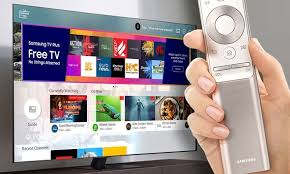
The Ultimate Guide to Downloading Dazn on Samsung Smart TV
Are you a sports enthusiast looking to catch up on your favorite teams and players? Do you have a Samsung Smart TV, but aren’t sure how to download the DAZN app? Look no further! In this article, we will guide you through the process of downloading DAZN on your Samsung Smart TV.
Why Choose Dazn?
DAZN is one of the leading sports streaming services available today. With a vast library of sports content, including live matches, highlights, and analysis, it’s the perfect platform for any sports fan. Whether you’re interested in football, basketball, tennis, or cycling, DAZN has got you covered.
System Requirements
Before we dive into the installation process, make sure your Samsung Smart TV meets the following system requirements:
- Your TV should be compatible with DAZN (check the official DAZN website for supported TVs)
- Your TV should have a stable internet connection
- You should have a valid DAZN subscription
Step 1: Connecting Your Samsung Smart TV to The Internet
To download and install the DAZN app, your Samsung Smart TV needs to be connected to the internet. Follow these steps:
- Press the Home button on your remote control
- Select Settings > General > Network
- Choose Wi-Fi or Ethernet as your connection type
- Enter your network password and select Connect
Step 2: Downloading The Dazn App
Once your TV is connected to the internet, follow these steps to download the DAZN app:
- Press the Home button on your remote control
- Select Apps > Samsung Apps Store
- Search for DAZN in the search bar
- Select the DAZN icon and click Install
Step 3: Activating Your Dazn Subscription
After installing the DAZN app, you’ll need to activate your subscription. Follow these steps:
- Open the DAZN app on your Samsung Smart TV
- Select Sign Up or Log In (if you already have a DAZN account)
- Enter your login credentials and select Next
- Follow the prompts to complete the activation process
Alternative Options For Non-smart Tvs
If your Samsung TV is not compatible with DAZN, don’t worry! There are alternative options available:
- Amazon Fire TV: You can use an Amazon Fire TV Stick or Cube to stream DAZN on your non-smart TV.
- Google Chromecast: This dongle allows you to stream content from your phone or tablet to your TV using Wi-Fi.
- Apple TV: If you’re an Apple fan, you can use the Apple TV media center to access DAZN and other streaming services.
Conclusion
Downloading DAZN on your Samsung Smart TV is a straightforward process that takes only a few minutes. Make sure your TV meets the system requirements, connect it to the internet, download the app, and activate your subscription. If you’re having trouble or don’t have a compatible TV, consider alternative options like Amazon Fire TV, Google Chromecast, or Apple TV.
Frequently Asked Questions
- Q: Do I Need a Samsung Smart TV to Watch Dazn?
A: No, you can use an Amazon Fire TV Stick or Cube, Google Chromecast, or Apple TV to stream DAZN. - Q: How Much Does a Dazn Subscription Cost?
A: Check the official DAZN website for pricing information. - Q: Can I Cancel my Dazn Subscription at Any Time?
A: Yes, you can cancel your subscription by contacting DAZN customer support. - Q: What Devices Are Compatible With Dazn?
A: Check the official DAZN website for a list of supported devices. - Q: Can I Use Dazn on Multiple Devices at Once?
A: Yes, you can use DAZN on multiple devices simultaneously using your single subscription. - Q: How do I Troubleshoot Issues With my Dazn App?
A: Check the official DAZN website for troubleshooting guides and contact customer support if needed.


