
How to Download Discord on Ps5: A Step-by-step Guide
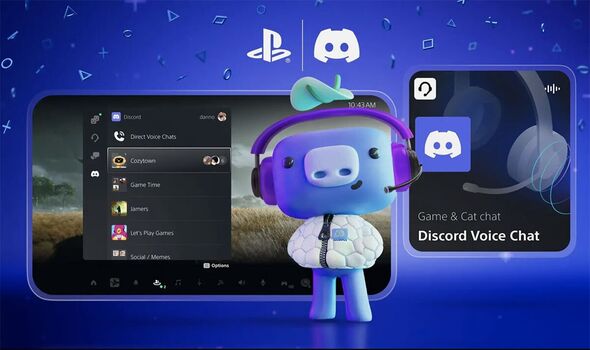
Are you a gamer looking to enhance your online gaming experience? Look no further than Discord, the popular communication platform designed specifically for gamers. In this article, we’ll guide you through the process of downloading and setting up Discord on your PlayStation 5 (PS5) console.
Why Use Discord on Ps5?
Discord is more than just a chat app – it’s a powerful tool that allows you to connect with friends, join communities, and participate in voice chats while gaming. With Discord on your PS5, you’ll be able to:
- Communicate with friends in real-time through voice or text
- Join servers and communities centered around specific games or interests
- Participate in voice chats and discussions while playing games
- Access a wide range of integrations and bots to enhance your gaming experience
System Requirements For Discord on Ps5
Before you begin, make sure you meet the following system requirements:
- A PlayStation 5 console with the latest firmware installed
- A stable internet connection (preferably wired)
- A compatible microphone (optional but recommended)
Step 1: Update Your Ps5 Console
To ensure compatibility and access to the latest features, update your PS5 console to the latest firmware version. To do this:
- Turn on your PS5 console.
- Navigate to the Settings menu by selecting the icon in the top-right corner of the screen.
- Choose System > Software Update.
- Select Update Software.
Step 2: Download And Install Discord
Discord is not available as a native app on the PS5, but you can still access it through other means. To download and install Discord:
- Open the Google Chrome browser on your PS5 console.
- Navigate to the official Discord website (www.Discord.Com).
- Click on the Download button to download the Discord app for your device (smartphone or PC).
- Install the app and log in with your Discord account.
Step 3: Connect Your Ps5 to Discord
To connect your PS5 console to Discord, follow these steps:
- Open the Discord app on your smartphone or PC.
- Tap on the three horizontal lines in the top-left corner of the screen (or click on them if you’re using a PC).
- Select Settings from the menu.
- Choose Links and then Add in the bottom-right corner of the screen.
- Select the service PlayStations Network from the list.
- Accept the terms and conditions to link your PS5 account to Discord.
Step 4: Join a Voice Channel on Your Ps5
Now that you’ve connected your PS5 console to Discord, it’s time to join a voice channel and start chatting with friends! To do this:
- Open the Discord app on your smartphone or PC.
- Navigate to the server where you want to join a voice channel.
- Click on the Join Voice Channel button.
- Select the PS5 console from the list of available devices.
- Tap on the Unisciti al #chiamata sulla PlayStation (Join the call on PlayStation) button.
Tips And Variations
- To light up your PS5 console remotely with Discord, ensure you’ve connected your account to Discord first. Then, when you’re ready to start gaming, access the Settings menu on your PS5 and select System > Energetic Saving > Available Functions in Rest Mode. Activate the option to qualify the lighting of the PS5 from the internet.
- You can use either a wired or wireless connection for your PS5 console, but a stable wired connection is recommended.
Conclusion
Downloading Discord on your PS5 console is a straightforward process that requires some basic setup and configuration. By following these steps, you’ll be able to enjoy seamless voice chats, join communities, and connect with friends while gaming. Don’t miss out on this opportunity to enhance your online gaming experience!
Frequently Asked Questions
Q: Why can’t I find Discord as a native app on my PS5 console?
A: Discord is not available as a native app on the PS5, but you can access it through other means, such as downloading the app from the official website.
Q: Can I use Discord with my existing PS4 account?
A: No, Discord requires a separate account to connect your PS5 console. However, you can still use your existing account for other purposes on the PS4.
Q: How do I troubleshoot issues connecting my PS5 console to Discord?
A: Check that your internet connection is stable and ensure that both your PS5 console and smartphone or PC are connected to the same network. Restarting the app and re-scanning for available devices might also resolve the issue.


