
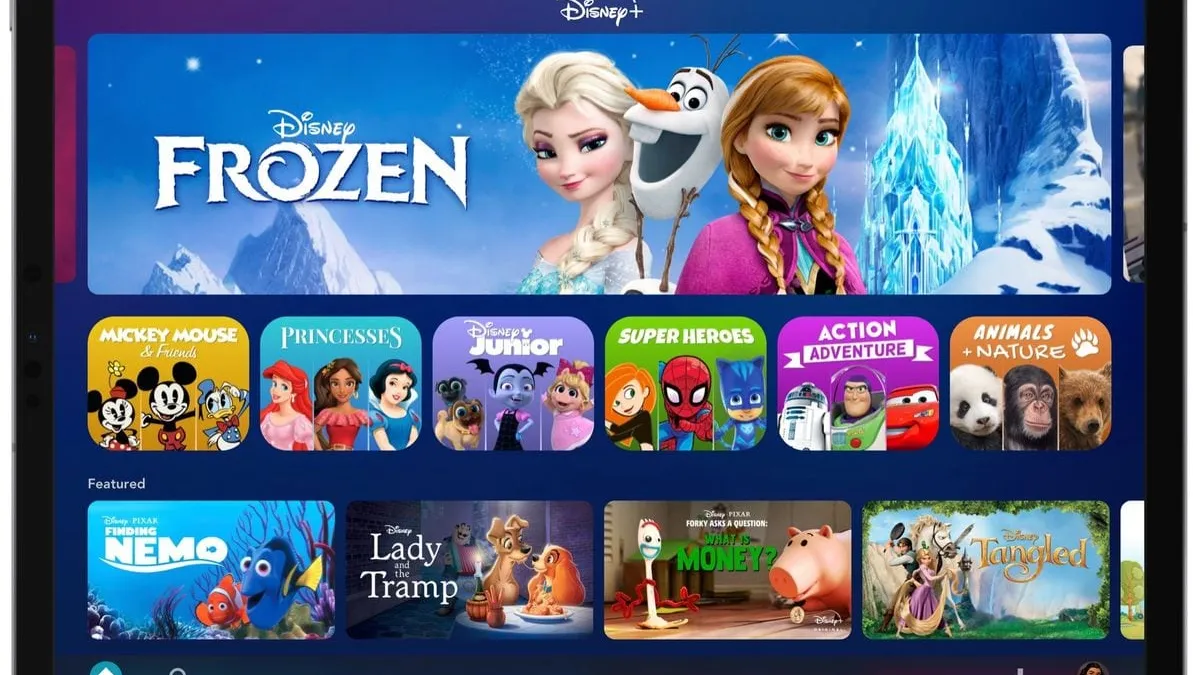
How to Download Disney+ App on All Your Devices: A Step-by-step Guide
Are you excited to join the world of Disney+, but not sure how to download the app on all your devices? Look no further! In this article, we’ll take you through a step-by-step guide on how to download and install the Disney+ app on your smartphone, tablet, PC, Smart TV, and other devices.
What is Disney+?
Before we dive into the installation process, let’s quickly talk about what Disney+ is. Disney+ is a streaming service that offers a wide range of movies, TV shows, and original content from Disney, Pixar, Marvel, Star Wars, National Geographic, and more. With Disney+, you can enjoy your favorite Disney classics, as well as exclusive new content, all in one place.
System Requirements For Disney+
Before installing the Disney+ app on your device, make sure that it meets the minimum system requirements:
- Smartphones: Android 5.0 Or later, iOS 12.0 Or later
- Tablets: Android 5.0 Or later, iOS 12.0 Or later
- Pcs: Windows 10 or macOS High Sierra (or later)
- Smart Tvs: Samsung Smart TV with Tizen OS (2016 or later), LG WebOS 3.0, Panasonic recent models, and most Android TV-based TVs
Downloading Disney+ App on Smartphone And Tablet
If you have a smartphone or tablet running Android or iOS, follow these steps to download the Disney+ app:
- For Android Devices: Go to the Google Play Store, search for “Disney+”, and install the app.
- For Ios Devices: Open the App Store, search for “Disney+”, and install the app.
Downloading Disney+ App on PC
Unfortunately, there is no native Disney+ app available for Windows or macOS. However, you can still access Disney+ through your browser:
- Open a web browser (e.G., Google Chrome, Mozilla Firefox) and navigate to the Disney+ website.
- If you already have an account, log in using your credentials. Otherwise, create a new account by clicking on “Subscribe” and following the prompts.
Downloading Disney+ App on Smart TV
If you have a compatible Smart TV (e.G., Samsung, LG, Panasonic), follow these steps to download the Disney+ app:
- For Samsung Tvs: Ensure your TV is connected to the internet. Press the Smart Hub button on your remote control, select “First Slowly,” and access the Applications menu. Select Disney+ and click OK.
- For LG Tvs: Make sure your TV is connected to the internet. Use your remote control to navigate to the LG Content Store, search for “Disney+”, and install the app.
- For Other Smart Tvs: Check your TV’s user manual or online documentation for instructions on how to download and install apps.
Downloading Disney+ App on Other Devices
If you have a set-top box (e.G., Apple TV), gaming console (e.G., PS4, Xbox One), or device with HDMI (e.G., Chromecast, Amazon Fire TV Stick), follow these steps:
- For Apple Tv: Download the Disney+ app from the App Store.
- For Ps4 And Xbox One: Search for “Disney+” in your device’s store and install the app.
Troubleshooting
If you encounter any issues during installation or playback, check the following:
- Ensure your device meets the minimum system requirements.
- Restart your device to ensure all apps are updated.
- Check your internet connection speed (minimum 25 Mbps required for Ultra HD streaming).
- Try reinstalling the Disney+ app.
Conclusion
Downloading and installing the Disney+ app on your devices is a straightforward process. With this guide, you should be able to enjoy your favorite Disney content across multiple platforms. If you have any further questions or concerns, feel free to ask in the comments below!
Frequently Asked Questions (FAQs)
- Q: What Are The System Requirements For Disney+?
A: Minimum system requirements include Android 5.0 Or later, iOS 12.0 Or later, Windows 10 or macOS High Sierra (or later), and compatible Smart TVs. - Q: Can I Download Disney+ on my Pc?
A: Yes, but only through the browser; there is no native app available for Windows or macOS. - Q: How do I Download Disney+ on my Smartphone or Tablet?
A: Search for “Disney+” in your device’s store (Google Play Store for Android, App Store for iOS) and install the app. - Q: What if I Have a Set-top Box or Gaming Console? Can I Still Use Disney+?
A: Yes, you can download the Disney+ app on compatible devices like Apple TV, PS4, Xbox One, and more. - Q: Do I Need to Subscribe to Disney+ Separately For Each Device?
A: No, with one subscription, you can access Disney+ on up to four devices simultaneously. - Q: Can I Cancel my Disney+ Subscription at Any Time?
A: Yes, you can cancel your subscription through the settings of your account at any time without penalty or obligation.
I hope this article has been helpful!


