
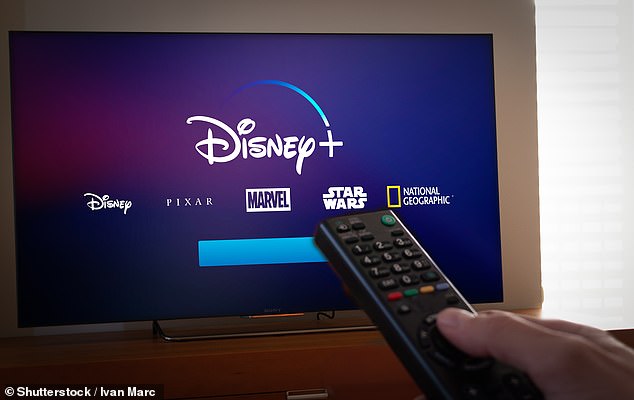
Disney+ on Smart TV Lg: A Step-by-step Guide
Are you eager to experience the magic of Disney+ on your Smart TV LG? You’re not alone! Millions of users worldwide have already discovered the joy of streaming their favorite Disney, Pixar, Marvel, and National Geographic content on this popular platform. In this article, we’ll guide you through the process of installing and using Disney+ on your Smart TV LG.
What is Disney+?
Disney+ is a streaming service that offers an extensive library of content from The Walt Disney Company, including classic films, recent releases, TV shows, and original content. With Disney+, you can enjoy all your favorite Disney movies and shows in one place, along with exclusive content not available on other platforms.
Compatible Devices
Before we dive into the installation process, let’s check if your Smart TV LG is compatible with Disney+. According to Disney+, their service supports a wide range of devices, including:
- Smart TVs: LG, Samsung, Sony, and others
- Streaming devices: Google Chromecast, Amazon Fire TV Stick, Apple TV, and more
- Gaming consoles: PlayStation 4, Xbox One
Installing Disney+ on Smart TV LG
To install Disney+ on your Smart TV LG, follow these steps:
- Check Compatibility: Ensure that your Smart TV LG is running the required version of webOS (3.0 Or later).
- Connect to Internet: Set up a stable internet connection using an Ethernet cable or Wi-Fi.
- Launch LG Content Store: Access the LG Content Store on your Smart TV by pressing the Home button and selecting the icon of a gear.
- Search For Disney+: Use the search bar to find the Disney+ app, or browse through the store’s categories to locate it.
- Install Disney+: Select the Disney+ app and click Install to download and install the application.
Using Disney+ on Smart TV LG
Now that you’ve installed Disney+, here’s how to use it:
- Create an Account: Sign up for a Disney+ account using your smartphone, tablet, or PC.
- Launch The App: Open the Disney+ app on your Smart TV LG and sign in with your credentials.
- Access Content: Browse through the various categories, including Disney, Pixar, Marvel, National Geographic, and more.
- Play Content: Select a title to play, and use the on-screen controls to adjust settings or pause playback.
Alternative Solutions
If you don’t have a compatible Smart TV LG or prefer not to use it, there are alternative solutions:
- Chromecast: Use a Google Chromecast device to stream Disney+ content from your smartphone or tablet to your TV.
- Amazon Fire TV Stick: Utilize an Amazon Fire TV Stick to access Disney+ on your TV.
- Apple TV: Stream Disney+ on Apple TV using the dedicated app.
Conclusion
Disney+ is an excellent streaming service that offers a vast library of content from various studios and networks. With this guide, you should now be able to install and use Disney+ on your Smart TV LG or explore alternative solutions. Happy streaming!
Frequently Asked Questions (FAQs)
- Q: What Devices Are Compatible With Disney+?
A: Disney+ supports a wide range of devices, including Smart TVs, streaming devices, gaming consoles, and more. - Q: Can I Use Disney+ on my Smartphone or Tablet?
A: Yes, you can download the Disney+ app on your mobile device to access content. - Q: Is Disney+ Available in my Region?
A: Check the official Disney+ website for availability in your area. - Q: How do I Cancel my Disney+ Subscription?
A: You can cancel your subscription by logging into your account on the Disney+ website or app. - Q: Can I Watch Disney+ Content Offline?
A: Yes, with a premium subscription, you can download content for offline viewing. - Q: Do I Need an Internet Connection to Use Disney+?
A: Yes, a stable internet connection is required to access and stream content from Disney+. - Q: Can I Share my Disney+ Account With Others?
A: You can create multiple profiles within your account, allowing family members or friends to access their own personalized content. - Q: What Types of Content Does Disney+ Offer?
A: Disney+ features a vast library of content, including classic films, recent releases, TV shows, and original content from Disney, Pixar, Marvel, National Geographic, and more.


