
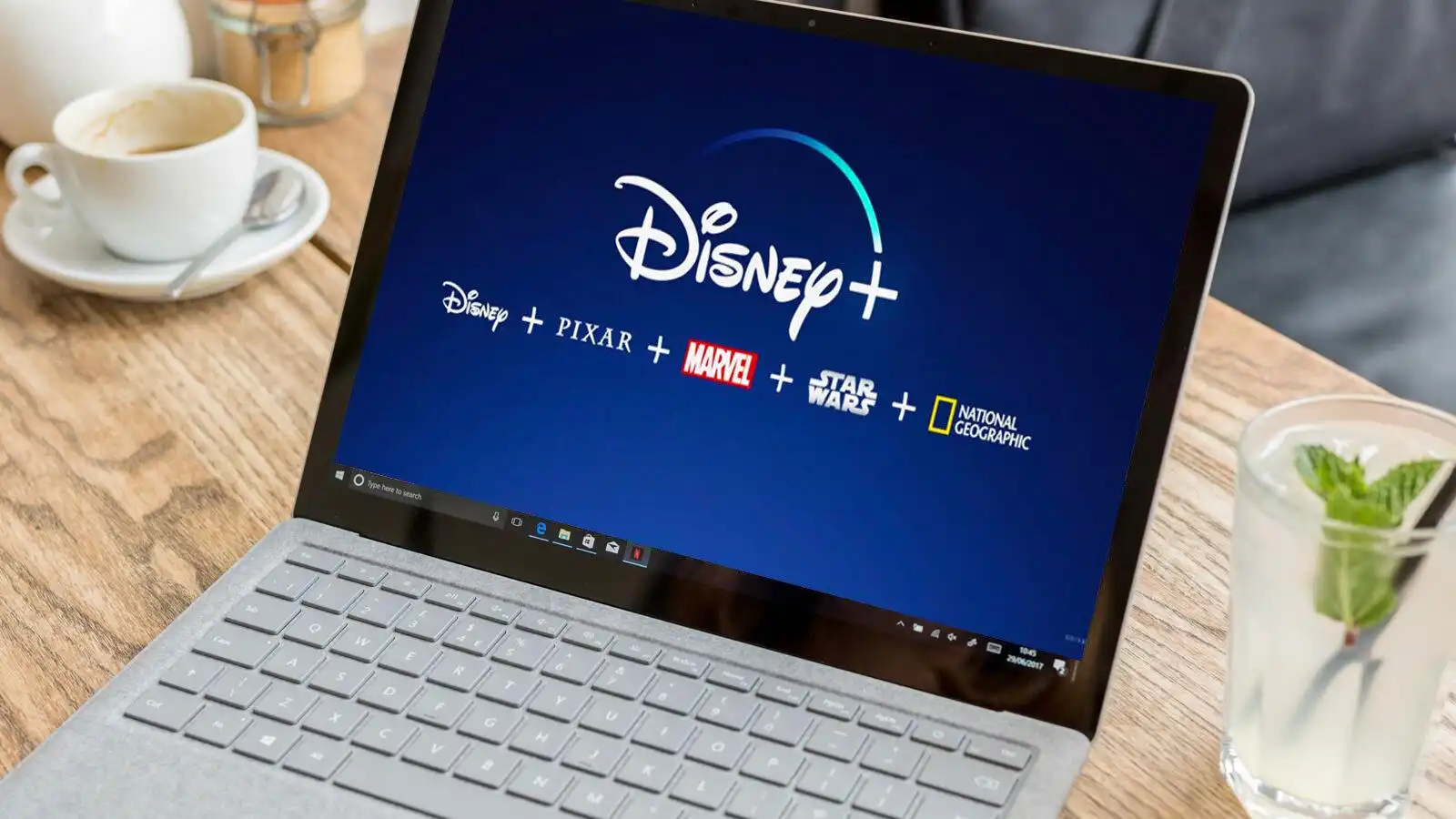
How to Download Disney+ on Pc: A Step-by-step Guide
Are you tired of streaming your favorite movies and shows on Disney+ through the browser? Do you want to access them directly from your desktop or laptop? Look no further! In this article, we will guide you through the process of downloading Disney+ on your Windows or macOS computer.
What You Need to Know Before Downloading
Before we dive into the installation process, it’s essential to understand that Disney+ offers two types of subscriptions: A standard plan and a premium plan. The standard plan costs €5.99 Per month and allows for 2 device support in HD quality. On the other hand, the premium plan costs €11.99 Per month and provides 4K UltraHD with HDR10 and Dolby Vision, as well as support for up to 4 devices.
Downloading Disney+ on Windows
If you have a Windows 10 or Windows 11 computer, you can easily download the Disney+ application using the Microsoft Store. Here’s how:
- Open the Microsoft Store by clicking on the icon in your desktop.
- Search for “Disney+” in the search bar and click on it when it appears.
- Click on the “Install” button to begin the installation process.
- Wait for the download and installation to complete, then click on “Open” to launch the application.
Downloading Disney+ on Mac
Unfortunately, there is no official Disney+ software available for macOS at this time. However, you can still access Disney+ through your browser. Here’s how:
- Open Safari or Google Chrome on your Mac.
- Go to the Disney+ website and click on the “Get Started” button.
- Follow the prompts to sign up for a Disney+ subscription.
- Once signed in, you’ll be able to access your account and start streaming.
Creating a Desktop Shortcut
If you want to create a shortcut to the Disney+ app on your desktop, follow these steps:
- Open Google Chrome on your Mac.
- Go to the Disney+ website and click on the three dots ⋮ in the top right corner.
- Click on “More tools” and then select “Create shortcut.”
- Name the shortcut as desired and click on “Create.”
Downloading Movies And Shows Offline
If you want to download movies and shows from Disney+ for offline viewing, you can use an emulator like BlueStacks or Android Studio. Here’s how:
- Download and install BlueStacks or Android Studio on your computer.
- Open the emulator and go to the Google Play Store.
- Search for “Disney+” and click on it when it appears.
- Click on the “Install” button to begin the installation process.
- Once installed, open the Disney+ app and sign in with your account credentials.
Tips And Tricks
- To create a shortcut to the Disney+ app on your desktop, follow the steps above.
- If you encounter any issues during the installation process, try restarting your computer or reinstalling the application.
- Make sure to have a stable internet connection to avoid any streaming problems.
Conclusion
Downloading Disney+ on PC is a straightforward process that can be completed in just a few minutes. Whether you’re using Windows or macOS, you can easily access your favorite movies and shows through the browser or by downloading the official app. Remember to create a shortcut to the app for easy access and enjoy your streaming experience!
Frequently Asked Questions
- Q: What is The Cost of a Disney+ Subscription?
A: The standard plan costs €5.99 Per month, while the premium plan costs €11.99 Per month. - Q: Can I Download Movies And Shows From Disney+ For Offline Viewing?
A: Yes, you can use an emulator like BlueStacks or Android Studio to download and install the Disney+ app and watch content offline. - Q: How do I Create a Shortcut to The Disney+ App on my Desktop?
A: Follow the steps above to create a shortcut to the Disney+ app on your Mac using Google Chrome. - Q: What if I Encounter Issues During The Installation Process?
A: Try restarting your computer or reinstalling the application to resolve any issues. - Q: Do I Need a Stable Internet Connection to Stream Content From Disney+?
A: Yes, you’ll need a stable internet connection to avoid streaming problems and ensure smooth playback. - Q: Can I Download Disney+ on my Mac Using Bluestacks or Android Studio?
A: No, these emulators are only compatible with Windows computers. - Q: How do I Sign up For a Disney+ Subscription?
A: Follow the prompts on the Disney+ website to sign up for a subscription and access your account. - Q: Can I Download Movies And Shows From Disney+ Using my Browser?
A: Yes, you can access Disney+ through your browser by going to the official website and signing in with your account credentials.


