
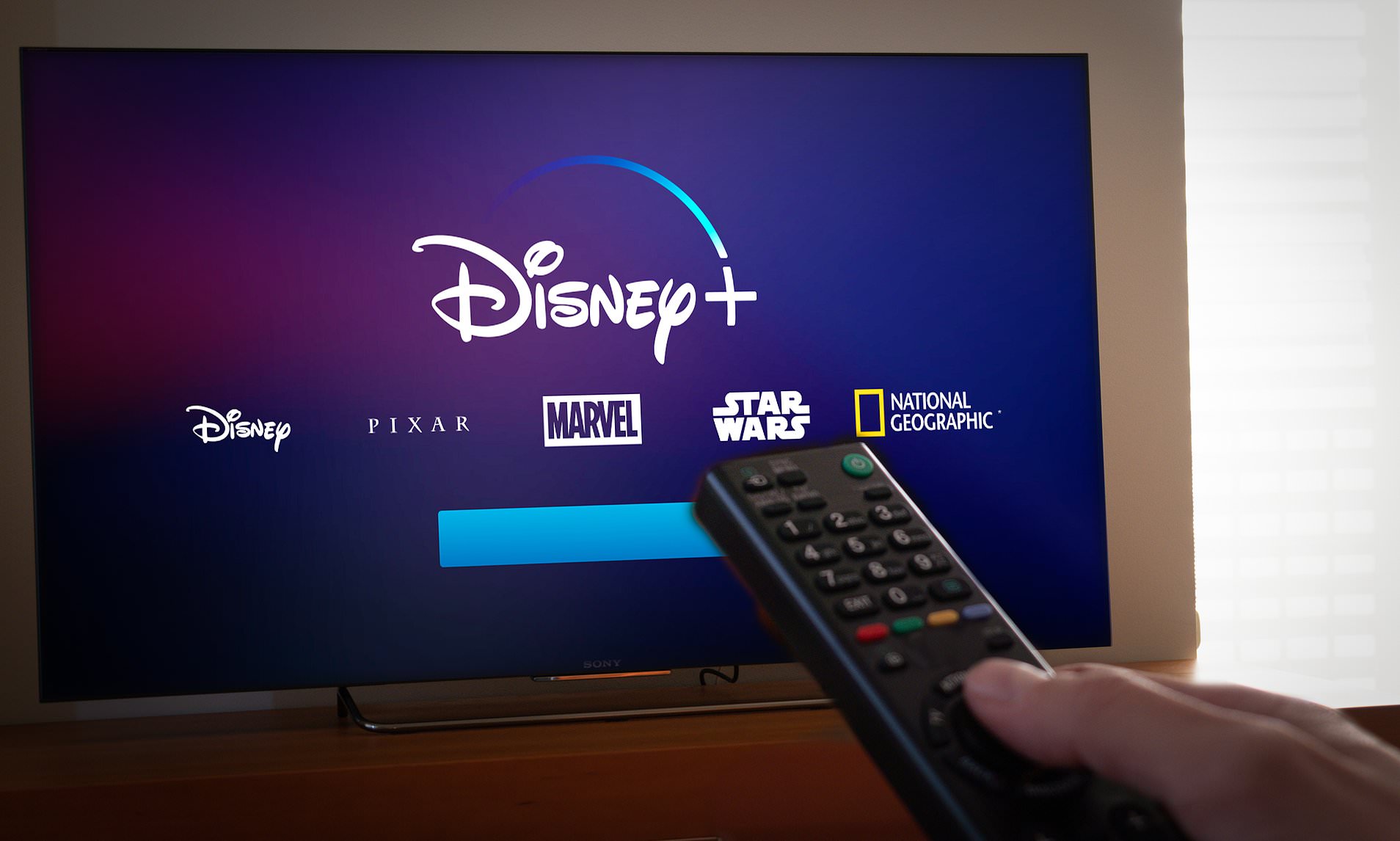
Disney+ on Smart TV Samsung: A Step-by-step Guide
Are you tired of watching Disney+ on your small phone screen? Do you want to enjoy a more immersive viewing experience on your large Smart TV Samsung? Look no further! In this article, we will guide you through the process of downloading and installing Disney+ on your Smart TV Samsung.
What is Disney+?
Disney+ is a streaming service that offers a vast collection of movies, TV shows, and documentaries from Disney, Pixar, Marvel, Star Wars, National Geographic, and more. With Disney+, you can enjoy all your favorite content in one place, including new releases and classic favorites.
Compatible Devices With Disney+
Before we dive into the installation process, let’s take a look at the compatible devices that support Disney+. These include:
- Smartphones (Android and iOS)
- Tablets (Android and iOS)
- Computers (Windows 10 and Windows 11)
- Smart TVs (Samsung, LG, Sony, and more)
- Streaming devices (Chromecast, Apple TV, Amazon Fire TV Stick)
Installing Disney+ on Your Smart TV Samsung
To install Disney+ on your Smart TV Samsung, follow these steps:
- Check if your TV is compatible with Disney+. Make sure it has the Tizen OS operating system and supports HD video.
- Go to the App Store on your TV and search for Disney+.
- Select the app from the search results and click “Install”.
- Wait for the installation process to complete.
- Once installed, open the Disney+ app and sign in with your account details.
Using Disney+ on Your Smart TV Samsung
Now that you have successfully installed Disney+, let’s explore how to use it:
- Open the Disney+ app on your Smart TV Samsung.
- Select the “Home” tab to access the main menu.
- Browse through the various categories, such as Movies, TV Shows, and Originals.
- Search for a specific content using the search bar.
- Add content to your watchlist or start playing it directly.
Alternative Solutions to Watch Disney+ on Your Smart TV Samsung
If you’re not satisfied with the installation process or if your Smart TV Samsung doesn’t support Disney+, don’t worry! There are alternative solutions that can help you enjoy Disney+ on your TV:
- Chromecast: A streaming device that allows you to cast content from your phone or computer to your TV.
- Amazon Fire TV Stick: A streaming device that offers a vast library of content, including Disney+.
- Apple TV: A streaming device that provides access to various apps, including Disney+.
Conclusion
In conclusion, downloading and installing Disney+ on your Smart TV Samsung is a straightforward process. With these step-by-step instructions, you can enjoy a more immersive viewing experience on your large screen. Don’t forget to explore the alternative solutions if you encounter any issues or if your TV doesn’t support Disney+. Happy streaming!
Frequently Asked Questions (FAQs)
- What Devices Are Compatible With Disney+?
- Smartphones, tablets, computers, smart TVs, and streaming devices.
- How do I Install Disney+ on my Smart TV Samsung?
- Check your TV’s compatibility, go to the App Store, search for Disney+, select the app, click “Install”, and wait for the process to complete.
- Can I Use Disney+ on Other Devices Besides my Smart TV Samsung?
- Yes, you can use Disney+ on smartphones, tablets, computers, and streaming devices.
- What Are Some Alternative Solutions to Watch Disney+ on my Tv?
- Chromecast, Amazon Fire TV Stick, Apple TV.
- How do I Sign in to my Disney+ Account?
- Open the Disney+ app, select “Home”, click on your profile icon, and follow the prompts to sign in with your account details.
- Can I Add Content to my Watchlist or Start Playing it Directly?
- Yes, you can add content to your watchlist by clicking the “+” icon or start playing it directly by clicking the play button.
- How do I Access The Settings Menu on Disney+?
- Open the Disney+ app, select “Home”, click on the three horizontal lines (menu) in the top-left corner, and select “Settings”.


