
How to Download And Install Ds4windows: A Step-by-step Guide
Are you tired of using a generic controller on your PC? Do you want to experience the thrill of playing games with a DualShock 4 controller? Look no further! In this article, we will guide you through the process of downloading and installing DS4Windows, a free software that allows you to use your PS4 or PS5 controller on Windows 10 and Windows 11.
What is Ds4windows?
DS4Windows is a software that emulates an Xbox controller, allowing you to use your DualShock 4 controller as if it were an Xbox controller. This means you can play games that are designed for the Xbox controller, but also have the option to use the keyboard and mouse in some games.
System Requirements
Before we begin, make sure your system meets the following requirements:
- Windows 10 or Windows 11
- A DualShock 4 controller (or other PS4/PS5 controller)
- Microsoft .NET 6.0 Desktop Runtime
Preliminary Steps
- Check if your controller is compatible with DS4Windows by visiting the official website and checking the list of supported controllers.
- If you haven’t already, install Microsoft .NET 6.0 Desktop Runtime from the official website.
Step 1: Downloading Ds4windows
- Visit the official DS4Windows website and click on the “Download” button.
- Select the latest version of the software and choose a location to save it.
- Wait for the download to complete, then extract the files to a folder on your computer.
Step 2: Installing Ds4windows
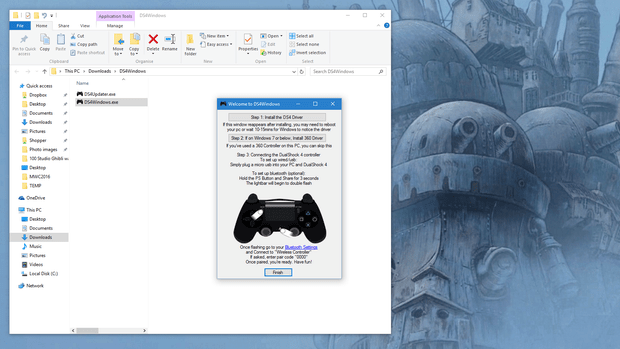
- Double-click on the file “DS4Windows.Exe” to start the installation process.
- Follow the prompts to install the software and driver.
- Make sure to accept the terms and conditions of use.
- Wait for the installation to complete, then restart your computer.
Step 3: Configuring Ds4windows
- Connect your controller to your PC via USB or Bluetooth.
- Open the DS4Windows interface and select your controller from the list.
- Configure the profiles and settings according to your preferences.
- Associate profiles with specific games for easy switching.
Step 4: Using Ds4windows
- Launch a game that supports the Xbox controller.
- Use your DualShock 4 controller as if it were an Xbox controller.
- If needed, switch between profiles or adjust settings using the DS4Windows interface.
Tips And Tricks
- Make sure to check for updates regularly to ensure compatibility with newer games.
- Experiment with different profiles and settings to find the best configuration for you.
- Visit the official support page if you encounter any issues during installation or use.
Conclusion
Downloading and installing DS4Windows is a straightforward process that allows you to experience gaming with your DualShock 4 controller on Windows 10 and Windows 11. Follow these steps, and you’ll be playing games like a pro in no time!
Frequently Asked Questions (FAQs)
- Q: Is Ds4windows Free?
A: Yes, DS4Windows is completely free to download and use. - Q: What Operating Systems Are Supported?
A: Windows 10 and Windows 11 are currently supported. - Q: Do I Need a Specific Controller?
A: A DualShock 4 or other PS4/PS5 controller is required for optimal performance. - Q: Can I Use Ds4windows With Multiple Controllers?
A: Yes, you can connect and configure multiple controllers using DS4Windows. - Q: Are There Any System Requirements?
A: A DualShock 4 controller, Windows 10 or Windows 11, and Microsoft .NET 6.0 Desktop Runtime are required. - Q: Can I Use The Keyboard And Mouse With Ds4windows?
A: Yes, some games allow you to use the keyboard and mouse in addition to the Xbox controller emulated by DS4Windows. - Q: Are There Any Compatibility Issues?
A: Visit the official support page for help with any issues or problems encountered during installation or use.


