
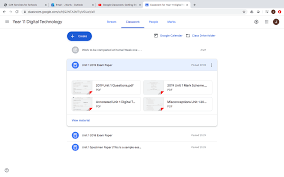
How to Download Files From Google Classroom: A Step-by-step Guide
Are you struggling to download files from Google Classroom? You’re not alone! Many students and teachers face this issue, but it’s easier than you think to resolve. In this article, we’ll guide you through the process of downloading files from Google Classroom using your computer, smartphone, or tablet.
Why Can’t I Download Files From Google Classroom?
Before we dive into the solution, let’s quickly address the issue at hand. Google Classroom has a limitation on file downloads, which can be frustrating for users who need to access certain files. However, this limitation is in place to prevent abuse and ensure that only authorized individuals have access to sensitive information.
Downloading Files From Google Classroom: A Step-by-step Guide
To download files from Google Classroom, follow these steps:
- Log in to Your Google Classroom Account: Make sure you’re logged in with the correct credentials.
- Access The Course Page: Navigate to the specific course where the file is located.
- Click on The File Name: Find the file you want to download and click on its name.
- Open The File Preview: You’ll see a preview of the file, which should include an option to download it.
- Select a Browser: Choose a compatible browser to open the file.
- Click on “Download”: Once you’ve selected a browser, click on the “Download” button.
- Save The File: The file will be saved to your computer or device.
Alternative Methods For Downloading Files
If the above method doesn’t work for you, try these alternative methods:
- Use The Google Drive App: If the file is shared with you via Google Drive, you can download it using the Google Drive app on your smartphone or tablet.
- Access The File Through a Link: If the file is shared with you via a link, you can click on the link to access it directly.
Troubleshooting Common Issues
Here are some common issues that might arise when trying to download files from Google Classroom:
- File Not Found: Make sure you’re accessing the correct course and file.
- Incorrect Permissions: Check if you have the necessary permissions to access the file.
- File Format Limitations: Be aware of any file format limitations on Google Classroom.
Best Practices For Downloading Files
To ensure smooth downloading experiences, follow these best practices:
- Use a Compatible Browser: Ensure that your browser is compatible with Google Classroom.
- Check Permissions: Verify that you have the necessary permissions to access and download files.
- Be Patient: Be prepared for potential delays or issues.
Conclusion
Downloading files from Google Classroom can be straightforward, but it’s essential to follow these guidelines and best practices. If you’re still experiencing issues, feel free to reach out to your teacher or school IT department for assistance.


