
How to Download Files From Google Drive: A Step-by-step Guide
Are you looking for a way to download files from Google Drive? Look no further! In this article, we will guide you through the process of downloading files from Google Drive on various devices, including PC and Mac, Android, iPhone and iPad, and even without an account.
Why Download Files From Google Drive?
Downloading files from Google Drive can be useful in various situations. For example, if you want to access a file offline or share it with someone who doesn’t have a Google account, downloading the file is a great option.
Downloading Files on PC And Mac
To download files from Google Drive on your computer, you can use either the web version of Google Drive or the desktop client for Windows and macOS.
- Using The Web Version:
- Go to the Google Drive website and sign in with your account.
- Navigate to the file you want to download and click on it.
- Click on the three dots at the top right corner of the file and select “Download”.
- Using The Desktop Client:
- Download and install the Google Drive desktop client for Windows or macOS.
- Launch the client and sign in with your account.
- Navigate to the file you want to download and click on it.
- Click on the three dots at the top right corner of the file and select “Download”.
Downloading Files on Android
To download files from Google Drive on your Android device, follow these steps:
- Using The Google Drive App:
- Open the Google Drive app on your device.
- Sign in with your account if you haven’t already.
- Navigate to the file you want to download and tap on it.
- Tap on the three dots at the top right corner of the file and select “Download”.
- Using The File Manager App:
- Open a file manager app like Files or Google Drive.
- Sign in with your account if you haven’t already.
- Navigate to the file you want to download and tap on it.
- Tap on the three dots at the top right corner of the file and select “Download”.
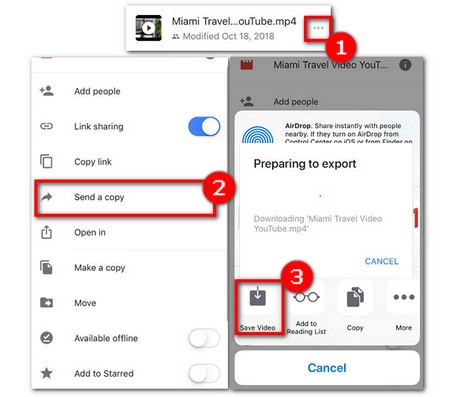
Downloading Files on Iphone And Ipad
To download files from Google Drive on your iPhone or iPad, follow these steps:
- Using The Google Drive App:
- Open the Google Drive app on your device.
- Sign in with your account if you haven’t already.
- Navigate to the file you want to download and tap on it.
- Tap on the share icon (a box with an arrow coming out of it) and select “Save to Files”.
- Choose a location to save the file.
Downloading Files Without an Account
To download files from Google Drive without an account, follow these steps:
- Using The Public Link:
- Go to the link of the file you want to download.
- Click on the arrow icon at the top right corner of the file and select “Download”.
- Using a File Sharing Service:
- Share the file with someone using a file sharing service like Google Drive or Dropbox.
Conclusion
Downloading files from Google Drive is a straightforward process that can be done on various devices, including PC and Mac, Android, iPhone and iPad, and even without an account. By following these steps, you’ll be able to access your files offline or share them with others.
Frequently Asked Questions (FAQs)
- Q: Can I Download All my Google Drive Files at Once?
A: Yes, you can download all your Google Drive files at once by selecting the “Download” option in the three dots menu. - Q: How do I Download a File From Google Drive on my Iphone or Ipad?
A: To download a file from Google Drive on your iPhone or iPad, open the Google Drive app, navigate to the file you want to download, and tap on it. Then, tap on the share icon and select “Save to Files”. - Q: Can I Download Files From Google Drive Without an Account?
A: Yes, you can download files from Google Drive without an account by using a public link or a file sharing service. - Q: How do I Download a Folder From Google Drive on my PC or Mac?
A: To download a folder from Google Drive on your PC or Mac, open the Google Drive desktop client and navigate to the folder you want to download. Then, click on the three dots at the top right corner of the folder and select “Download”. - Q: Can I Use The Google Drive App to Download Files?
A: Yes, you can use the Google Drive app to download files on Android devices. - Q: How do I Save a File From Google Drive to my Iphone or Ipad?
A: To save a file from Google Drive to your iPhone or iPad, open the Google Drive app, navigate to the file you want to save, and tap on it. Then, tap on the share icon and select “Save to Files”. - Q: Can I Download Files From Google Drive Without an Internet Connection?
A: Yes, you can download files from Google Drive without an internet connection by using the offline mode. - Q: How do I Forward a File From Google Drive to Someone Else?
A: To forward a file from Google Drive to someone else, open the Google Drive app, navigate to the file you want to forward, and tap on it. Then, tap on the share icon and select “Forward”.


