
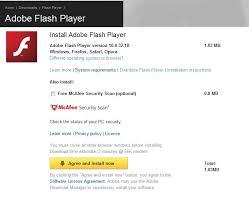
How to Download And Install Flash Player on Windows
If you’re experiencing problems with online gambling due to a fault in your browser’s Flash Player plugin, don’t worry! This article will guide you through the process of downloading and installing Flash Player on your PC.
Why Do I Need Flash Player?
Flash Player is a plugin that allows websites to display animations, videos, and interactive content. If your browser doesn’t have Flash Player installed or it’s not functioning correctly, you may encounter issues with online games and videos.
Is Flash Player Still Available?
Unfortunately, Adobe has announced the end of life for Flash Player on January 12, 2021. This means that Flash-based content will no longer be supported, and it’s highly recommended to uninstall the software. However, in this article, we’ll provide you with step-by-step instructions on how to download and install Flash Player.
How to Download And Install Flash Player on Windows
Using Microsoft Edge
If you’re using Microsoft Edge as your browser, you don’t need to download or install Flash Player separately. The browser already includes the plugin.
To Enable or Disable Flash Player in Edge:
- Click on the three dots in the top right corner of the browser.
- Select “Settings” from the menu.
- Scroll down to the “Advanced” section.
- Click on “View advanced settings.”
- Under “Content,” toggle the switch next to “Use Adobe Flash Player” to enable or disable it.
Using Internet Explorer
If you’re using Internet Explorer as your browser, follow these steps:
- Go to the Adobe Flash Player download page.
- Click on the “Install now” button.
- Select “Save” to save the installation file.
- Open the downloaded file and click on “Yes” to install it.
How to Download And Install Flash Player on Mac
Using Safari, Firefox, or Opera
If you’re using Safari, Firefox, or Opera as your browser on a Mac, follow these steps:
- Go to the Adobe Flash Player download page.
- Click on the “Download now” button.
- Select “Save” to save the installation file in DMG format.
- Double-click on the DMG file and click on “Install Adobe Flash Player.”
- Enter your password to authenticate the installation.
How to Install Flash Player on Chrome
Chrome has Adobe Flash Player built-in, so you don’t need to download or install it separately. However, if you want to enable or disable it, follow these steps:
- Type
chrome://Settings/contentin the address bar. - Scroll down to the “Flash” section.
- Select either “Ask before running Flash” or “Blocked (recommended)” depending on your preference.
Troubleshooting Issues With Flash Player
If you’re experiencing problems with Flash Player, try uninstalling and reinstalling it. You can also check for updates by going to the Adobe Flash Player download page.
How to Uninstall Flash Player
- Go to the Adobe Flash Player uninstaller page.
- Download the uninstaller file.
- Run the uninstaller file and follow the prompts to remove Flash Player from your system.
Conclusion
Downloading and installing Flash Player on Windows or Mac is a relatively simple process. However, keep in mind that Flash-based content will no longer be supported, and it’s highly recommended to uninstall the software. If you’re experiencing issues with online games or videos, try updating your browser or using an alternative plugin like Puffin Web Browser.
Frequently Asked Questions (FAQs)
- Q: Why do I Need Flash Player?
A: Flash Player is required for certain types of interactive content to work correctly. - Q: Is Flash Player Still Available?
A: Unfortunately, Adobe has announced the end of life for Flash Player on January 12, 2021. - Q: How do I Download And Install Flash Player on Windows?
A: Follow the steps provided in this article to download and install Flash Player using Microsoft Edge or Internet Explorer. - Q: How do I Download And Install Flash Player on Mac?
A: Follow the steps provided in this article to download and install Flash Player using Safari, Firefox, or Opera. - Q: What if I’m Experiencing Issues With Flash Player?
A: Try uninstalling and reinstalling Flash Player or check for updates by going to the Adobe Flash Player download page. - Q: Can I Use an Alternative Plugin Like Puffin Web Browser?
A: Yes, you can use an alternative plugin like Puffin Web Browser to access interactive content that requires Flash Player. - Q: Is it Safe to Uninstall Flash Player?
A: Yes, it’s highly recommended to uninstall Flash Player due to security concerns.
I hope this article has been helpful in answering your questions about downloading and installing Flash Player on Windows or Mac. If you have any further questions, please don’t hesitate to ask!


