
The Ultimate Guide to Downloading Files With Mirc: A Step-by-step Tutorial
Are you tired of searching for the perfect program to download files from the internet? Look no further than mIRC, a historical and user-friendly program that has been evolving since 1988. In this article, we will guide you through the process of downloading files using mIRC, including configuring the program, connecting to servers, and accessing channels.
What is Mirc?
MIRC is a Windows-based program that allows users to access and interact with Internet Relay Chat (IRC) networks. With mIRC, you can join channels, chat with other users, and download files from the server. While mIRC may not be free, it offers a 30-day trial period before requiring a license purchase.
Configuring Mirc
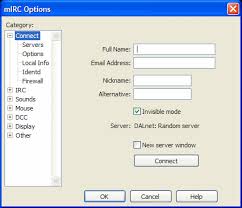
To begin downloading files with mIRC, first install the program on your computer by visiting the official website and clicking on the “Download” button. Once installed, follow these steps to configure mIRC:
- Initiate Mirc: Open mIRC and click on the “Connect” button.
- Access Options: Click on the hammer icon in the top-left corner of the screen to access the Options menu.
- Select Dcc: In the lateral bar, select the “DCC” option and ensure that the checkbox beside it is selected.
- Choose Download Folder: Expand the “DCC” menu and select the “Folders” option. Choose a folder to save downloaded files.
Connecting to Servers
To download files with mIRC, you need to connect to an IRC server. Here are some popular servers in Italy:
- OceanIRC (irc.OceanIRC.Net)
- DevilIRC (irc.Devilirc.Net)
To connect to a server:
- Access Options: Click on the hammer icon to access the Options menu.
- Connect: Select the “Servers” option and click on the “Add” button.
- Enter Server Details: Enter the server address, name, and description.
- Connect to Server: Double-click on the server’s name in the Servers list.
Accessing Channels
Once connected to a server, you can access channels by typing the command “/list”. This will display a list of available channels. To join a channel, double-click on its name.
Downloading Files With Mirc
To download files from a channel:
- Search For Files: Type the command “!list” and follow the link to search for files.
- Select File: Double-click on the file you want to download.
- Choose Bot: Select the bot that will provide the file.
- Initiate Download: The bot will automatically send a command to mIRC to initiate the download.
Alternative Options
If downloading files with mIRC seems too complicated, consider using XDCC Downloader, a free program for Windows, macOS, and Linux that allows you to search and download files from popular IRC servers in Italy. To download XDCC Downloader:
- Visit Official Website: Visit the official website of XDCC Downloader.
- Select Operating System: Choose your operating system (Windows or macOS).
- Download And Install: Download and install the program.
Conclusion
Downloading files with mIRC may seem daunting at first, but by following these steps, you can easily access channels, search for files, and initiate downloads. With mIRC, you have a powerful tool at your disposal to explore IRC networks and download files quickly and efficiently.
Frequently Asked Questions (FAQs)
- Q: What is The Cost of Purchasing a License For Mirc?
A: The cost of purchasing a license for mIRC is $20. - Q: Can I Use Mirc Without Purchasing a License?
A: Yes, you can use mIRC without purchasing a license, but you will be prompted to purchase one after the 30-day trial period. - Q: How do I Configure Mirc to Download Files Automatically?
A: To configure mIRC to download files automatically, follow the steps outlined in this article. - Q: What Are Some Popular Irc Servers in Italy?
A: Some popular IRC servers in Italy include OceanIRC and DevilIRC. - Q: Can I Use Xdcc Downloader on a Mac?
A: Yes, you can use XDCC Downloader on a Mac by downloading the program from the official website and following the installation instructions. - Q: How do I Search For Files in Mirc?
A: To search for files in mIRC, type the command “!list” and follow the link to search for files. - Q: Can I Use Mirc on a Mac or Linux System?
A: No, mIRC is only available for Windows systems. - Q: What Are The System Requirements For Xdcc Downloader?
A: The system requirements for XDCC Downloader include a Windows, macOS, or Linux system with an internet connection.
Note: Always respect copyright laws when downloading files from the internet.


