
How to Download Netflix Videos Offline: A Step-by-step Guide
Are you a movie buff or a fan of TV shows who loves watching Netflix content on-the-go? Do you often find yourself without internet access, but still want to enjoy your favorite shows and movies? Look no further! In this article, we will show you how to download Netflix videos offline using various devices.
What You Need to Know Before Downloading Netflix Videos Offline
Before diving into the step-by-step guide, here are some essential things you need to know:
- Compatibility: Not all devices support downloading Netflix content offline. Currently, only Android 4.4.2 And later versions, iOS/iPadOS 9 and later, and Amazon Fire TV with Fire OS 4.0 Or later can download videos.
- Subscription Type: Depending on your subscription plan, you may be able to download videos on multiple devices. With the Basic plan, you can download on one device; with Standard, two devices are allowed; and Premium allows up to four devices.
- Content Availability: Not all Netflix content is available for offline viewing. Some titles might not be downloadable due to licensing issues.
Downloading Netflix Videos Offline on Android Devices
To download Netflix videos offline on your Android device:
- Open the Netflix app, either from the Google Play Store or an alternative store if you don’t have access to the Google ecosystem.
- If you haven’t already, log in with your credentials.
- Navigate to the menu and select “Download” (if it’s not available, check if you’re on a compatible device).
- Choose the content you wish to download by going into the details page of the title. Tap on the “Locandina” button and then “Download.”
- For series, only the first episode can be downloaded initially. To download subsequent episodes, go back to the show’s menu and tap on the arrow icon at the bottom.
Downloading Netflix Videos Offline on Ios/ipados Devices
To download Netflix videos offline on your iPhone, iPad, or iPod Touch:
- Open the Netflix app.
- Log in with your credentials if prompted.
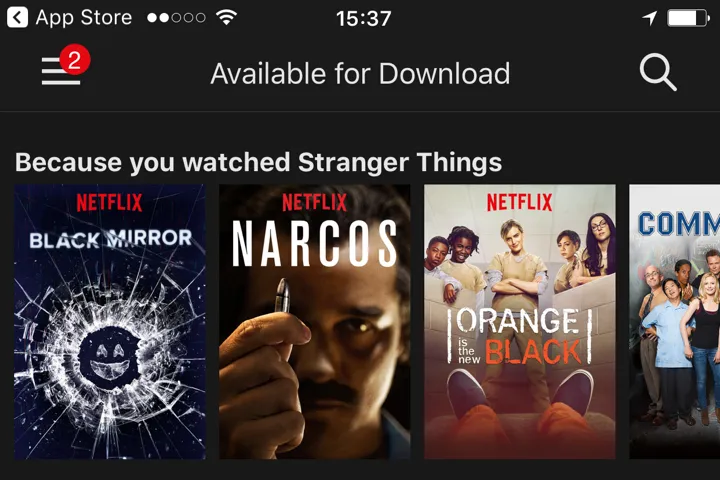
- Select “Downloads” from the menu.
- Choose the content you wish to download by going into the details page of the title. Tap on the “Download” button.
Downloading Netflix Videos Offline on Smart Tvs And Devices
Unfortunately, as of now, downloading Netflix videos offline is not possible directly through the app on smart TVs, game consoles, or Blu-ray readers. However, you can download content on a compatible device (like an Android tablet or smartphone) and then watch it on your TV by casting from that device.
Is It Possible to Download Netflix Videos Offline on Pc?
While there’s no direct way to download Netflix content for offline viewing on a Windows PC, using the Microsoft Store app might seem like an option. However, as of now, even this method doesn’t allow downloading videos in local mode.
Can You Download Netflix Videos Offline on Tv?
Currently, it is not possible to download Netflix content directly through the app on Smart TVs or other viewing devices like Sky Q or Blu-ray readers. However, you can use a compatible device and then cast it onto your TV.
What About Usb Devices?
Unfortunately, due to licensing restrictions and DRM protection, it’s not feasible or legal to download Netflix videos directly onto a USB stick for offline viewing.
Conclusion
Downloading Netflix content for offline viewing is a convenient option for users with compatible devices. Remember that availability might vary based on your subscription plan and the specific titles in question. Always check compatibility and subscription rules before attempting to download your favorite shows and movies.
Frequently Asked Questions (FAQs)
-
Q: Can I download Netflix videos offline if I have a Mac or other non-compatible device?
A: Unfortunately, no direct method exists for downloading Netflix content on non-compatible devices. -
Q: How many devices can I download Netflix content on?
A: This depends on your subscription plan: Basic allows one device, Standard up to two, and Premium up to four. -
Q: Will downloaded content be available only on my primary account?
A: Yes, downloaded content is viewable only on the device where it was initially downloaded. -
Q: Can I download any Netflix title for offline viewing?
A: Not all titles are downloadable due to licensing restrictions. -
Q: How many downloads can I store in my vault?
A: You have a storage limit of 100 downloads, and each piece of content will automatically delete after the specified license time (usually within seconds). -
Q: Are there any specific requirements for devices that support offline viewing?
A: Yes, Android devices must be on version 4.4.2 Or later, while iOS/iPadOS devices require version 9 or later. -
Q: Can I use a USB device to download Netflix content?
A: No direct method exists due to DRM protection and licensing issues. -
Q: How do I delete downloaded content from my device?
A: On Android, go into the Downloads section and press the pencil icon; on iOS/iPadOS, simply tap “Delete” within the Download menu.


