
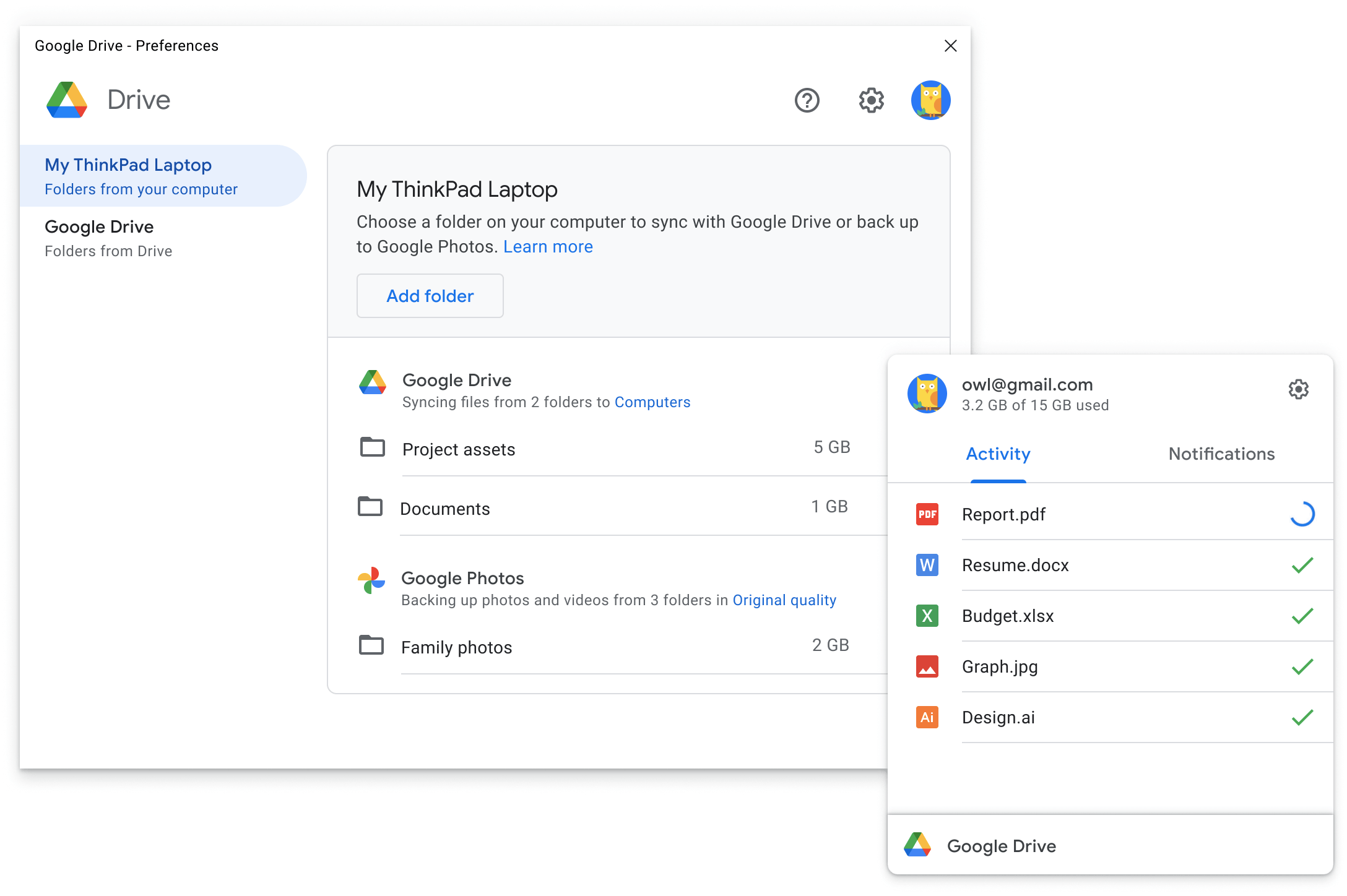
The Ultimate Guide to Downloading Google Drive
Are you tired of juggling multiple devices and struggling to access your files online? Look no further! In this article, we’ll show you how to download Google Drive on your PC, Android device, or iPhone/iPad.
What is Google Drive?
Google Drive is a cloud storage service that allows you to store, access, and share files across various devices. With Google Drive, you can upload, edit, and collaborate on files in real-time, making it an essential tool for individuals and businesses alike.
Why Download Google Drive?
There are several reasons why you should download Google Drive:
- Access Your Files Anywhere: With Google Drive, you can access your files from any device with an internet connection.
- Collaborate in Real-time: Invite others to edit your files, and collaborate on projects in real-time.
- Free Storage Space: Get started with 15GB of free storage space, expandable up to 100TB.
Downloading Google Drive: A Step-by-step Guide
PC (Windows)
- Visit the official Google Drive website (www.Drive.Google.Com) and click on the “Download Drive for desktop” button.
- Run the installer file, follow the prompts to install Google Drive, and sign in with your Google account.
Android
- Open the Play Store app and search for “Google Drive”.
- Click on the Google Drive icon and tap the “Install” button.
- Wait for the installation process to complete, then tap the “Open” button to access Google Drive.
Iphone/ipad (iOS)
- Open the App Store app and search for “Google Drive”.
- Tap the Google Drive icon and click the “Get” button.
- Wait for the installation process to complete, then tap the “Open” button to access Google Drive.
Tips And Tricks
- To download Google Drive on multiple devices, follow the same steps as above.
- Make sure you’re signed in with your Google account to access your files across devices.
- Use the Google Drive app to upload, edit, and collaborate on files directly from your device.
Troubleshooting
- If you encounter any issues during installation or sign-in, try restarting your device and attempting the process again.
- Ensure that your device meets the minimum system requirements for Google Drive.
Conclusion
Downloading Google Drive is a simple process that can be completed in just a few steps. By following this guide, you’ll be able to access your files anywhere, collaborate with others in real-time, and enjoy free storage space. Don’t hesitate to reach out if you have any further questions or concerns!
Frequently Asked Questions
- Q: What is Google Drive?
A: Google Drive is a cloud storage service that allows you to store, access, and share files across various devices. - Q: Why Should I Download Google Drive?
A: You can access your files anywhere, collaborate in real-time, and enjoy free storage space with Google Drive. - Q: What Are The System Requirements For Google Drive on Pc/android/iphone?
A: Please refer to the official Google Drive website or the device manufacturer’s documentation for system requirements. - Q: Can I Download Google Drive on Multiple Devices?
A: Yes, you can download and install Google Drive on multiple devices with your Google account. - Q: How do I Access my Files Across Devices?
A: Sign in with your Google account to access your files across devices using the Google Drive app. - Q: What Happens if I Encounter Issues During Installation or Sign-in?
A: Try restarting your device and attempting the process again; ensure that your device meets the minimum system requirements for Google Drive.
Stay Connected With Us!
Follow us on social media to stay up-to-date on the latest technology news, tips, and tricks!


