
How to Download Google Maps on Your Smartphone or Tablet
Are you tired of getting lost in unfamiliar territories? Do you want to navigate through streets and roads with ease? Look no further than Google Maps, the ultimate mapping service that has become an essential tool for many of us. In this article, we will guide you on how to download Google Maps on your smartphone or tablet, regardless of whether you have an Android or iOS device.
Why Download Google Maps?
Google Maps is a powerful tool that offers a wide range of features, including:
- Turn-by-turn Directions: Get the most up-to-date and accurate directions to any location.
- Street View: Explore streets and roads through 360-degree photos.
- Live Traffic Updates: Avoid congested areas and plan your route accordingly.
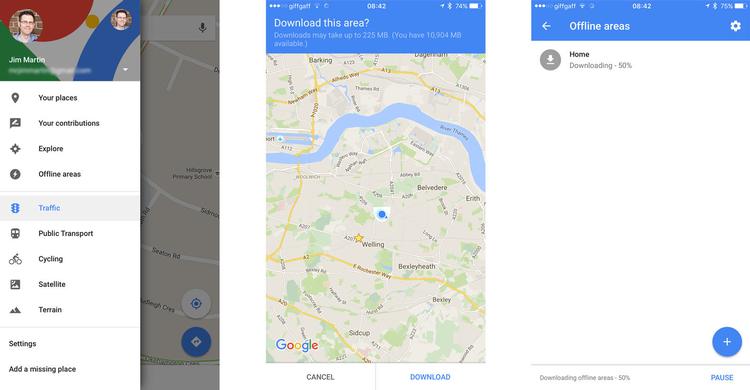
- Offline Access: Download maps for offline use, perfect for areas with poor internet connectivity.
Downloading Google Maps on Android
If you have an Android device, follow these steps to download Google Maps:
- Open The Play Store: Go to the Google Play Store app on your device and log in with your Google account.
- Search For Google Maps: Type “Google Maps” in the search bar and select the app from the results.
- Install The App: Tap the “Install” button to download and install Google Maps.
- Open The App: Once installed, tap the “Open” button to launch the app.
Downloading Google Maps on Ios
If you have an iPhone or iPad, follow these steps to download Google Maps:
- Open The App Store: Go to the Apple App Store app on your device and log in with your Apple ID.
- Search For Google Maps: Type “Google Maps” in the search bar and select the app from the results.
- Get The App: Tap the “Get” button to download and install Google Maps.
- Open The App: Once installed, tap the “Open” button to launch the app.
Using Google Maps on Your Device
Once you have downloaded Google Maps on your device, follow these steps to get started:
- Launch The App: Tap the Google Maps icon to open the app.
- Grant Permissions: Allow the app to access your location and other necessary permissions.
- Search For a Location: Type the name of a location or business in the search bar to find its address and directions.
- Get Directions: Select the “Directions” option to get turn-by-turn instructions to your destination.
Tips And Variations
- Save Maps Offline: Download maps for areas with poor internet connectivity by tapping the “Offline mode” button.
- Use Street View: Explore streets and roads through 360-degree photos by tapping the Street View icon.
- Report Incidents: Report accidents, road closures, or other incidents to help improve the app’s accuracy.
Conclusion
Downloading Google Maps on your smartphone or tablet is a straightforward process that can be completed in just a few minutes. With its powerful features and user-friendly interface, Google Maps has become an essential tool for many of us. Whether you’re navigating through unfamiliar territories or simply want to get directions to your favorite restaurant, Google Maps has got you covered.
Frequently Asked Questions (FAQs)
- Q: Can I Download Google Maps on my Computer?
A: Yes, you can use Google Maps on your computer by visiting the official website. - Q: Do I Need a Google Account to Use Google Maps?
A: No, you don’t need a Google account to use Google Maps, but it’s recommended for easier navigation and access to features. - Q: Can I Use Google Maps Offline?
A: Yes, you can save maps for offline use on your device by downloading them in advance. - Q: Is Google Maps Available on All Devices?
A: Yes, Google Maps is available on most smartphones and tablets, including Android and iOS devices. - Q: Can I Report Incidents or Issues With Google Maps?
A: Yes, you can report accidents, road closures, or other incidents to help improve the app’s accuracy. - Q: Is Google Maps Free to Use?
A: Yes, Google Maps is free to use, and you don’t need to pay for any features or subscriptions. - Q: Can I Use Google Maps on my Tablet?
A: Yes, Google Maps can be used on most tablets, including Android and iOS devices. - Q: Do I Need a Specific Operating System to Use Google Maps?
A: No, you don’t need a specific operating system to use Google Maps, as it’s available on most smartphones and tablets.
I hope this article has been helpful in guiding you through the process of downloading Google Maps on your smartphone or tablet. If you have any further questions or concerns, please don’t hesitate to ask!


