
How to Download Maps With Google Maps: A Step-by-step Guide
Are you tired of relying on internet connectivity to navigate unfamiliar territories? Do you want to explore new places without worrying about data consumption or poor signal strength? Look no further! In this article, we’ll show you how to download maps with Google Maps on your smartphone, tablet, and PC.
The Benefits of Downloading Maps
Downloading maps with Google Maps can be a game-changer for anyone who loves exploring new places. By saving maps offline, you can:
- Avoid data consumption when navigating unfamiliar areas
- Save battery life by reducing the need for internet connectivity
- Access detailed maps even in areas with poor signal strength
- Plan your route more effectively with offline access to street names and points of interest
Downloading Maps on Android Devices
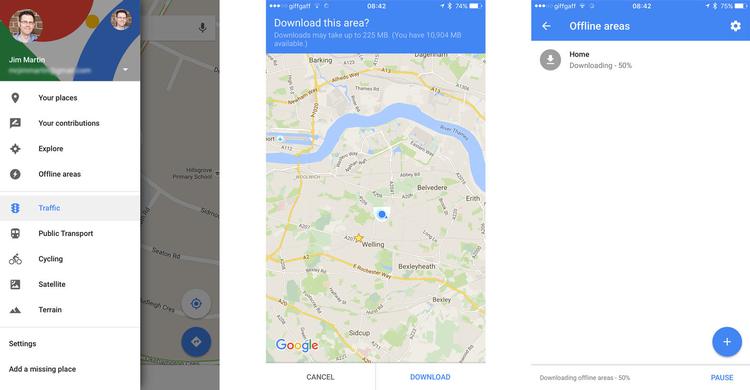
If you’re using an Android device, downloading maps is a breeze. Here’s how:
- Open Google Maps: Launch the Google Maps app on your Android device.
- Tap on Your Profile Icon: Tap on the profile icon in the top right corner of the screen.
- Select ‘Maps Offline’: Choose ‘Maps offline’ from the menu.
- Choose a Map: Select the map you want to download and tap on ‘Download’.
- Wait For The Download to Complete: The app will download the map, which may take a few minutes depending on your internet connection.
Downloading Maps on Ios Devices
If you’re using an iOS device, the process is similar:
- Open Google Maps: Launch the Google Maps app on your iPhone or iPad.
- Tap on Your Profile Icon: Tap on the profile icon in the top right corner of the screen.
- Select ‘Maps Offline’: Choose ‘Maps offline’ from the menu.
- Choose a Map: Select the map you want to download and tap on ‘Download’.
- Wait For The Download to Complete: The app will download the map, which may take a few minutes depending on your internet connection.
Downloading Maps on PC
Unfortunately, downloading maps directly on Google Maps is not possible on PC. However, you can export maps from Google Earth or use alternative methods:
- Export Maps From Google Earth: Open Google Earth and navigate to the area you want to download.
- Click on ‘File’ > ‘Save As’: Choose a location to save the map and select a format (e.G., PNG, JPEG).
- Download Maps With Google Maps Web Interface: You can also export maps from the Google Maps web interface by clicking on the ‘Print’ button.
Tips And Tricks
- Make sure you have enough storage space on your device before downloading maps.
- Downloading maps may take some time depending on the size of the map and your internet connection.
- You can update downloaded maps by tapping on the three dots next to the map title in Google Maps.
- If you’re using an iOS device, you can also use the ‘Save Image’ feature to save a screenshot of the map.
Conclusion
Downloading maps with Google Maps is a simple and effective way to explore new places without relying on internet connectivity. Whether you’re using an Android or iOS device, following these steps will ensure you have access to detailed maps even in areas with poor signal strength. Happy exploring!
Frequently Asked Questions (FAQs)
- Q: Can I Download Maps Directly From Google Maps on Pc?
A: Unfortunately, no. However, you can export maps from Google Earth or use alternative methods. - Q: How do I Update Downloaded Maps on my Device?
A: Tap on the three dots next to the map title in Google Maps and select ‘Update’. - Q: Can I Save Maps Offline Using Google Maps on Ios Devices?
A: Yes, follow the same steps as for Android devices. - Q: How Much Storage Space do I Need to Download Maps?
A: It depends on the size of the map, but a general rule of thumb is 10-20 MB per map. - Q: Can I Use Downloaded Maps With Other Apps?
A: Yes, you can use downloaded maps with other navigation apps such as Waze or Sygic. - Q: How do I Know if The Map is up to Date?
A: You can check for updates by tapping on the three dots next to the map title in Google Maps.


