
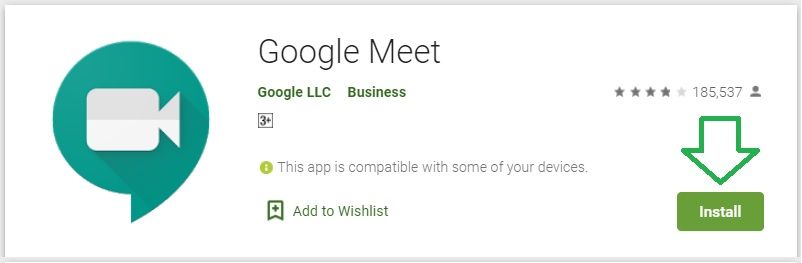
How to Download Google Meet on Pc: A Step-by-step Guide
Are you looking for a way to stay connected with colleagues, friends, or family members who are far away? Do you want to experience the convenience of virtual meetings without having to worry about geographical constraints? Look no further than Google Meet!
In this article, we’ll take you through a step-by-step guide on how to download and install Google Meet on your PC. We’ll also cover some essential tips and tricks to help you get the most out of this powerful tool.
What is Google Meet?
Before we dive into the installation process, let’s quickly review what Google Meet is all about. Google Meet is a video conferencing platform that allows users to hold virtual meetings with up to 250 participants (or even more, depending on your organization’s subscription plan). With Google Meet, you can:
- Conduct high-definition video calls
- Share screens and presentations
- Exchange instant messages
- Record meetings for later reference
System Requirements
Before installing Google Meet, make sure your PC meets the minimum system requirements. You’ll need:
- A stable internet connection
- A valid Google account (for personal use) or a G Suite Business or Educational subscription (for organizations)
- A modern web browser (preferably Google Chrome, Mozilla Firefox, Microsoft Edge, or Safari)
Downloading And Installing Google Meet on PC
Now that we’ve covered the basics, let’s move on to the installation process!
Installing Google Meet on Windows Pc
- Open your Google Chrome browser and navigate to the Google Meet website.
- Click on the “New meeting” button and select “+ Start a new meeting.”
- In the dropdown menu, choose “Install” next to the icon of a monitor with an arrow pointing downwards.
- Confirm that you want to install the Progressive Web App (PWA) by clicking on the “Install” button in the pop-up window.
That’s it! Google Meet should now be installed on your Windows PC. You can find its icon in the system tray or search for it in the Start menu.
Installing Google Meet on Mac
If you’re using a Mac, follow these steps:
- Open your Google Chrome browser and navigate to the Google Meet website.
- Click on the “New meeting” button and select “+ Start a new meeting.”
- In the dropdown menu, choose “Install” next to the icon of a monitor with an arrow pointing downwards.
- Confirm that you want to install the PWA by clicking on the “Install” button in the pop-up window.
Using Google Meet Online
Alternatively, you can use Google Meet directly from your web browser without installing any software. To do this:
- Open your Google Chrome or other supported web browser and navigate to the Google Meet website.
- Click on the “New meeting” button and select “+ Start a new meeting.”
- Follow the prompts to join a meeting, share screens, or exchange instant messages.
Tips And Tricks
Here are some additional tips to help you get the most out of Google Meet:
- Make sure your microphone and webcam are enabled before joining a meeting.
- Use high-definition video settings for optimal quality.
- Take advantage of screen sharing and presentation features to enhance collaboration.
- Record meetings for later reference or to review important discussions.
Conclusion
Downloading and installing Google Meet on your PC is a straightforward process. By following these steps, you’ll be able to hold virtual meetings with colleagues, friends, or family members from anywhere in the world. Remember to check system requirements, follow installation instructions carefully, and take advantage of advanced features like screen sharing and recording.
Frequently Asked Questions (FAQs)
- What Are The Minimum System Requirements For Google Meet?
A stable internet connection, a valid Google account (for personal use) or G Suite Business/Educational subscription (for organizations), and a modern web browser.
- How Many Participants Can Join a Meeting in Google Meet?
Up to 250 participants (or more, depending on your organization’s subscription plan).
- What Are The Main Features of Google Meet?
High-definition video calls, screen sharing, instant messaging, recording meetings for later reference.
- Can I Use Google Meet Without Installing Any Software?
Yes, you can access Google Meet directly from your web browser without installing any software.
- How do I Enable Microphone And Webcam Permissions in Google Meet?
During the meeting setup process, click on the “Consent” buttons to enable microphone and webcam permissions.
- Can I Record Meetings For Later Reference or Review?
Yes, you can record meetings using Google Meet’s built-in recording feature.
- What Are The Main Benefits of Using Google Meet Over Traditional Video Conferencing Tools?
Google Meet offers high-definition video quality, seamless screen sharing, instant messaging, and integrated recording capabilities.
- How do I Access Additional Features Like Screen Sharing or Presentation Capabilities in Google Meet?
Refer to our step-by-step guide on how to use Google Meet online for instructions on accessing these advanced features.


