
The Ultimate Guide to Gotomeeting: A Step-by-step Tutorial
Are you tired of not being able to see your colleagues in person, but still want to collaborate and communicate effectively? Look no further than GoToMeeting! This powerful video conferencing tool allows you to hold virtual meetings with up to 3000 participants, making it perfect for businesses, teams, and individuals alike. In this article, we’ll take a comprehensive look at what GoToMeeting has to offer, including its features, pricing plans, and step-by-step instructions on how to download and use the software.
What is Gotomeeting?
GoToMeeting is a cloud-based video conferencing platform that allows users to hold virtual meetings with up to 3000 participants. The software is designed to be user-friendly and intuitive, making it easy for anyone to use, regardless of their technical expertise. With GoToMeeting, you can hold video conferences, share your screen, record meetings, and even collaborate on documents in real-time.
Features of Gotomeeting
GoToMeeting offers a wide range of features that make it the perfect tool for virtual meetings. Some of these features include:
- Video Conferencing: Hold high-definition video conferences with up to 3000 participants
- Screen Sharing: Share your screen with others, making it easy to collaborate on documents and presentations
- Recording: Record meetings and share them with others later
- Voip: Make phone calls directly from the software
- Virtual Whiteboard: Collaborate on documents in real-time using a virtual whiteboard
Pricing Plans of Gotomeeting
GoToMeeting offers three pricing plans to suit different business needs:
- Personal: Free for up to 14 days, then $10.75/Month (billed annually)
- Business: $14.33/Month (billed annually) for up to 250 participants
- Enterprise: Custom pricing for up to 3000 participants
How to Download And Use Gotomeeting
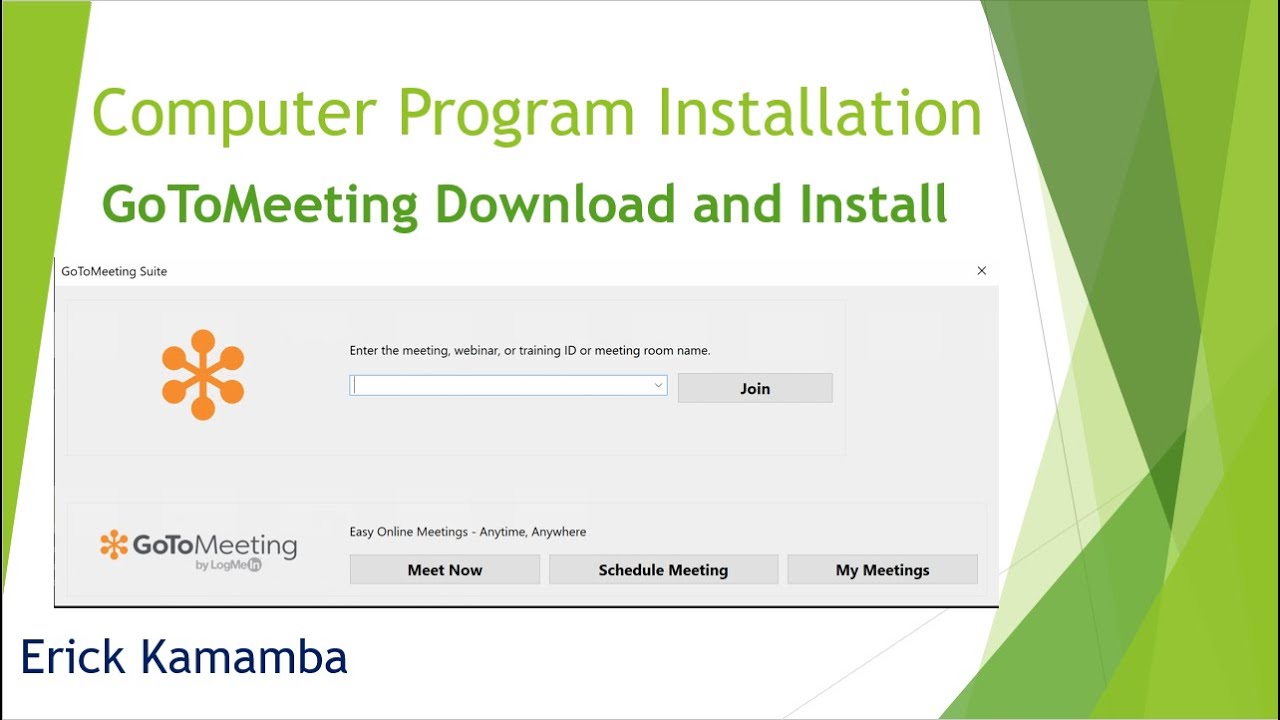
Downloading and using GoToMeeting is a breeze! Here’s a step-by-step guide:
- Open The Download Page: Open the GoToMeeting download page in your browser.
- Click The “Download” Button: Click the “Download” button to start the download process.
- Run The Installer: Run the installer and follow the prompts to install the software.
- Launch Gotomeeting: Launch GoToMeeting and sign in with your email address and password.
- Create a Meeting: Create a new meeting by clicking on the “New Meeting” button.
- Share The Meeting Link: Share the meeting link with others, either via email or through a shared calendar.
System Requirements For Gotomeeting
Before you can use GoToMeeting, you’ll need to ensure that your system meets the minimum requirements:
- Operating System: Windows 7 or later, macOS 10.9 Or later, Linux (Web App only), Chrome OS (Web App only)
- Browser: Google Chrome v72 or later, Microsoft Edge v77 or later with JavaScript enabled
- Internet Connection: 1Mbps or faster (40Kbps for VoIP and screen sharing)
How to Use Gotomeeting
Using GoToMeeting is easy! Here’s a step-by-step guide:
- Launch Gotomeeting: Launch GoToMeeting and sign in with your email address and password.
- Create a Meeting: Create a new meeting by clicking on the “New Meeting” button.
- Share The Meeting Link: Share the meeting link with others, either via email or through a shared calendar.
- Join a Meeting: Join a meeting by clicking on the “Join” button and entering the meeting code.
Tips For Using Gotomeeting
Here are some tips to help you get the most out of GoToMeeting:
- Use High-quality Audio Equipment: Use high-quality audio equipment, such as a headset or earbuds, to ensure that your audio is clear and crisp.
- Test Your Internet Connection: Test your internet connection before joining a meeting to ensure that it’s stable and fast enough.
- Use The Virtual Whiteboard: Use the virtual whiteboard to collaborate on documents and presentations in real-time.
Conclusion
GoToMeeting is a powerful video conferencing tool that offers a wide range of features, including video conferencing, screen sharing, recording, VoIP, and virtual whiteboarding. With three pricing plans to suit different business needs, GoToMeeting is perfect for businesses, teams, and individuals alike. By following the step-by-step guide outlined in this article, you’ll be able to download and use GoToMeeting with ease.
Frequently Asked Questions (FAQs)
- What is The Minimum System Requirement For Gotomeeting?
The minimum system requirement for GoToMeeting is Windows 7 or later, macOS 10.9 Or later, Linux (Web App only), Chrome OS (Web App only). - How Many Participants Can I Have in a Meeting With Gotomeeting?
You can have up to 3000 participants in a meeting with GoToMeeting. - What Are The Pricing Plans For Gotomeeting?
The pricing plans for GoToMeeting are Personal ($10.75/Month, billed annually), Business ($14.33/Month, billed annually), and Enterprise (custom pricing). - Can I Use Gotomeeting on my Mobile Device?
Yes, you can use GoToMeeting on your mobile device with the GoToMeeting app. - What Are The Minimum Internet Connection Requirements For Gotomeeting?
The minimum internet connection requirement for GoToMeeting is 1Mbps or faster (40Kbps for VoIP and screen sharing). - Can I Record Meetings With Gotomeeting?
Yes, you can record meetings with GoToMeeting. - How do I Share my Screen With Others in a Meeting With Gotomeeting?
You can share your screen with others in a meeting by clicking on the “Share” button and selecting the content you want to share. - Can I Make Phone Calls Directly From Gotomeeting?
Yes, you can make phone calls directly from GoToMeeting using VoIP.


