
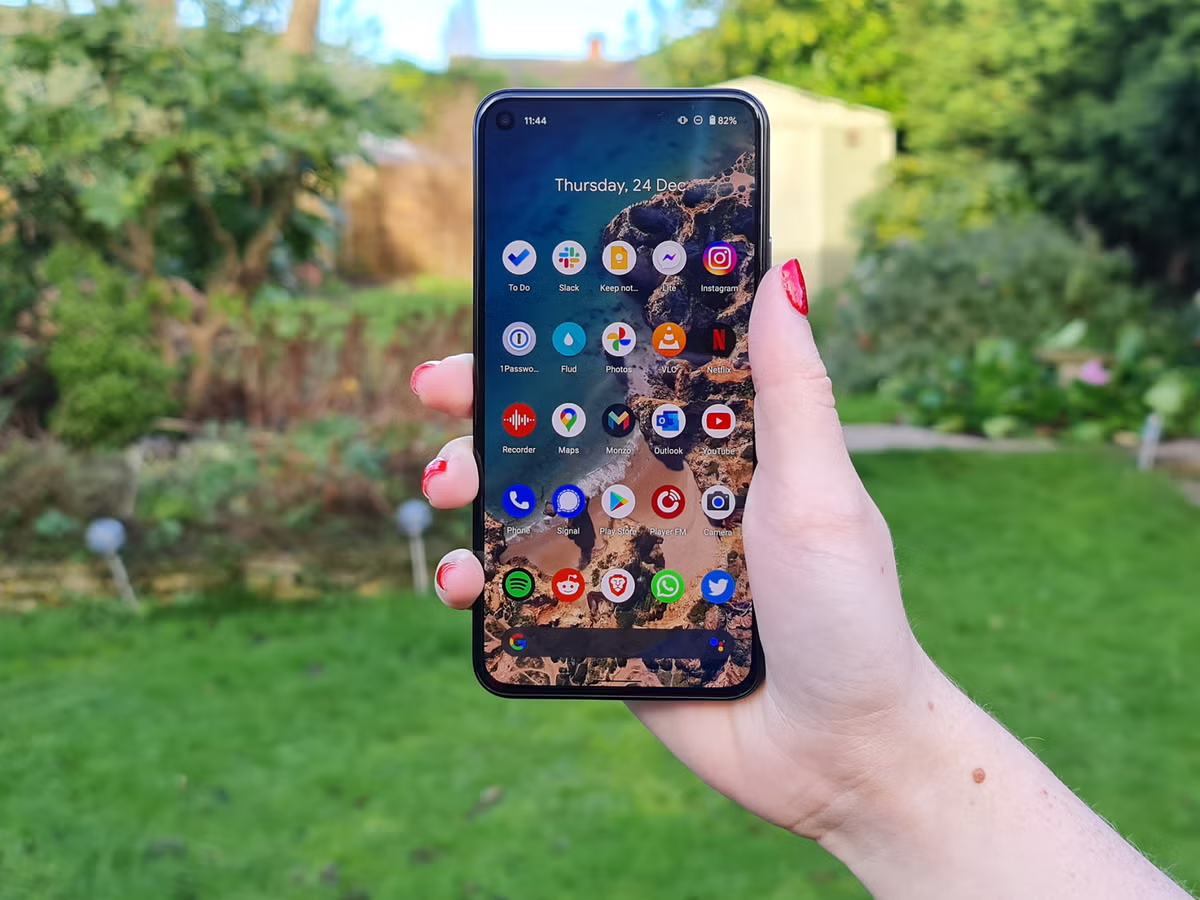
How to Download Images From Google on Your Mobile Device
Are you searching for beautiful images to share on social media or use as a background on your smartphone? Do you want to download images from the web using your mobile device? Look no further! In this article, we’ll show you how to download images from Google on your mobile device, including step-by-step instructions and alternative solutions.
Understanding The Basics
Before we dive into the tutorial, let’s understand the basics of downloading images from Google on a mobile device. The process is similar across all devices, including Android, iOS, and iPadOS. You’ll need to access the Google Images page, search for the desired image, and then download it using the browser or an app.
Method 1: Using The Browser
To start, open your mobile device’s browser (e.G., Chrome on Android or Safari on iOS) and navigate to the Google Images page. Tap on the “Images” tab at the top of the screen and enter your search query in the search bar. You can also use the suggestions provided by Google to help you find relevant images.
Once you’ve entered your search query, tap the “Search” button to initiate the search. The results will be displayed on the screen, and you can refine them using filters like date, size, color, or usage rights.
Step-by-step Instructions:
- Open your mobile device’s browser.
- Navigate to the Google Images page.
- Tap on the “Images” tab at the top of the screen.
- Enter your search query in the search bar.
- Tap the “Search” button to initiate the search.
- Refine the results using filters like date, size, color, or usage rights.
- Tap on the image you want to download to enlarge it.
- Long press on the image to select it.
- Tap on the “Download Image” option (Android) or “Save Image” (iOS/iPadOS).
Alternative Solutions
There are other solutions available for downloading images from Google on your mobile device, including:
- Total: A download manager app that allows you to search and download images from various sources, including Google.
- Image Search (Android): An app that enables you to search for images using a simple interface.
Using Total
To use Total, follow these steps:
- Download and install the Total app on your Android device (or iOS/iPadOS device).
- Open the app and navigate to the Google Images page.
- Enter your search query in the search bar.
- Tap the “Search” button to initiate the search.
- Refine the results using filters like date, size, color, or usage rights.
- Tap on the image you want to download to enlarge it.
- Long press on the image to select it.
- Tap on the “Download Image” option.
Using Image Search (Android)
To use Image Search (Android), follow these steps:
- Download and install the app from the Google Play Store.
- Open the app and navigate to the search page.
- Enter your search query in the search bar.
- Tap the “Search” button to initiate the search.
- Refine the results using filters like date, size, color, or usage rights.
- Tap on the image you want to download.
Conclusion
Downloading images from Google on your mobile device is a straightforward process that can be accomplished using various methods, including the browser and alternative apps. By following these step-by-step instructions, you’ll be able to search for and download high-quality images from the web.
Frequently Asked Questions (FAQs)
- Q: Can I Download Images From Google on my Iphone/ipad?
A: Yes, you can download images from Google using the Safari browser or the Image Search app. - Q: What is The Maximum Size of an Image That Can be Downloaded From Google?
A: The maximum size of an image that can be downloaded from Google varies depending on the device and browser being used. - Q: Can I Download Images From Google Without a Data Connection?
A: Yes, you can download images from Google using a Wi-Fi or cellular data connection. - Q: What Are The Usage Rights For Images Downloaded From Google?
A: The usage rights for images downloaded from Google depend on the source of the image and may vary depending on the country or region you’re in. - Q: Can I Use Downloaded Images For Commercial Purposes?
A: Yes, you can use downloaded images for commercial purposes, but be sure to check the usage rights for each image. - Q: How do I Know if an Image is Copyrighted?
A: Check the copyright information provided by Google or the source of the image. - Q: Can I Download Videos From Google on my Mobile Device?
A: Yes, you can download videos from Google using various apps and browsers.
Note: The answers to these FAQs are general in nature and may not apply to specific situations or devices. Always check the usage rights for each image and follow applicable laws and regulations when using downloaded content.


