
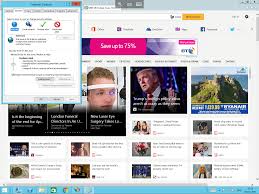
How to Download Internet Explorer on Windows 10, Windows 11, Windows 7, And Mac: A Step-by-step Guide
Are you struggling to find ways to download Internet Explorer on your device? Look no further! In this article, we will guide you through the process of downloading Internet Explorer on different operating systems, including Windows 10, Windows 11, Windows 7, and Mac.
Why Do I Need to Download Internet Explorer?
Microsoft has decided to mandate the use of Edge browser and replace it with Internet Explorer. However, some websites may not be compatible with Edge, and that’s where Internet Explorer comes in. With Internet Explorer, you can still access those websites that are not compatible with Edge.
Downloading Internet Explorer on Windows 10 And Windows 11
To download Internet Explorer on Windows 10 or Windows 11, follow these steps:
- Check if Internet Explorer is Already Available: Open the Start menu and search for “Internet Explorer.” If it’s already installed, you can skip to the next step.
- Open Microsoft Edge: Open Microsoft Edge browser and type
edge://Settings/defaultBrowserin the address bar. - Enable Internet Explorer Mode: Click on the three dots on the right corner of the screen, select “Settings,” and then click on “Default browser.” From there, toggle the switch to enable Internet Explorer mode.
- Download Internet Explorer: Now that you’ve enabled Internet Explorer mode in Edge, you can download Internet Explorer by clicking on the three dots again, selecting “Settings,” and then clicking on “Internet Explorer.”
Downloading Internet Explorer on Windows 7
To download Internet Explorer on Windows 7, follow these steps:
- Open Internet Explorer: Open Internet Explorer from the Start menu.
- Check For Updates: If you’re using an older version of Internet Explorer, check for updates by clicking on the three dots on the right corner of the screen and selecting “Update.”
- Download Internet Explorer 11: If you don’t have Internet Explorer 11 installed, download it from Microsoft’s official website.
Downloading Internet Explorer on Mac
To download Internet Explorer on a Mac, follow these steps:
- Install Wineskin: Install Wineskin, a software that allows you to run Windows applications on your Mac.
- Create a New Container: Create a new container in Wineskin and select “Internet Explorer” as the application to install.
- Configure Wineskin: Configure Wineskin by selecting the correct version of Internet Explorer and adding it to the system.
Tips And Precautions
- Be Aware of Security Risks: Using an outdated browser can put your device at risk, so make sure you’re using a secure connection when accessing sensitive information.
- Use The Latest Version: Always use the latest version of Internet Explorer for better performance and security.
Frequently Asked Questions (FAQs)
- Can I Still Download Internet Explorer on Windows 10?
Yes, you can still download Internet Explorer on Windows 10 by enabling Internet Explorer mode in Edge browser.
- Is it Safe to Use an Outdated Version of Internet Explorer?
No, using an outdated version of Internet Explorer can put your device at risk. Make sure you’re using the latest version or enable Internet Explorer mode in Edge browser for better security.
- Can I Download Internet Explorer on a Mac?
Yes, you can download Internet Explorer on a Mac by installing Wineskin and configuring it to run the correct version of Internet Explorer.
- Will Microsoft Continue to Support Internet Explorer?
Microsoft has announced that they will no longer be supporting Internet Explorer, so make sure you’re using Edge browser for better performance and security.
- Can I Use Internet Explorer on a Chromebook?
No, you cannot download or install Internet Explorer on a Chromebook as it’s not compatible with the operating system.
- Will I Lose my Browsing History if I Switch to Internet Explorer Mode in Edge?
Yes, switching to Internet Explorer mode in Edge will clear your browsing history and cache. Make sure you save any important data before making the switch.
- Can I Add a Shortcut to Internet Explorer on my Desktop?
Yes, you can add a shortcut to Internet Explorer on your desktop by right-clicking on the icon and selecting “Pin to taskbar.”
- Will I be Able to Access Websites That Are Not Compatible With Edge Using Internet Explorer Mode?
Yes, using Internet Explorer mode in Edge will allow you to access websites that are not compatible with Edge.
We hope this article has been helpful in guiding you through the process of downloading Internet Explorer on different operating systems!


