
The Ultimate Guide to Downloading Itunes Free: A Step-by-step Tutorial
Are you looking to download iTunes free on your PC or Mac? Look no further! This comprehensive guide will walk you through the process of downloading and installing iTunes, as well as some additional features that come with it.
What is Itunes?
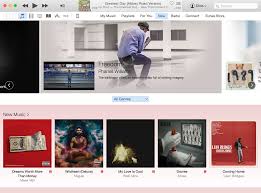
ITunes is a free software developed by Apple that allows you to listen to music, organize your digital library, purchase and download songs and albums from the iTunes Store, and sync your iOS devices. It’s a must-have for anyone who wants to enjoy their favorite music, movies, and TV shows on their Apple devices.
Downloading Itunes Free on PC
If you have a PC equipped with Windows 10 or later versions (such as Windows 11), you can download iTunes free directly from the Microsoft Store. Here’s how:
- Open the Microsoft Store app on your PC.
- Search for “iTunes” in the search bar.
- Click on the result that says “iTunes” and then click the “Install” button.
- Accept the terms of service by clicking “Accept”.
- Wait for the download and installation process to complete.
Using Itunes on PC
Once you’ve installed iTunes, here’s what you need to do:
- Launch iTunes on your PC.
- Accept the license agreement by clicking “Accept”.
- Choose whether or not to share your iTunes library with Apple (helpful if you want to download album covers).
- Click “OK” to complete the setup process.
Downloading Itunes Free on Mac
If you’re using a Mac, things are a bit different. Since macOS 10.15 Catalina, iTunes has been split into separate applications called Finder, Music, TV, Podcasts, and Books. Here’s how to get started:
- Open the Music app on your Mac.
- Click on the “Store” button in the top navigation bar.
- Search for “iTunes” in the search bar.
- Click on the result that says “iTunes” and then click the “Install” button.
Using Itunes on Mac
Once you’ve installed iTunes, here’s what you need to do:
- Launch iTunes on your Mac.
- Accept the license agreement by clicking “Accept”.
- Choose whether or not to share your iTunes library with Apple (helpful if you want to download album covers).
- Click “OK” to complete the setup process.
What Happens When You Download And Install Itunes?
When you download and install iTunes, it will automatically update any existing versions of the software on your device. It’s also worth noting that iTunes is not compatible with Windows 7 or Windows 8 devices. However, you can still download a previous version of iTunes from the official Apple website.
Additional Features of Itunes
In addition to its core functionality as a music player and media library manager, iTunes also includes several other features:
- Ipod Support: ITunes allows you to sync your iPod with your Mac or PC.
- Ipad And Iphone Support: ITunes lets you manage and sync your iPad and iPhone devices.
- Apple Music Integration: With the latest versions of iTunes, you can access Apple Music directly within the software.
Can I Download Other Apple Apps?
Yes! If you’re already using iTunes, you might also want to download other Apple apps such as Apple Music, Apple TV, and Devices. These apps are designed to work seamlessly with your existing Apple ecosystem and provide additional features for streaming music, watching movies and TV shows, and managing your devices.
Troubleshooting Tips
If you encounter any issues while downloading or installing iTunes, here are some troubleshooting tips:
- Check System Requirements: Make sure your device meets the minimum system requirements for running iTunes.
- Restart Your Device: Try restarting your Mac or PC to resolve any software conflicts.
- Clear Cache And Cookies: Clear your browser cache and cookies to prevent issues with downloads.
Conclusion
Downloading iTunes free is a straightforward process, whether you’re using a PC or Mac. By following this step-by-step guide, you’ll be able to enjoy all the features that iTunes has to offer, including music streaming, podcast management, and device syncing.
Bonus Tip: Don’t forget to explore other Apple apps such as Apple Music, Apple TV, and Devices for even more ways to enhance your digital experience!


