
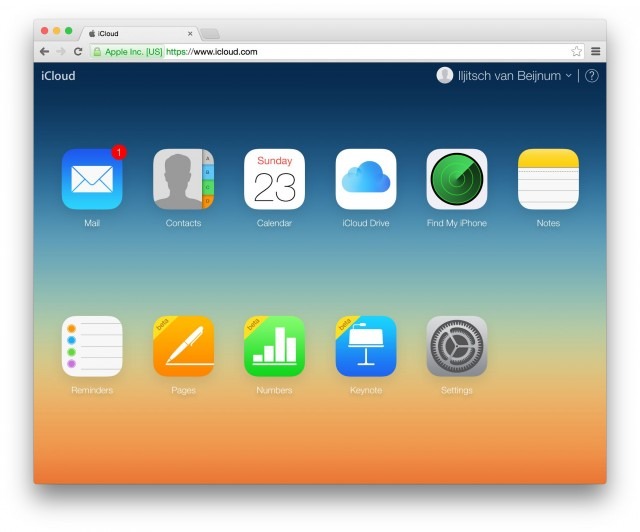
How to Download Iwork Free on Mac, Iphone, And Ipad
Are you a proud owner of an Apple device? Congratulations! You’ve made an excellent choice. As a valued member of the Apple community, it’s essential to utilize the built-in applications that come with your device to get the most out of it. In this article, we’ll guide you through downloading iWork free on Mac, iPhone, and iPad.
What is Iwork?
IWork is a suite of productivity apps developed by Apple, consisting of Pages, Numbers, and Keynote. These apps are designed to help you create, edit, and share documents, spreadsheets, and presentations with ease. Whether you’re a student, professional, or simply looking for ways to be more productive, iWork has got you covered.
Why Download Iwork Free?
Before we dive into the downloading process, let’s quickly touch on why you should download iWork free:
- Free: Yes, you read that right! iWork is available for free on all Apple devices.
- User-friendly Interface: The apps are designed to be intuitive and easy to use, even for those new to productivity software.
- Compatibility: IWork files can be shared and edited across various Apple devices and platforms.
Downloading Iwork Free on Mac
If you’re using a Mac, follow these simple steps:
- Open the Mac App Store by clicking on the icon in your Dock or using Spotlight search.
- Type “iWork” in the search bar, followed by selecting the app you’d like to download (Pages, Numbers, or Keynote).
- Click on the “Get” button next to the chosen app.
- Confirm the download and installation process using Touch ID or your Apple ID password.
- Once installed, click on the “Open” button to launch the app.
Downloading Iwork Free on Iphone And Ipad
For iPhone and iPad users:
- Open the App Store by tapping on the icon on your home screen.
- Type “iWork” in the search bar, followed by selecting the app you’d like to download (Pages, Numbers, or Keynote).
- Tap on the “Get” button next to the chosen app.
- Confirm the download and installation process using Face ID, Touch ID, or your Apple ID password.
- Once installed, tap on the “Open” button to launch the app.
Troubleshooting
If you’re experiencing issues during the downloading process, don’t worry! We’ve got some troubleshooting tips for you:
- Ensure that your device has sufficient storage space available.
- Check if your Apple ID is correctly set up and verified.
- If an app fails to download, try restarting your device or checking for software updates.
Additional Tips
For a more seamless experience with iWork, consider the following tips:
- Icloud Integration: Take advantage of iCloud to sync your files across all your Apple devices.
- File Compatibility: Ensure that your documents and spreadsheets are compatible with other productivity apps by using the universal file formats (.Pages, .Numbers, .Keynote).
- Regular Updates: Keep your iWork apps up-to-date to enjoy new features and improvements.
Conclusion
Downloading iWork free on Mac, iPhone, and iPad is a breeze. With these simple steps, you’ll be able to unlock the full potential of your Apple device. Remember to explore the various features and tools available within each app to get the most out of your productivity experience.
Frequently Asked Questions (FAQs)
- What Devices Are Compatible With Iwork?
- IWork is available on all Apple devices, including Mac, iPhone, iPad, iPod touch, and Apple Watch.
- Can I Download Multiple Apps at Once?
- Yes, you can download all three iWork apps (Pages, Numbers, and Keynote) simultaneously from the App Store or Mac App Store.
- What if I’m Experiencing Issues During Installation?
- If an app fails to install, try restarting your device or checking for software updates.
- How do I Sync my Files Across Devices?
- Use iCloud to sync your iWork files across all your Apple devices.
- Can I Share Files With Non-apple Users?
- Yes, you can export your iWork files in universal formats (.Pages, .Numbers, .Keynote) for sharing with others.
- What Are The System Requirements For Each App?
- Refer to the official Apple support pages for the minimum system requirements for each iWork app.
Bonus Tip
If you’re new to productivity software or struggling to get started with iWork, don’t hesitate to explore online resources and tutorials for a smoother learning experience.


