
How to Download Java on Your Pc: A Step-by-step Guide
Are you struggling to download Java on your PC? Don’t worry, we’ve got you covered! In this article, we’ll guide you through the process of downloading Java on Windows, macOS, and Linux.
Minimum Requirements For Downloading Java
Before we dive into the installation process, let’s take a look at the minimum requirements for downloading Java on your PC:
- Windows: Windows 11, Windows 10 (8u51 and successive versions), Windows 8.1, Windows 7 SP1, or Windows Server 2008 R2 SP1 (64-bit)
- Ram: 128 MB
- Space on Disc: 124 MB for JRE, 2 MB for Java Update
- Processor: Minimum Pentium 2 to 266 MHz
- Browser: Internet Explorer 9 or successive versions
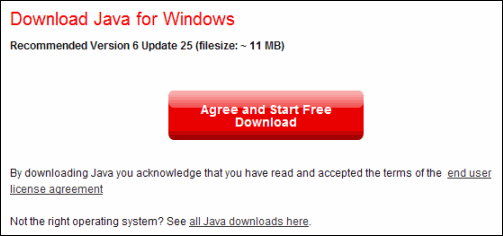
How to Download Java on Windows
To download Java on your Windows PC:
- Go to the official website of Java.
- Read the license agreement carefully and click on the “Download” button.
- Double-click on the downloaded file (.Exe) and follow the installation wizard.
- Click on the “Yes” button to initiate the installer.
- Follow the prompts to complete the installation.
How to Download Java Development Kit (JDK)
If you want to develop applications in Java, you’ll need to download the JDK. To do this:
- Go to the official website of Java and click on the “Java Development Kit” link.
- Click on the “x64 Installer” or “ARM64 Installer” link depending on your system architecture.
- Download the file (jdk-[version].Exe) and follow the installation wizard.
- Click on the “Yes”, “Next”, and “Close” buttons to complete the setup.
How to Download Java on Macos
To download Java on your Mac:
- Go to the official website of Java.
- Read the license agreement carefully and click on the “Download” button for macOS Intel or ARM64.
- Click on the downloaded file (.Dmg) and follow the installation wizard.
- Enter your password to complete the installation.
How to Download Java on Linux
To download Java on your Linux PC:
- Open a Terminal window.
- Type the following commands:
Sudo apt update,sudo apt install default-jre(to install JRE), andsudo apt install default-jdk(to install JDK). - Follow the prompts to complete the installation.
Conclusion
Downloading Java on your PC is a straightforward process that requires minimal technical expertise. Whether you’re using Windows, macOS, or Linux, we’ve provided step-by-step instructions to ensure a smooth installation experience. If you have any questions or need further assistance, feel free to ask!
Faqs
- What is Java And Why do I Need It?
Java is a popular programming language used for developing various applications. You’ll need it if you want to develop Java-based applications or run Java-enabled software. - Can I Download Java on my Macbook Air?
Yes, you can download Java on your MacBook Air by following the instructions provided in this article. - Do I Need a Java Development Kit (JDK) to Develop Java Applications?
No, you don’t necessarily need the JDK to run Java-based applications. However, if you want to develop Java applications from scratch, you’ll need to download and install the JDK. - Can I Use Java on my Linux Pc?
Yes, you can use Java on your Linux PC by following the instructions provided in this article. - What Are The Minimum Requirements For Downloading Java on Windows?
The minimum requirements for downloading Java on Windows include a 128 MB RAM, 124 MB space on disc, and a processor with a minimum speed of Pentium 2 to 266 MHz. - Can I Download Java on my Chromebook?
Unfortunately, you can’t download Java on your Chromebook as it’s based on Google’s proprietary operating system. - Do I Need to Download The Jdk if I Only Want to Run Java-based Applications?
No, you don’t need to download the JDK if you only want to run Java-based applications. The JRE (Java Runtime Environment) is sufficient for running Java-enabled software.
I hope this article has helped you understand how to download Java on your PC. If you have any further questions or concerns, please don’t hesitate to ask!


