
How to Download Libreoffice: A Step-by-step Guide
Are you looking for a free and open-source productivity suite that can rival Microsoft Office? Look no further than LibreOffice! This powerful tool offers a range of features, including word processing, spreadsheet, presentation, drawing, and database capabilities. In this article, we’ll guide you through the process of downloading LibreOffice on Windows, macOS, Linux, Chromebook, and mobile devices.
What is Libreoffice?
LibreOffice is a free and open-source productivity suite developed by The Document Foundation. It’s compatible with Microsoft Office file formats and offers a range of features that can help you work more efficiently.
System Requirements
Before we dive into the download process, let’s take a look at the system requirements for LibreOffice:
- Windows: Windows 7 SP1, Windows 8, Windows Server 2012, Windows 10 or later
- MacOS: MacOS 10.9 (Mavericks) or later
- Linux: Linux kernel version 3.10 Or later
Downloading Libreoffice on Windows
To download LibreOffice on Windows, follow these steps:
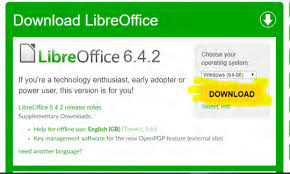
- Visit the official LibreOffice website and click on the “Download” button.
- Select the most recent version of LibreOffice from the list.
- Choose your operating system (Windows) and language (Italian).
- Click on the “Download” button to start the download process.
- Wait for the download to complete, then run the installer file.
- Follow the installation prompts to install LibreOffice.
Downloading Libreoffice on Macos
To download LibreOffice on macOS, follow these steps:
- Visit the official LibreOffice website and click on the “Download” button.
- Select the most recent version of LibreOffice from the list.
- Choose your operating system (macOS) and language (Italian).
- Click on the “Download” button to start the download process.
- Wait for the download to complete, then run the installer file.
- Follow the installation prompts to install LibreOffice.
Downloading Libreoffice on Linux
To download LibreOffice on Linux, follow these steps:
- Visit the official LibreOffice website and click on the “Download” button.
- Select the most recent version of LibreOffice from the list.
- Choose your operating system (Linux) and language (Italian).
- Click on the “Download” button to start the download process.
- Wait for the download to complete, then run the installer file.
- Follow the installation prompts to install LibreOffice.
Downloading Libreoffice on Chromebook
To download LibreOffice on a Chromebook, follow these steps:
- Visit the Google Play Store and search for “Collaborate Office”.
- Select the app from the list of results.
- Click on the “Install” button to start the installation process.
- Wait for the installation to complete, then launch the app.
Downloading Libreoffice on Mobile Devices
To download LibreOffice on a mobile device (Android or iOS/iPadOS), follow these steps:
- Visit the Google Play Store or Apple App Store and search for “Collaborate Office”.
- Select the app from the list of results.
- Click on the “Install” button to start the installation process.
- Wait for the installation to complete, then launch the app.
Conclusion
LibreOffice is a powerful and free productivity suite that can rival Microsoft Office. With this guide, you should be able to download and install LibreOffice on Windows, macOS, Linux, Chromebook, and mobile devices. Whether you’re looking to work on documents, spreadsheets, presentations, or databases, LibreOffice has got you covered.
Frequently Asked Questions
- Q: What is The Difference Between Libreoffice And Microsoft Office?
A: LibreOffice is a free and open-source productivity suite that’s compatible with Microsoft Office file formats. - Q: Can I Use Libreoffice on my Chromebook?
A: Yes, you can install Collaborate Office on your Chromebook to access LibreOffice features. - Q: Is Libreoffice Available For Mobile Devices?
A: Yes, you can download the Collaborate Office app on Android or iOS/iPadOS devices. - Q: What Are The System Requirements For Libreoffice?
A: The system requirements vary depending on the operating system, but generally include Windows 7 SP1, macOS 10.9 (Mavericks), and Linux kernel version 3.10 Or later. - Q: Can I Translate The Interface of Libreoffice to Italian?
A: Yes, you can download the language pack for Italian and install it on your system. - Q: What Are The Benefits of Using Libreoffice Over Microsoft Office?
A: LibreOffice is free and open-source, making it a cost-effective alternative to Microsoft Office. - Q: Can I Use Libreoffice With my Existing Microsoft Office Files?
A: Yes, LibreOffice is compatible with Microsoft Office file formats, so you can easily import your existing documents. - Q: How do I Uninstall Libreoffice From my System?


