
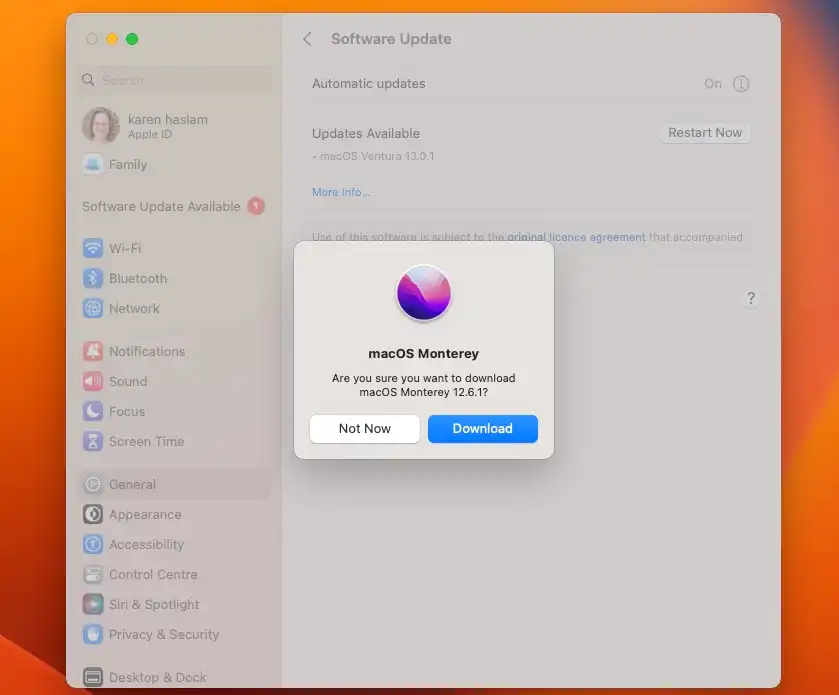
How to Download Macos on Your Mac
Are you in need of a fresh copy of macOS to install on your Mac? Do you want to have a backup of the operating system always at hand, but aren’t sure how to download it? You’ve come to the right place! In this guide, we’ll walk you through the process of downloading and installing macOS on your Mac.
Before We Begin
Before we dive into the nitty-gritty of downloading and installing macOS, let’s cover a few preliminary points. If you’re looking to update to a newer version of macOS, Apple recommends using the Update Software feature in System Preferences instead of downloading and reinstalling the operating system. This is a much simpler process than downloading and installing from scratch.
If, however, you need to download a copy of macOS for installation from scratch, there are two paths you can take. The first path is to download the most recent versions of macOS (Ventura, Monterey, Big Sur, Catalina, Mojave, and High Sierra) directly from the App Store on your Mac.
Downloading Macos on Your Mac
To download a copy of macOS from the App Store:
- Open the App Store on your Mac.
- Click on the “Updates” tab.
- Look for the version of macOS you want to download (e.G., Ventura 13, Monterey 12).
- Click on the version to initiate the download process.
Important Note
Keep in mind that not all versions of macOS are compatible with every Mac model. Make sure to check which models are compatible with each version on Apple’s website before downloading.
What If You Need an Older Version?
If you need a copy of an older version of macOS (Sierra, El Capitan, Yosemite, Mountain Lion, or Lion), you can download it as an image file in .Dmg format from the official Apple website. Once downloaded, you’ll need to extract the installer.
Backing Up Your Mac
Before proceeding with the installation process, make sure to back up your Mac’s data. This will ensure that all your important files and information are safe, even if something goes wrong during the installation process.
Installing Macos on a Usb Drive
If you want to create a bootable USB drive of macOS for installation on another Mac, there are two methods you can use:
- Using the Terminal command: You’ll need to download the installer first, then create a programmatic installation using the Terminal.
- Using a third-party software: There are free external software available that can help you transform your USB drive into an installable disc.
Important Note
Keep in mind that not all versions of macOS are compatible with every Mac model, even when installed from a USB drive.
What If You Want to Install on Windows?
If you want to download and install macOS on Windows, it’s technically possible but not recommended. This would require creating a virtual machine using software like VirtualBox or VMware. However, this is not an official method of installing macOS and may void your Apple warranty.
Conclusion
Downloading and installing macOS can seem intimidating, but with the right guidance, you’ll be able to do it in no time! Just remember to check compatibility, back up your data, and follow the proper procedures for each version of the operating system. If you have any further questions or need additional clarification, feel free to ask!
Frequently Asked Questions
- Q: How do I Download Macos on my Mac?
A: You can download macOS directly from the App Store on your Mac. - Q: What if I Need an Older Version of Macos?
A: You can download older versions in .Dmg format from Apple’s official website, but be aware that this process may require additional steps to extract the installer. - Q: How do I Create a Bootable Usb Drive For Installation on Another Mac?
A: There are two methods you can use: Creating an installation program using Terminal or using third-party software. - Q: Can I Install Macos on Windows?
A: Technically yes, but this is not recommended and may void your Apple warranty. - Q: How do I Ensure my Mac’s Data is Safe During The Installation Process?
A: Make sure to back up your Mac’s data before proceeding with the installation process.
References
- Apple Support
- Install Disk Creator


