
How to Download Google Maps on Your Device: A Step-by-step Guide
Are you tired of relying on a stable internet connection to navigate through unfamiliar territories? Look no further! In this article, we will guide you on how to download Google Maps on your device, so you can have access to maps even when offline.
Why Download Google Maps?
Downloading Google Maps can be a lifesaver in situations where you don’t have a stable internet connection. Whether you’re traveling abroad or just exploring new areas of your city, having a map at your fingertips can make all the difference. With Google Maps downloaded on your device, you can:
- Navigate through streets without relying on GPS
- Get directions to popular landmarks and attractions
- Explore new areas with ease
Downloading Google Maps: Android
If you’re using an Android device, downloading Google Maps is a straightforward process.
Step 1: Check if Google Maps is Pre-installed
Google Maps comes pre-installed on most Android devices. If it’s not installed, you can download it from the Play Store.
Step 2: Open Google Maps And Grant Permissions
Open Google Maps and grant permissions to access your device’s location. You may also be asked to sign in with your Google account.
Step 3: Search For Your Destination
Type the name of the place you want to visit in the search bar, and select it from the list of suggestions.
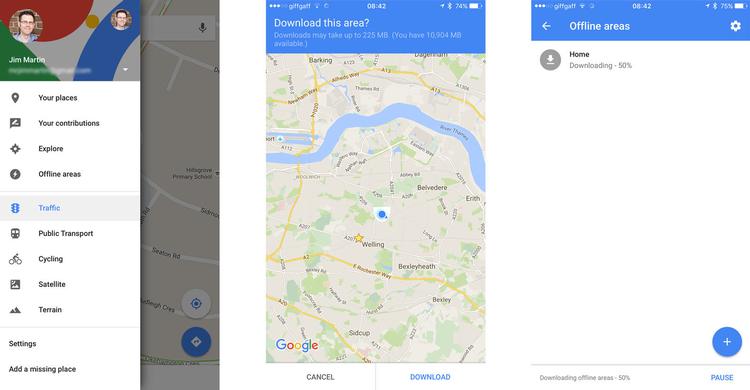
Step 4: Select The Offline Option
Tap on the “…” Icon next to the location’s name, and select the “Offline” option.
Step 5: Download The Map
Select the area you want to download, and tap on the “Download” button. The map will be downloaded in the background, and you’ll receive a notification when it’s complete.
Downloading Google Maps: Ios
If you’re using an iOS device, downloading Google Maps is just as easy.
Step 1: Open Google Maps
Open Google Maps on your iPhone or iPad.
Step 2: Search For Your Destination
Type the name of the place you want to visit in the search bar, and select it from the list of suggestions.
Step 3: Select The Offline Option
Tap on the “…” Icon next to the location’s name, and select the “Download” option.
Step 4: Download The Map
Select the area you want to download, and tap on the “Download” button. The map will be downloaded in the background, and you’ll receive a notification when it’s complete.
Downloading Google Maps: Windows
Unfortunately, downloading Google Maps is not possible directly from your Windows device. However, there are alternative solutions available.
Step 1: Download Gmapcatcher
Download GMapCatcher, a free software that allows you to download maps from various sources, including Google Maps.
Step 2: Open Gmapcatcher And Grant Permissions
Open GMapCatcher and grant permissions to access your device’s location.
Step 3: Search For Your Destination
Type the name of the place you want to visit in the search bar, and select it from the list of suggestions.
Step 4: Select The Offline Option
Tap on the “…” Icon next to the location’s name, and select the “Download” option.
Step 5: Download The Map
Select the area you want to download, and tap on the “Download” button. The map will be downloaded in the background, and you’ll receive a notification when it’s complete.
Downloading Google Maps: Mac
If you’re using a Mac, downloading Google Maps is relatively straightforward.
Step 1: Open Google Maps
Open Google Maps on your Mac.
Step 2: Search For Your Destination
Type the name of the place you want to visit in the search bar, and select it from the list of suggestions.
Step 3: Select The Pdf Option
Click on the “…” Icon next to the location’s name, and select the “Export as PDF” option.
Step 4: Download The Map
Select the area you want to download, and click on the “Download” button. The map will be downloaded in the background, and you’ll receive a notification when it’s complete.
Alternative Solutions
If Google Maps is not available or functional in your region, don’t worry! There are alternative solutions that can help you achieve your navigation goals.
- Openstreetmap: A free, open-source service that provides detailed maps of various regions.
- Maps Microsoft: A built-in service on Windows 10 devices that allows users to save and print maps offline.
- Here Wego: A navigation app that offers downloadable maps for Android and iOS devices.
Conclusion
Downloading Google Maps can be a game-changer for anyone who wants to navigate unfamiliar territories without relying on GPS. Whether you’re using an Android, iOS, Windows, or Mac device, there are alternative solutions available if Google Maps is not functional in your region. With this guide, you’ll be well-equipped to download and use Google Maps on your device, even when offline.
Faqs
Q: Why can’t I download Google Maps on my device?
A: Unfortunately, downloading Google Maps directly from your device is not possible. However, there are alternative solutions available that can help you achieve your navigation goals.
Q: How do I download maps using GMapCatcher?
A: To download maps using GMapCatcher, follow the steps outlined in the “Downloading Google Maps: Windows” section.
Q: Can I use HERE WeGo to navigate offline?
A: Yes! HERE WeGo is a great alternative solution for navigating offline. Simply download the app on your Android or iOS device and explore new areas with ease.
Best Practices
- Always check if Google Maps is pre-installed on your device before attempting to download it.
- Be mindful of data usage when downloading maps, especially in areas with limited internet connectivity.
- Explore alternative solutions that may be more functional in your region.
Troubleshooting
If you encounter any issues while trying to download Google Maps or use alternative solutions, try the following:
- Restart your device and attempt to download again.
- Check for software updates on your device.
- Reach out to the app’s customer support team for assistance.


