
How to Download Messenger Free on Your Smartphone or PC
Are you tired of missing out on conversations with your friends? Do you want to stay connected with loved ones, no matter where they are in the world? Look no further than Messenger, the free messaging app from Facebook.
In this article, we’ll show you how to download Messenger for free on your Android device, iPhone or iPad, and PC. We’ll also guide you through the process of setting up your account and getting started with the app.
Why Use Messenger?
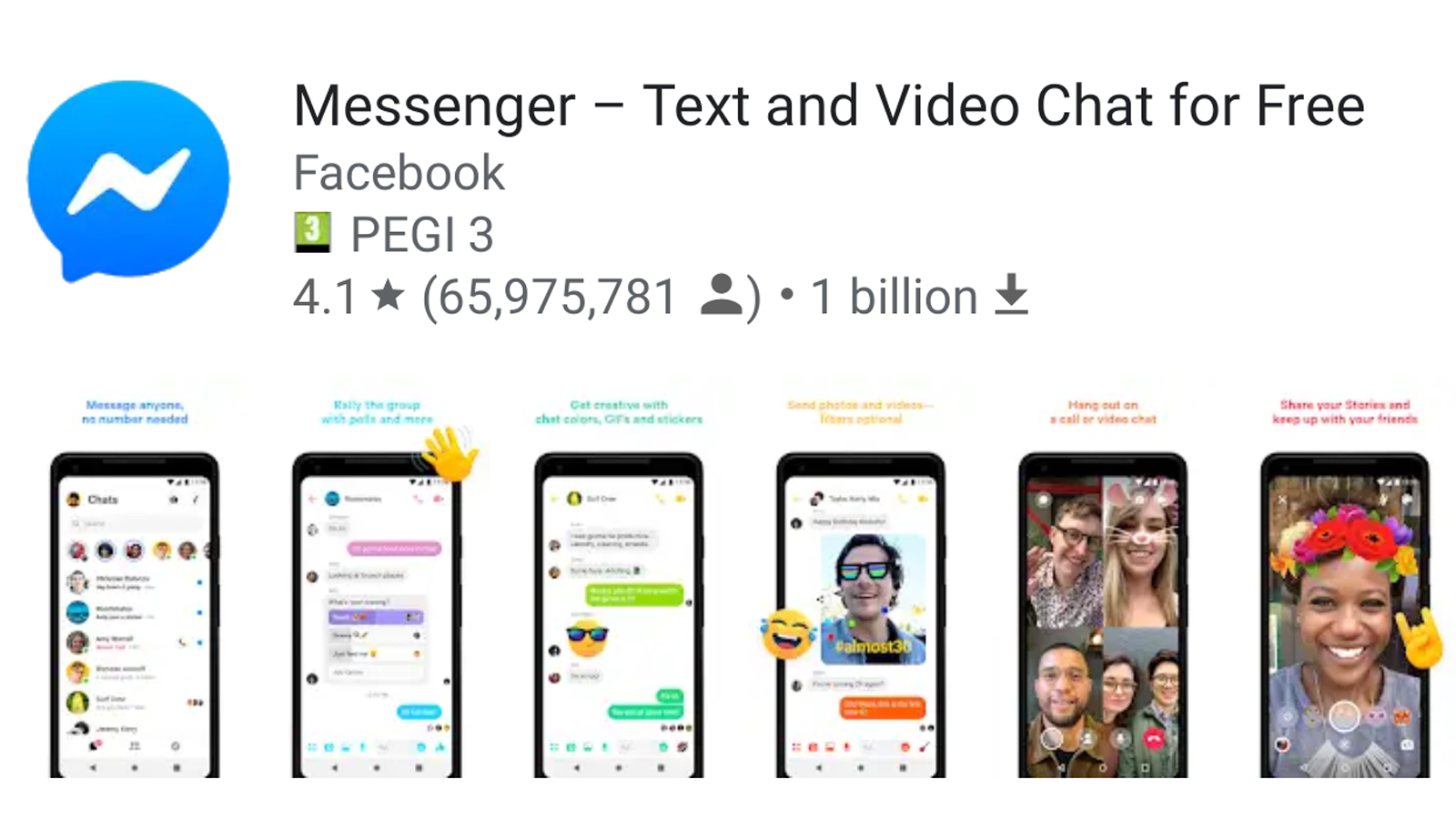
Messenger is a popular messaging app that allows you to send messages, make voice and video calls, and share photos and videos with friends and family. The best part? It’s completely free!
With Messenger, you can:
- Send text messages to friends and family
- Make voice and video calls for free (as long as you have a stable internet connection)
- Share photos and videos with loved ones
- Use fun features like GIFs, stickers, and games to liven up your conversations
Downloading Messenger on Android
If you’re using an Android device, follow these steps to download Messenger:
Step 1: Open The Play Store
Find the Google Play Store icon on your home screen or in the app drawer. Tap on it to open the store.
Step 2: Search For Messenger
Tap on the search bar at the top of the screen and type “Messenger”. Select the correct result from the list.
Step 3: Install Messenger
Tap on the Messenger icon to open its page in the Play Store. Tap on the “Install” button to begin the download process.
Step 4: Sign In With Facebook
Once the installation is complete, tap on the “Open” button to launch Messenger. Sign in with your Facebook account to get started.
Downloading Messenger on Iphone or Ipad
If you’re using an iPhone or iPad, follow these steps to download Messenger:
Step 1: Open The App Store
Find the App Store icon on your home screen or in the dock. Tap on it to open the store.
Step 2: Search For Messenger
Tap on the search bar at the top of the screen and type “Messenger”. Select the correct result from the list.
Step 3: Install Messenger
Tap on the Messenger icon to open its page in the App Store. Tap on the “Get” button to begin the download process.
Step 4: Sign In With Facebook
Once the installation is complete, tap on the “Open” button to launch Messenger. Sign in with your Facebook account to get started.
Downloading Messenger on PC
If you’re using a PC, follow these steps to download Messenger:
Step 1: Open The Browser
Find your favorite web browser (e.G., Google Chrome, Mozilla Firefox) and open it.
Step 2: Visit The Messenger Website
Type “messenger.Com” in the address bar and press Enter. This will take you to the official Messenger website.
Step 3: Sign In With Facebook
Sign in with your Facebook account to get started with Messenger.
Alternatively, you can download the Messenger app from the Microsoft Store (for Windows) or Mac App Store (for macOS).
Troubleshooting Tips
If you encounter any issues during the download process, try these troubleshooting tips:
- Make sure you have a stable internet connection.
- Check that your device has enough storage space to install the app.
- If you’re experiencing trouble with the installation process, restart your device and try again.
Conclusion
Downloading Messenger is a breeze on both Android and iOS devices. With its user-friendly interface and feature-rich design, Messenger is an excellent choice for staying connected with friends and family. Whether you’re using a smartphone or PC, follow these simple steps to get started with the app.
Faqs
- Q: Is Messenger Free?
A: Yes, Messenger is completely free to use. - Q: Do I Need a Facebook Account to Use Messenger?
A: Yes, you’ll need a Facebook account to sign in and use Messenger. - Q: Can I Download Messenger on my Pc?
A: Yes, you can download the Messenger app from the Microsoft Store (for Windows) or Mac App Store (for macOS). - Q: How do I Report Issues With Messenger?
A: To report any issues with Messenger, visit the Facebook Help Center. - Q: Can I Use Messenger on Multiple Devices at Once?
A: Yes, you can sign in and use Messenger on multiple devices simultaneously.
I hope this article has helped you download Messenger and get started with the app!


