
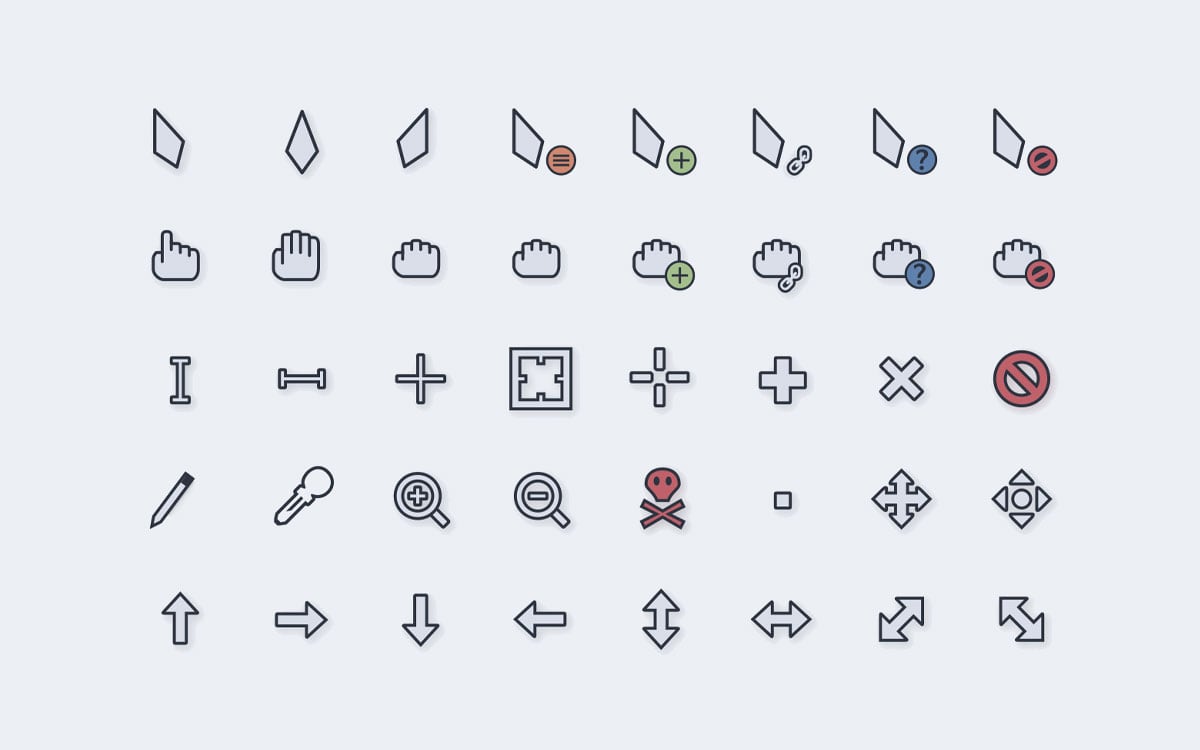
How to Download And Install Custom Mouse Pointers on Your Computer
Are you tired of using the same old default mouse pointer on your computer? Do you want to add a personal touch to your digital experience? Look no further! In this article, we will guide you through the process of downloading and installing custom mouse pointers on your Windows or macOS computer.
Why Use Custom Mouse Pointers?
Using custom mouse pointers can enhance your computing experience in several ways. For one, it allows you to personalize your desktop and make it more visually appealing. With a wide range of designs available online, you can choose a pointer that reflects your personality, interests, or hobbies. Additionally, using custom mouse pointers can also help you identify which button is which on the mouse, especially for those who use left-handed mice.
Where to Find Custom Mouse Pointers
There are several websites where you can find and download custom mouse pointers. Here are a few popular options:
- Deviantart: This website is a treasure trove of digital art, including custom mouse pointers. You can search for keywords like “free cursors” or “custom mouse pointers” to find relevant results.
- Totally Free Cursor: As the name suggests, this website offers a vast collection of free cursor designs that you can download and use on your computer.
- Open Cursor Library: This website is a community-driven platform where users can share and download custom cursor designs.
How to Download Custom Mouse Pointers
Downloading custom mouse pointers from these websites is relatively straightforward. Here’s how:
- Go to the website of your choice (e.G., DeviantART or Totally Free Cursor).
- Search for the type of cursor you’re looking for (e.G., “Music” or “fantasy”).
- Browse through the search results and select a cursor design that appeals to you.
- Click on the cursor image to go to its download page.
- Download the cursor file in ZIP, RAR, or 7z format.
How to Install Custom Mouse Pointers on Windows
Installing custom mouse pointers on Windows is easy peasy. Here’s how:
- Extract the downloaded cursor file using a program like WinRAR or 7-Zip.
- Go to your computer’s Settings app (usually found in the Start menu).
- Click on “Devices” and then select “Mouse.”
- In the Mouse settings window, click on “Options” and then select “Pointers.”
- Select the custom cursor you downloaded and click “Apply.”
How to Install Custom Mouse Pointers on Macos
Installing custom mouse pointers on macOS is slightly different from Windows. Here’s how:
- Extract the downloaded cursor file using a program like Archive Utility.
- Go to System Preferences and select “Accessibility.”
- Select “Mouse” and then choose “Pointer” from the options menu.
- Click on “Select” and browse to the location of your custom cursor file.
- Select the cursor and click “Open.”
Tips And Tricks
Here are some additional tips and tricks for using custom mouse pointers:
- Use a Consistent Theme: Choose a cursor design that matches your desktop theme or wallpaper to create a cohesive look.
- Experiment With Different Designs: Try out various cursor designs to find one that suits your style.
- Consider Accessibility: If you have difficulty seeing small details, consider using a larger cursor size or a high-contrast design.
Conclusion
Using custom mouse pointers is a simple and effective way to personalize your computing experience. With so many websites offering free cursor downloads, it’s easy to find the perfect pointer for your digital needs. Whether you’re looking for a quirky design or a more functional option, there’s a custom mouse pointer out there for you.
Frequently Asked Questions
Q: Where Can I Find Custom Mouse Pointers?
A: You can find custom mouse pointers on websites like DeviantART, Totally Free Cursor, and Open Cursor Library.
Q: How do I Download Custom Mouse Pointers?
A: Simply go to the website of your choice, search for a cursor design that suits your taste, and click on the image to download the file.
Q: Can I Install Custom Mouse Pointers on Both Windows And Macos?
A: Yes! Custom mouse pointers can be installed on both Windows and macOS computers using the steps outlined above.
Q: Do I Need to Pay For Custom Mouse Pointers?
A: No! Many websites offer free cursor downloads, so you don’t have to spend a penny to customize your mouse pointer.
Q: Can I Use Custom Mouse Pointers on my Mobile Device?
A: Unfortunately, custom mouse pointers are designed for desktop and laptop computers. However, you can explore other customization options like changing your phone’s wallpaper or icon pack!
Q: Will Using Custom Mouse Pointers Affect my Computer’s Performance?
A: No! Using custom mouse pointers will not affect your computer’s performance in any way.
Q: Can I Create my Own Custom Mouse Pointer?
A: Yes! If you’re artistic and skilled, you can design your own custom cursor using a graphics editor like Adobe Photoshop or Illustrator.


