
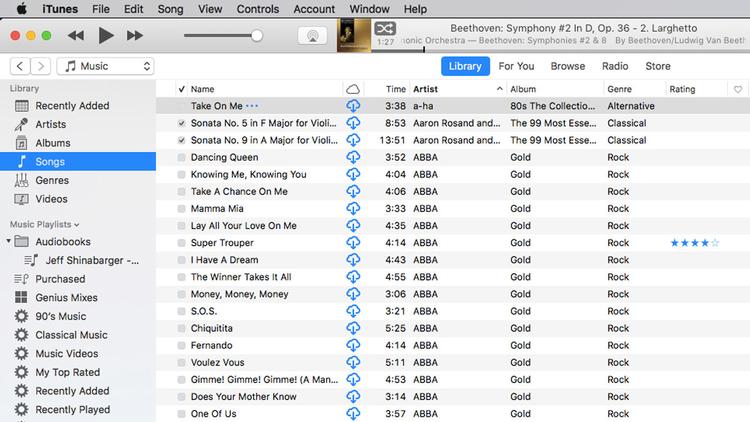
How to Download Music From Itunes
Are you tired of searching for a reliable way to download music from iTunes? Look no further! In this article, we will guide you through the process of downloading music from iTunes on your PC, Mac, iPhone, iPad, and Android devices.
What is Itunes?
ITunes is a digital media player that allows users to purchase, manage, and play music, movies, TV shows, and podcasts. The service offers a vast library of content, including songs, albums, and playlists.
Downloading Music From Itunes on PC And Mac
To download music from iTunes on your PC or Mac, follow these steps:
- Launch Itunes: Open the iTunes application on your computer.
- Sign in to Your Account: Enter your Apple ID and password to access your account.
- Access The Itunes Store: Click on the “Store” tab at the top of the screen to access the iTunes Store.
- Search For Music: Use the search bar to find the music you want to download.
- Select The Music: Click on the music you want to download and select the format (e.G., MP3, AAC).
- Confirm Your Purchase: Review your purchase and confirm it by clicking “Buy Song” or “Buy Album.”
Downloading Music From Itunes on Iphone And Ipad
To download music from iTunes on your iPhone or iPad, follow these steps:
- Launch The Itunes App: Open the iTunes application on your device.
- Sign in to Your Account: Enter your Apple ID and password to access your account.
- Access The Itunes Store: Tap on the “Store” tab at the top of the screen to access the iTunes Store.
- Search For Music: Use the search bar to find the music you want to download.
- Select The Music: Tap on the music you want to download and select the format (e.G., MP3, AAC).
- Confirm Your Purchase: Review your purchase and confirm it by tapping “Buy Song” or “Buy Album.”
Downloading Music From Itunes on Android
Unfortunately, there is no official iTunes app for Android devices. However, you can still access the iTunes Store through a web browser on your device.
- Open The Web Browser: Open a web browser (e.G., Google Chrome) on your Android device.
- Access The Itunes Store: Go to the iTunes Store website and sign in with your Apple ID and password.
- Search For Music: Use the search bar to find the music you want to download.
- Select The Music: Click on the music you want to download and select the format (e.G., MP3, AAC).
- Confirm Your Purchase: Review your purchase and confirm it by clicking “Buy Song” or “Buy Album.”
How to Download Free Music From Itunes
While downloading free music from iTunes is not possible through their official service, there are some ways to access free content:
- Free Podcasts: You can download podcasts for free on the iTunes Store.
- Free Apple Music Content: If you have an Apple Music subscription, you can access free content, including playlists and radio stations.
How to Transfer Music From Itunes to Usb Drive
To transfer music from iTunes to a USB drive, follow these steps:
- Connect Your Usb Drive: Connect your USB drive to your computer.
- Copy The Music: Select the music you want to transfer and copy it to the USB drive.
- Verify The Transfer: Verify that the music has been transferred successfully.
How to Synchronize Music From Itunes on Multiple Devices
To synchronize music from iTunes across multiple devices, follow these steps:
- Sign in With Your Apple ID: Sign in with your Apple ID and password on all devices.
- Enable Icloud Music Library: Enable iCloud Music Library on each device to access your shared library.
- Sync Your Music: Sync your music across devices by opening the iTunes app on each device.
Conclusion
Downloading music from iTunes is a straightforward process that can be completed on various devices, including PC, Mac, iPhone, iPad, and Android devices. By following these steps, you can access a vast library of content and enjoy your favorite music anywhere, anytime.
Frequently Asked Questions (FAQs)
- Q: How do I Download Free Music From Itunes?
A: You can download podcasts for free on the iTunes Store. - Q: Can I Transfer Music From Itunes to a Usb Drive?
A: Yes, you can transfer music from iTunes to a USB drive by copying it to the drive. - Q: How do I Synchronize Music From Itunes Across Multiple Devices?
A: Enable iCloud Music Library on each device and sync your music using the iTunes app. - Q: Can I Access Itunes on Android Devices?
A: Unfortunately, there is no official iTunes app for Android devices. - Q: What is The Difference Between Itunes And Apple Music?
A: ITunes is a digital media player that allows users to purchase, manage, and play music, movies, TV shows, and podcasts. Apple Music is a subscription-based service that offers ad-free listening, offline playback, and exclusive content. -
Q: Can I Download Music From Itunes Without an Internet Connection?
A: Yes, you can download music from iTunes with an internet connection, but some features may not be available offline. -
Q: How do I Transfer Music From my Iphone to my Computer Using Itunes?
A: Connect your iPhone to your computer and open the iTunes app on your device. Select the music you want to transfer and click “Transfer” to copy it to your computer.
- Q: Can I Download Music From Apple Music Without an Internet Connection?
A: Yes, you can download music from Apple Music with an internet connection, but some features may not be available offline.


