
How to Download Music on a Usb Stick: A Step-by-step Guide
Are you tired of juggling multiple devices and storage options? Do you want to have all your favorite songs in one place, easily accessible on any device? Look no further! In this article, we will guide you through the process of downloading music onto a USB stick.
Why Use a Usb Stick?
A USB stick is an excellent way to store and transport your music collection. It’s portable, easy to use, and can be connected to almost any device with a USB port. Plus, it’s a great way to free up space on your phone or computer by transferring your music to the stick.
Preparation: Formatting Your Usb Stick
Before you start downloading music, you need to format your USB stick in a way that makes it compatible with most devices. Don’t worry; this is a simple process!
Windows And Macos Users
For Windows users:
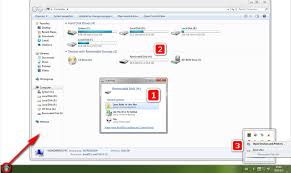
- Open File Explorer (or Windows Explorer).
- Select the USB stick from the list on the left.
- Right-click on the USB stick icon and select “Format” from the context menu.
- Choose FAT32 or exFAT as the file system.
- Assign a name to the USB stick (e.G., “Music”).
- Click “OK” to start the formatting process.
For macOS users:
- Open the Finder app.
- Select the USB stick from the list on the left.
- Click on the “Utility Disc” icon in the sidebar.
- Select the USB stick and click on the “Initialize” button.
- Choose FAT32 or exFAT as the file system.
- Assign a name to the USB stick (e.G., “Music”).
- Click “OK” to start the formatting process.
Converting Music Files
If you have music files in formats that aren’t compatible with older devices, such as MP3, you’ll need to convert them to a more universal format like MP3 or WAV. There are many free software programs available online that can help you do this.
Downloading Music Onto Your Usb Stick
Now that your USB stick is formatted and ready to go, it’s time to download your music onto the device!
Windows Users
- Open File Explorer (or Windows Explorer).
- Select the folder containing the music files you want to transfer.
- Right-click on the folder and select “Copy” from the context menu.
- Go back to the USB stick icon in File Explorer.
- Right-click on an empty space inside the USB stick folder and select “Paste” from the context menu.
Macos Users
- Open the Finder app.
- Select the folder containing the music files you want to transfer.
- Drag and drop the folder into the USB stick icon in the Finder sidebar.
- Release the mouse button when you see the folder’s contents being transferred to the USB stick.
Transferring Music From Android or Ios Devices
If you have an Android or iOS device, you can transfer your music to a USB stick using the following methods:
- Android Users: Connect your phone or tablet to your computer via USB, and use a file manager app like File Explorer (Windows) or Finder (macOS) to select the files you want to transfer. Then, copy them to the USB stick.
- Ios Users: You can’t directly connect an iPhone or iPad to a computer using a USB cable. However, you can use Apple’s Lightning-to-USB adapter and iTunes on your Mac to transfer music from your device.
Transferring Music From Spotify
Unfortunately, it’s not possible to download Spotify songs onto a USB stick due to copyright restrictions. However, if you have a Spotify Premium subscription, you can download songs for offline listening using the Spotify app on your device.
Conclusion
Downloading music onto a USB stick is a straightforward process that requires some basic technical knowledge. By following these steps, you’ll be able to store and transport your favorite songs with ease, freeing up space on your devices and enjoying uninterrupted access to your music library.
Faqs
- Q: Why do I Need to Format my Usb Stick?
A: Formatting your USB stick ensures it’s compatible with most devices and operating systems. - Q: How do I Convert my Music Files to Mp3 or Wav?
A: You can use free software programs like Fre:Ac to convert your music files. - Q: Can I Transfer Music From Android or Ios Devices Directly Onto a Usb Stick?
A: Yes, but you’ll need to connect your device to a computer using a USB cable and then transfer the files to the USB stick. - Q: Why Can’t I Download Spotify Songs Onto a Usb Stick?
A: Copyright restrictions prevent direct downloads of Spotify songs onto external devices. - Q: What Are Some Good File Conversion Software Programs Available Online?
A: Some popular options include Fre:Ac, Audacity, and Handbrake. - Q: Can I Use a Lightning-to-usb Adapter to Transfer Music From my Iphone or Ipad Directly Onto a Usb Stick?
A: No, but you can use Apple’s Lightning-to-USB adapter and iTunes on your Mac to transfer music from your device. - Q: What Are The Advantages of Using a Usb Stick For Storing And Transferring Music?
A: A USB stick offers portability, ease of use, and compatibility with most devices. - Q: Can I Store Other Types of Files, Like Videos or Documents, on my Usb Stick in Addition to Music?
A: Yes, your USB stick can be used to store a wide range of file types.


