
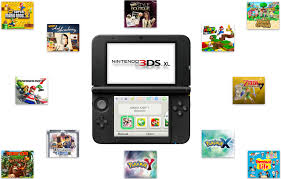
The Ultimate Guide to Downloading Nintendo DS Games
Are you a fan of the classic Nintendo DS console? Do you want to experience the thrill of playing your favorite games on-the-go without breaking the bank? Look no further! In this comprehensive guide, we’ll show you how to download Nintendo DS games directly onto your console using the Nintendo eShop.
What is The Nintendo Eshop?
The Nintendo eShop is a digital store where you can purchase and download games for your Nintendo 3DS, 2DS, New 3DS, and other compatible consoles. The eShop offers a vast library of games, including classic DS titles, as well as new releases and demos.
Getting Started With The Nintendo Eshop
To access the Nintendo eShop on your console, follow these steps:
- Connect to Wi-fi: Make sure your console is connected to a stable internet connection.
- Access Settings: Go to the Settings menu on your console and select “Internet” or “Wi-Fi.”
- Configure Internet Settings: Select “Settings of Link” and choose an available slot for your connection. If you have updates, they will be downloaded automatically.
- Create a Nintendo ID: If you don’t already have one, create a new account on the eShop. This will allow you to purchase games and access other online services.
Downloading Games From The Nintendo Eshop
Now that you have your console connected to Wi-Fi and a Nintendo ID set up, it’s time to download some games!
- Launch The Eshop: Select the eShop icon on your console.
- Browse The Store: Browse through the various categories and genres of games available for purchase or download.
- Search For Games: Use the search bar to find specific titles you’re interested in.
- Purchase And Download: Select the game you want, add it to your shopping cart, and pay using a credit card or other accepted payment methods.
Managing Your Games
As you continue to download games on your console, you may notice that your SD card is becoming full. Don’t worry! Here’s how to manage your storage:
- Check Storage Space: Go to the Settings menu and select “Management” > “Nintendo 3DS.”
- Delete Games: Select the game you want to delete and press the “Erase” button.
- Transfer Data: If you want to keep a copy of your games, you can transfer them to an SD card or another console.
Tips For Downloading Nintendo DS Games
- Make sure your console is updated to the latest software version.
- Use a high-quality SD card with enough storage space for all your downloaded games.
- Keep an eye on your storage space and regularly delete games you no longer play.
- Consider purchasing a larger SD card or using cloud storage services like Nintendo’s own service.
Conclusion
Downloading Nintendo DS games is easier than ever with the eShop. By following these steps, you’ll be able to access a vast library of classic and new titles, enjoy them on-the-go, and have fun exploring the world of gaming without breaking the bank.
Frequently Asked Questions (FAQs)
- What are the requirements for downloading Nintendo DS games?
- You need a compatible Nintendo console (3DS, 2DS, New 3DS).
- Your console must be connected to Wi-Fi.
- You should have a valid Nintendo ID and account.
- Make sure your SD card has enough storage space for the game.
- How do I create a Nintendo ID?
- Launch the eShop on your console.
- Follow the in-game prompts to create an account.
- Can I transfer games from one console to another?
- Yes, you can transfer data between consoles using the SD card or other storage methods.
- How do I delete a game that’s no longer needed?
- Go to the Settings menu and select “Management” > “Nintendo 3DS.”
- What happens if my SD card is full?
- You can transfer data from your old SD card to a new one using the in-game prompts.
- Can I access demos or trial versions of games?
- Yes, many games offer demos or trial versions that you can download and try before purchasing.
The Nintendo eShop has revolutionized the way we experience gaming on-the-go. By following these simple steps, downloading games is now easier than ever!


