
How to Download Office Free: A Step-by-step Guide
Are you looking for a way to get Microsoft Office without spending a dime? Look no further! In this article, we’ll show you how to download Office free on your PC, Mac, and even mobile devices.
What is Microsoft Office?
Microsoft Office is a suite of productivity applications that includes Word, Excel, PowerPoint, Outlook, OneNote, Publisher, and Access. It’s a powerful tool for creating documents, spreadsheets, presentations, and more.
Why Download Office Free?
Downloading Office free allows you to test its features and functionality before committing to a paid subscription. This is perfect for students, freelancers, or anyone who needs access to Microsoft Office without the hefty price tag.
How to Download Office Free on PC
To download Office free on your PC, follow these steps:
- Sign up For Microsoft 365: Go to the Microsoft website and sign up for a free trial of Microsoft 365. This will give you access to all the Office applications.
- Download The Installer: Once you’ve signed up, click on the “Download” button to get the Office installer.
- Run The Installer: Run the installer and follow the prompts to install Office on your PC.
How to Download Office Free on Mac
To download Office free on your Mac, follow these steps:
- Sign up For Microsoft 365: Go to the Microsoft website and sign up for a free trial of Microsoft 365.
- Download The Installer: Once you’ve signed up, click on the “Download” button to get the Office installer.
- Run The Installer: Run the installer and follow the prompts to install Office on your Mac.
How to Download Office Free on Mobile Devices
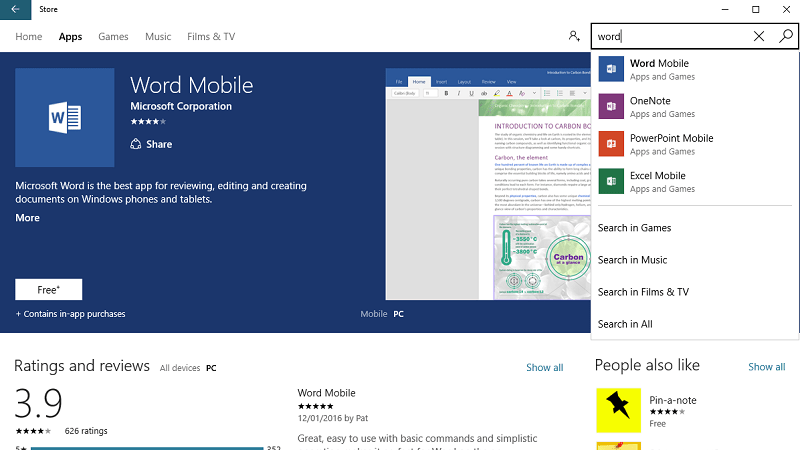
To download Office free on your mobile device, follow these steps:
- Go to The App Store or Google Play: Open the App Store (for iOS devices) or Google Play (for Android devices).
- Search For Office: Search for “Office” in the search bar.
- Download And Install: Download and install the Office app on your mobile device.
Alternatives to Microsoft Office
If you’re not happy with Microsoft Office, there are plenty of alternatives available. Some popular options include:
- Libreoffice: A free and open-source office suite that’s compatible with Microsoft Office file formats.
- Openoffice: Another free and open-source office suite that’s similar to LibreOffice.
- Wps Office: A free office suite for mobile devices that’s also available on PC.
Conclusion
Downloading Office free is a great way to get started with Microsoft Office without breaking the bank. With these simple steps, you can have Office up and running on your PC, Mac, or mobile device in no time. Happy typing!
Frequently Asked Questions (FAQs)
- Is Downloading Office Free Safe?
Yes, downloading Office free is safe as long as you’re getting it from the official Microsoft website.
- How Long Does The Free Trial Last?
The free trial lasts for 30 days.
- Can I Use Office on Multiple Devices?
Yes, you can use Office on multiple devices as long as you have a valid Microsoft account.
- Is There a Limit to How Many Files I Can Create With Office?
No, there’s no limit to the number of files you can create with Office.
- Can I Use Office Offline?
Yes, you can use Office offline for up to 30 days before it requires an internet connection.
- Do I Need a Microsoft Account to Download Office Free?
Yes, you’ll need a valid Microsoft account to download and install Office on your device.
- How do I Cancel my Free Trial Subscription?
To cancel your free trial subscription, simply go to the Microsoft website and follow the prompts to cancel your subscription.
- Can I Still Use Office if I Cancel my Subscription?
Yes, you can still use Office after cancelling your subscription, but you won’t have access to any updates or new features.


