
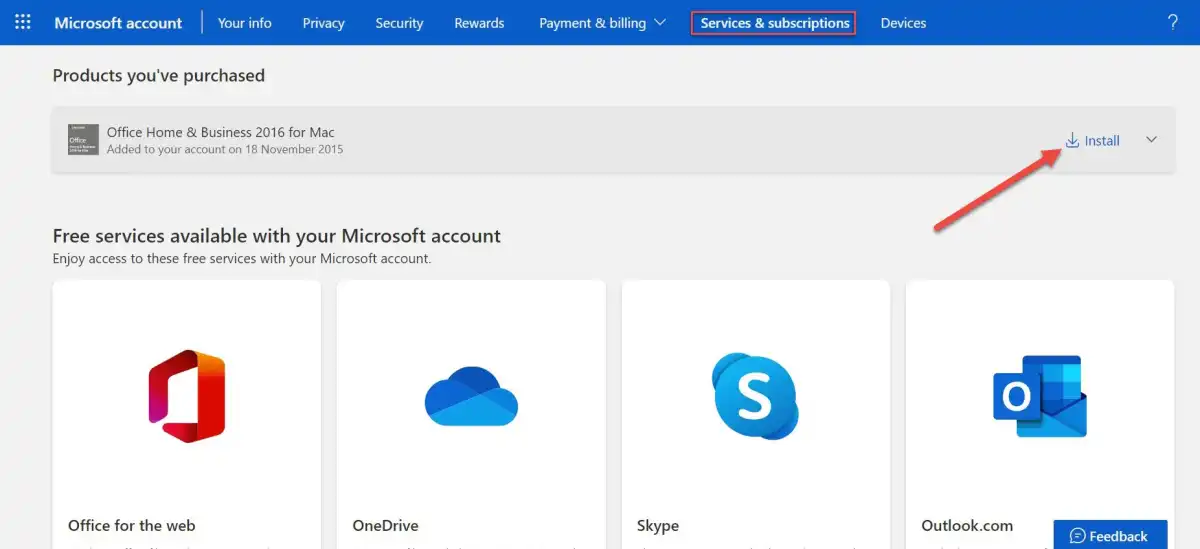
How to Download Microsoft Office on Your Devices
Are you looking to download Microsoft Office on your computer, phone, or tablet? Look no further! This comprehensive guide will walk you through the process of downloading and installing Microsoft Office on various devices.
Why Download Microsoft Office?
Microsoft Office is a suite of productivity applications that includes Word, Excel, PowerPoint, and Outlook. With Microsoft Office, you can create documents, spreadsheets, presentations, and more with ease. Whether you’re a student, professional, or home user, Microsoft Office is an essential tool for getting work done.
Downloading Microsoft Office on Your Computer
If you have a Windows computer, you can download Microsoft Office from the official website. Here’s how:
- Visit The Microsoft Website: Go to www.Microsoft.Com and click on “Office” in the top navigation menu.
- Choose Your Version: Select the version of Microsoft Office that suits your needs, such as Home, Business, or Personal.
- Download The Installer: Click on the download button to start downloading the installer.
- Install Microsoft Office: Run the installer and follow the prompts to install Microsoft Office on your computer.
Downloading Microsoft Office on Your Mac
If you have a Mac, you can also download Microsoft Office from the official website. Here’s how:
- Visit The Microsoft Website: Go to www.Microsoft.Com and click on “Office” in the top navigation menu.
- Choose Your Version: Select the version of Microsoft Office that suits your needs, such as Home, Business, or Personal.
- Download The Installer: Click on the download button to start downloading the installer.
- Install Microsoft Office: Run the installer and follow the prompts to install Microsoft Office on your Mac.
Downloading Microsoft Office on Your Chromebook
If you have a Chromebook, you can access Microsoft Office online without having to download it. Here’s how:
- Visit The Microsoft Website: Go to www.Microsoft.Com and click on “Office” in the top navigation menu.
- Choose Your Version: Select the version of Microsoft Office that suits your needs, such as Home, Business, or Personal.
- Access Online: Click on the online access button to start using Microsoft Office directly from your browser.
Disabling Automatic Renewal
If you’re not interested in continuing with a subscription after the free trial period, you can disable automatic renewal by following these steps:
- Visit The Microsoft Website: Go to www.Microsoft.Com and click on “Office” in the top navigation menu.
- Choose Your Version: Select the version of Microsoft Office that suits your needs.
- Disable Automatic Renewal: Click on the disable automatic renewal button.
Downloading Microsoft Office on Your Smartphone or Tablet
If you have a smartphone or tablet, you can download Microsoft Office directly from the app store. Here’s how:
- Visit The App Store: Go to the app store on your device and search for “Microsoft Office”.
- Choose Your Version: Select the version of Microsoft Office that suits your needs.
- Download And Install: Download and install the app, then follow the prompts to log in with your Microsoft account.
Downloading Microsoft Office For Students
If you’re a student, you may be eligible for free access to Microsoft Office through your school or university. Here’s how:
- Visit The Microsoft Website: Go to www.Microsoft.Com and click on “Office” in the top navigation menu.
- Choose Your Version: Select the version of Microsoft Office that suits your needs, such as Home, Business, or Personal.
- Use Institutional Credentials: Use your institutional credentials to log in and access Microsoft Office.
Conclusion
Downloading Microsoft Office is a straightforward process that can be completed on various devices. Whether you’re a student, professional, or home user, Microsoft Office is an essential tool for getting work done. By following the steps outlined in this guide, you’ll be able to download and install Microsoft Office on your computer, phone, or tablet.
Frequently Asked Questions
- Q: How do I Download Microsoft Office?
A: You can download Microsoft Office from the official website by visiting www.Microsoft.Com and clicking on “Office” in the top navigation menu. - Q: Can I Access Microsoft Office Online Without Downloading It?
A: Yes, you can access Microsoft Office online without downloading it by using the web-based version. - Q: How do I Disable Automatic Renewal?
A: You can disable automatic renewal by visiting www.Microsoft.Com, clicking on “Office” in the top navigation menu, and following the prompts to disable automatic renewal. - Q: Can I Download Microsoft Office on my Smartphone or Tablet?
A: Yes, you can download Microsoft Office directly from the app store on your device. - Q: How do I Access Microsoft Office For Free as a Student?
A: You may be eligible for free access to Microsoft Office through your school or university by using institutional credentials to log in and access Microsoft Office. - Q: Can I Use Microsoft Office Without Subscribing to a Service?
A: Yes, you can use Microsoft Office without subscribing to a service by purchasing a one-time license or using the free online version. - Q: How do I Install Microsoft Office on my Computer?
A: You can install Microsoft Office on your computer by downloading and running the installer from the official website. - Q: Can I Download Microsoft Office on my Chromebook?
A: Yes, you can access Microsoft Office online without downloading it by using the web-based version.
I hope this guide has been helpful in answering any questions you may have had about downloading Microsoft Office!


