
How to Download Maps Offline on Iphone: A Comprehensive Guide
Are you tired of relying on internet connectivity to navigate through unfamiliar territories? Look no further! In this article, we will show you how to download maps offline on your iPhone, making it easier to travel for work or pleasure.
The Problem With Internet Connectivity
While having a stable internet connection is convenient, it’s not always reliable. Whether you’re in an area with poor network coverage or traveling abroad, relying solely on online navigation can lead to frustration and confusion. That’s where downloading maps offline comes in – a solution that saves you from these headaches.
The Solution: Downloading Maps Offline
To download maps offline, you’ll need to use an app specifically designed for this purpose. Some popular options include:
- Mappe: A user-friendly app that allows you to download maps for areas of interest.
- Google Maps: A well-known navigation app that also offers offline map downloading capabilities.
How to Download Maps Offline With Mappe
To start, open the Mappe app and select the area you’d like to download a map for. Tap on the “Download” button in the bottom-right corner of the screen, and wait for the process to complete.
Here are some key steps to follow:
- Select Your Destination: Choose the area you want to download a map for.
- Tap Download: Click the “Download” button at the bottom right of the screen.
- Wait For The Process to Complete: Allow the app to process and save the map data.
Once the download is complete, you can access the offline map by tapping on the icon in the top-left corner of the screen.
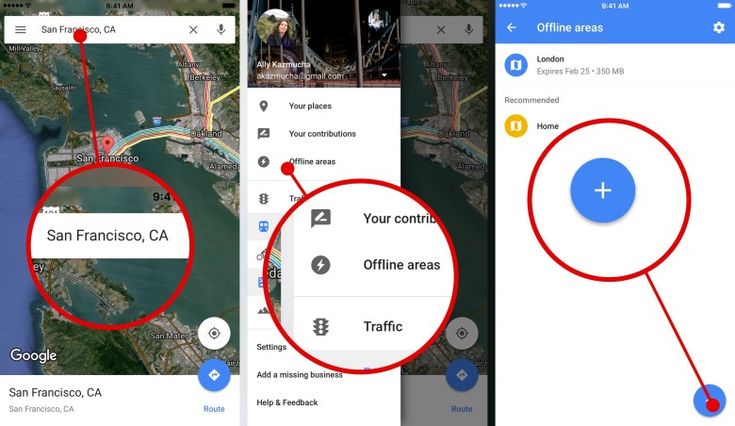
How to Download Maps Offline With Google Maps
If you prefer using Google Maps, follow these steps:
- Open Google Maps: Launch the app and sign in with your account.
- Select Your Destination: Choose the area you’d like to download a map for.
- Tap on The Menu Button: Tap on the three horizontal lines in the top-left corner of the screen.
- Scroll Down And Tap Download: Select the “Download” option from the menu.
- Wait For The Process to Complete: Allow the app to process and save the map data.
Once the download is complete, you can access the offline map by tapping on the icon in the top-left corner of the screen.
Other Solutions: Waze, Maps.Me, And Komoot
If you’re looking for alternative solutions, consider using:
- Waze: A navigation app that offers offline map capabilities.
- Maps.Me: An app that allows you to download maps for areas of interest.
- Komoot: A hiking and cycling app that provides offline maps.
Conclusion
Downloading maps offline is a simple yet effective way to navigate through unfamiliar territories without relying on internet connectivity. By following the steps outlined in this article, you can enjoy seamless navigation even when internet connectivity is poor or unavailable.


