
How to Download Photos From Google Photos
Are you looking for ways to download photos from Google Photos? In this article, we will guide you on how to do so on both PC and mobile devices.
Why You Need to Download Photos From Google Photos
Google Photos, a popular photo and video storage service, has limited free storage space. As of June 2021, the free storage space is capped at 15 GB, which includes files stored on Google Drive as well. If you want to continue using the service without subscribing to a paid plan, you may need to download your photos from Google Photos.
Downloading Photos From Google Photos on PC
To download photos from Google Photos on PC, follow these steps:
- Open your browser and navigate to the Google Photos website.
- Sign in with your Google account.
- Select the photo(s) you want to download by checking the box next to them or selecting “Select all” if you want to download multiple photos.
- Click on the three dots at the top right corner of the selected photo and select “Download”.
- Choose the format and quality of the downloaded file.
Downloading Photos From Google Photos on Android
To download photos from Google Photos on an Android device, follow these steps:
- Open the Google Photos app.
- Select the photo(s) you want to download by checking the box next to them or selecting “Select all” if you want to download multiple photos.
- Tap on the three dots at the top right corner of the selected photo and select “Download”.
- Choose the format and quality of the downloaded file.
Downloading Photos From Google Photos on Iphone
To download photos from Google Photos on an iPhone, follow these steps:
- Open the Google Photos app.
- Select the photo(s) you want to download by checking the box next to them or selecting “Select all” if you want to download multiple photos.
- Tap on the three dots at the top right corner of the selected photo and select “Download”.
- Choose the format and quality of the downloaded file.
Why Can’t I Download an Album From Google Photos?
Unfortunately, it’s not possible to download an entire album from Google Photos. However, you can download individual photos within an album by following the steps outlined above.
How to Download All Your Photos From Google Photos at Once
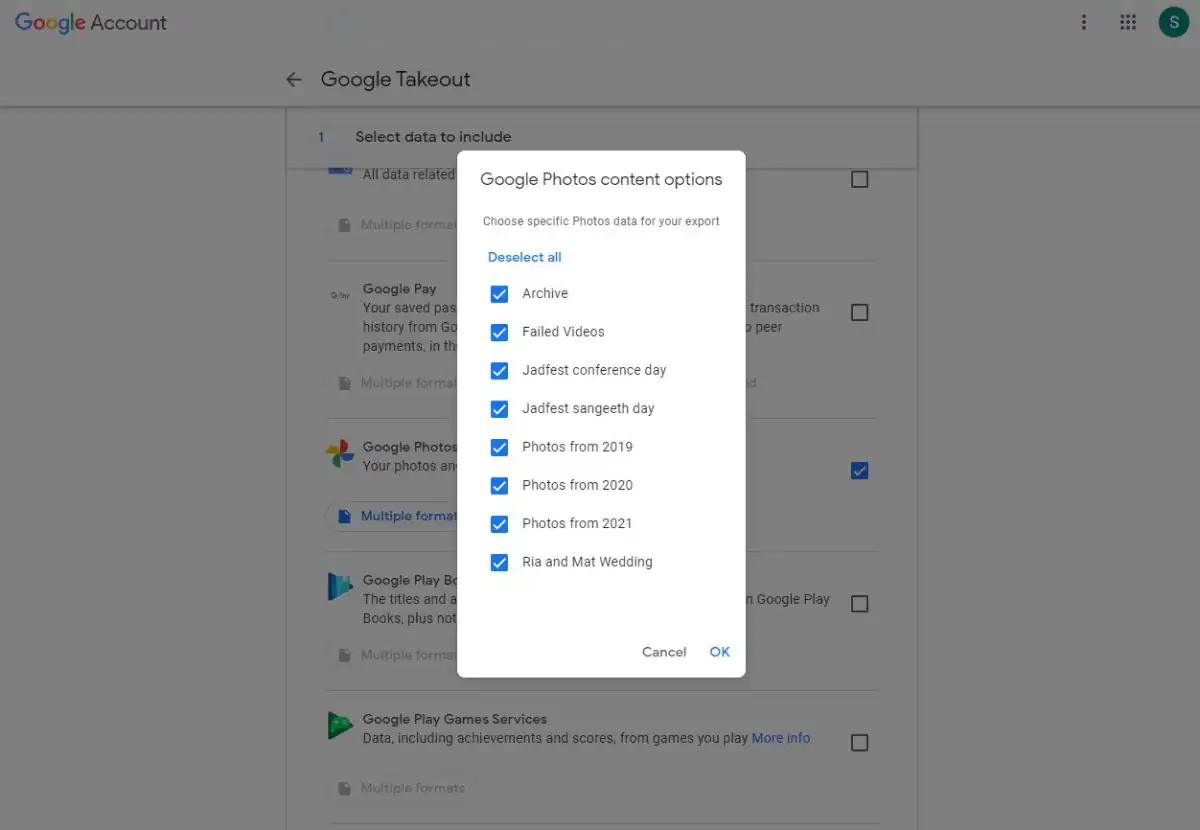
If you want to download all your photos from Google Photos at once, follow these steps:
- Go to Google Dashboard.
- Click on “Download your data”.
- Select Google Photos as the service you want to download data from.
- Choose the format and quality of the downloaded file.
Conclusion
Downloading photos from Google Photos is a straightforward process that can be done on both PC and mobile devices. By following the steps outlined in this article, you should be able to download your photos and enjoy them offline.
Faqs
Q: Why do I need to download my photos from Google Photos?
A: Google Photos has limited free storage space, so downloading your photos is a good way to ensure they’re not deleted due to lack of space.
Q: Can I download an entire album from Google Photos?
A: Unfortunately, no. However, you can download individual photos within an album by following the steps outlined above.
Q: How do I download all my photos from Google Photos at once?
A: You can download all your photos from Google Photos at once by using Google Dashboard and selecting “Download your data”.
Q: What’s the format of the downloaded file?
A: The format of the downloaded file is JPEG or PNG, depending on the quality you choose.
Q: Can I transfer my downloaded photos to a USB drive?
A: Yes, you can transfer your downloaded photos to a USB drive by copying and pasting them from your computer to the USB drive.
Q: Can I sync my Google Photos with my phone’s gallery app?
A: Yes, you can sync your Google Photos with your phone’s gallery app by using the Google Drive app on your phone.
Q: What if I want to download all my photos every two months for a year?
A: You can use Google Dashboard to schedule the download of your photos every two months for a year.


