
How to Download Photos From Iphone to Mac: A Step-by-step Guide
Are you tired of switching between your iPhone and Mac to access your favorite photos? Look no further! In this article, we’ll show you how to download photos from your iPhone to your Mac using various methods.
Method 1: Using a Cable
The most straightforward way to transfer photos from your iPhone to your Mac is by using a cable. Here’s what you need to do:
- Connect Your Iphone to Your Mac: Use the USB cable that came with your iPhone or purchase a Lightning-to-USB cable. Connect one end to your iPhone and the other end to your Mac.
- Authorize The Connection: If this is the first time connecting your iPhone to your Mac, you’ll need to authorize the connection. Follow the on-screen instructions to complete this step.
- Open Photos on Your Mac: Once connected, your Mac should automatically launch the Photos app. If it doesn’t, open Photos manually by searching for it in Spotlight or finding it in your Applications folder.
- Select The Photos You Want to Transfer: In the Photos app on your Mac, click on the “Devices” tab and select your iPhone from the list of available devices. You’ll see a window with all the photos on your iPhone.
- Download The Selected Photos: To download the selected photos, click on the “Import Selected” button. If you want to transfer all the photos, click on the “Import All” button.
Method 2: Using Icloud
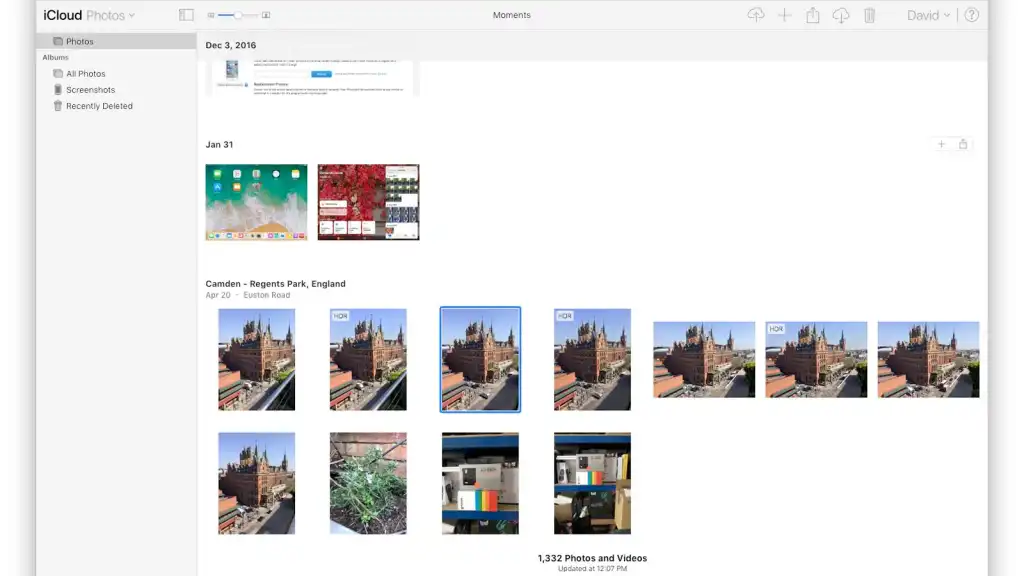
If you don’t have a cable handy or prefer not to use one, you can also transfer your iPhone’s photos to your Mac using iCloud. Here’s how:
- Enable Icloud Photo Library: On your iPhone, go to Settings > [your name] > iCloud > Photos and turn on the switch next to “iCloud Photo Library.”
- Sign in to Your Icloud Account: On your Mac, sign in to your iCloud account by going to System Preferences > Apple ID > iCloud.
- Enable Icloud Photo Library on Your Mac: In the iCloud preferences window, click on the “Photos” tab and turn on the switch next to “iCloud Photo Library.”
- Wait For The Photos to Sync: Once you’ve enabled iCloud Photo Library on both devices, wait for the photos to sync. This might take a few minutes, depending on your internet connection.
- Access Your Iphone’s Photos on Your Mac: Once the photos are synced, you can access them on your Mac by opening Photos and selecting “iCloud” from the sidebar.
Method 3: Using Airdrop
AirDrop is another way to transfer files between Apple devices wirelessly. Here’s how to use it:
- Enable Airdrop on Both Devices: On your iPhone, go to Settings > General > AirDrop and select “Everyone.” On your Mac, click on the AirDrop icon in the Finder sidebar and select “Allow Drops from Contacts Only.”
- Select The Photos You Want to Transfer: Open Photos on your iPhone and select the photos you want to transfer.
- Share The Selected Photos Using Airdrop: Tap the share button (represented by a box with an arrow coming out of it) and select AirDrop. Choose your Mac from the list of available devices.
- Accept The Transfer on Your Mac: On your Mac, you’ll receive a notification asking if you want to accept the transfer. Click “accept” to complete the transfer.
Conclusion
Transferring photos from your iPhone to your Mac is easier than ever with these three methods. Using a cable is the most straightforward approach, while iCloud and AirDrop offer wireless alternatives. Whichever method you choose, you’ll have access to all your favorite photos on both devices in no time!
Frequently Asked Questions
- Q: How do I Transfer Photos From my Iphone to my Mac Using Icloud?
A: To transfer photos using iCloud, enable iCloud Photo Library on both devices and wait for the photos to sync. - Q: Can I Use Airdrop to Transfer Videos as Well as Photos?
A: Yes, you can use AirDrop to transfer videos in addition to photos. - Q: How do I Access my Iphone’s Photos on my Mac Using Icloud?
A: To access your iPhone’s photos on your Mac using iCloud, open Photos and select “iCloud” from the sidebar. - Q: Can I Use Airdrop to Transfer Files Between a PC And an Iphone or Ipad?
A: No, AirDrop is only compatible with Apple devices. - Q: How do I Know if my Iphone’s Photos Are Synced With Icloud on my Mac?
A: If your iPhone’s photos are synced with iCloud on your Mac, you’ll see them in the Photos app and they’ll be automatically backed up to iCloud. - Q: Can I Use Airdrop to Transfer Files Between Two Iphones or Ipads?
A: Yes, you can use AirDrop to transfer files between two Apple devices. - Q: How do I Cancel a Photo Transfer Using Airdrop?
A: To cancel a photo transfer using AirDrop, go back to the AirDrop window and click “Cancel” or press the Command + period keys on your keyboard. - Q: Can I Use Icloud to Transfer Files Between Two Macs?
A: Yes, you can use iCloud to transfer files between two Macs by enabling iCloud Drive on both devices and sharing a file using the Share menu.
Feel free to ask if you have any further questions or concerns!


