
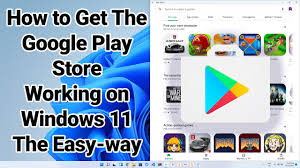
How to Download Play Store on Pc: A Step-by-step Guide
Are you tired of using your smartphone or tablet to access the Google Play Store? Do you want to download and install apps directly from your computer? Look no further! In this article, we will guide you through the process of downloading and installing the Google Play Store on your Windows PC.
What is an Emulator?
Before we dive into the step-by-step guide, let’s first explain what an emulator is. An emulator is a software that allows you to run another operating system (in this case, Android) on top of your existing operating system (Windows). This means you can access and use Android apps directly from your Windows PC.
Step 1: Download Bluestacks
The most popular and user-friendly emulator for Android is BlueStacks. You can download it from the official website www.Bluestacks.Com. Click on the “Download” button, and follow the instructions to install the software on your PC.
Step 2: Install Bluestacks
Once you have downloaded the installation file, open it and follow the prompts to install BlueStacks. This may take a few minutes, depending on your internet connection speed.
Step 3: Launch Bluestacks
After installing BlueStacks, launch the software by double-clicking on its icon. You will see a window asking you to set up your Google account. Follow the instructions to sign in with your Google account.
Step 4: Access The Play Store
Once you have signed in with your Google account, click on the “Play Store” icon located on the top right corner of the BlueStacks window. You will now be able to access and download apps from the Play Store directly on your PC.
Alternative Methods to Download Play Store on PC
If you are not comfortable using an emulator like BlueStacks, there are alternative methods to download and install the Google Play Store on your PC. These include:
- Ldplayer: This is another popular emulator that allows you to run Android apps on your Windows PC.
- Gameloop: This is a dedicated emulator for gaming apps, which also supports access to the Google Play Store.
- Now.Gg: This service offers access to a wide range of Android games and apps directly from your browser.
Conclusion
In conclusion, downloading and installing the Google Play Store on your PC is easier than you think. By following these simple steps and using an emulator like BlueStacks, you can access and download apps directly from your computer. If you are not comfortable using an emulator, there are alternative methods available that offer similar functionality.
Frequently Asked Questions
- Q: What is The Google Play Store?
A: The Google Play Store is a digital distribution platform for Android apps. - Q: Can I Download The Google Play Store on my PC Without an Emulator?
A: Yes, you can install a dedicated edition of Android on your PC and access the Google Play Store directly. - Q: Are Emulators Safe to Use?
A: Generally, yes. Emulators are software programs that allow you to run another operating system (Android) on top of your existing operating system (Windows). However, as with any software, it’s always a good idea to exercise caution and ensure you download from trusted sources. - Q: Can I Use The Google Play Store on my Mac?
A: Yes, but you’ll need to use an emulator like BlueStacks, which is available for both Windows and macOS.
Key Takeaways
- Downloading and installing the Google Play Store on your PC is a straightforward process.
- Using an emulator like BlueStacks provides access to Android apps directly from your computer.
- Alternative methods are available if you’re not comfortable using an emulator or prefer other options.


