
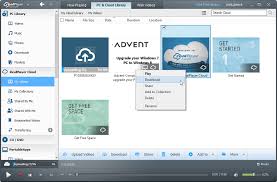
How to Download Realplayer Free on Your Computer or Smartphone
Are you looking for a reliable media player that can handle various file formats? Look no further than RealPlayer! With its user-friendly interface and ability to play multimedia files, RealPlayer has been a popular choice among computer users since 1995. In this article, we will guide you through the process of downloading RealPlayer free on your computer or smartphone.
Why Choose Realplayer?
RealPlayer is a versatile media player that supports various file formats, including MP3, WAV, and AVI files. It also allows you to create playlists, download video content, and manage your multimedia library with ease. With its sleek and user-friendly interface, RealPlayer is perfect for both beginners and experienced users.
System Requirements
Before we proceed, make sure that your computer or smartphone meets the minimum system requirements:
- Computer: Windows XP or later, 128 MB RAM (256 MB recommended)
- Smartphone: Android 4.0 Or later, iOS 8 or later
Downloading Realplayer Free on Your Computer
If you’re using a computer, follow these steps to download RealPlayer free:
- Open Your Web Browser: Open Google Chrome, Mozilla Firefox, or any other browser of your choice.
- Visit The Realplayer Website: Go to the official RealPlayer website (www.Realplayer.Com) and click on the “Download” button.
- Select Your Operating System: Choose your operating system (Windows or macOS) from the dropdown menu.
- Click on The Download Link: Click on the “Download Now” button to start the download process.
- Run The Installation File: Once the download is complete, run the installation file (.Exe) and follow the prompts to install RealPlayer.
Downloading Realplayer Free on Your Smartphone
If you’re using a smartphone, follow these steps:
- Open The Google Play Store (for Android): Open the Google Play Store app on your Android device.
- Search For Realplayer: Type “RealPlayer” in the search bar and select the app from the search results.
- Tap on The Install Button: Tap on the “Install” button to start the download process.
- Wait For The Installation to Complete: Wait for the installation to complete, which should only take a few seconds.
- Launch Realplayer: Once the installation is complete, launch RealPlayer by tapping on the app icon.
Alternative Download Methods
If you’re unable to download RealPlayer from the Google Play Store or App Store, you can try downloading it from external sources. However, be aware that these methods may not be as secure and may potentially pose a risk to your device’s security.
Realplayer Free Vs. Paid Versions
While RealPlayer free is an excellent choice for casual users, the paid versions offer additional features such as:
- Downloading video content directly from the internet
- Creating playlists and managing multimedia libraries
- Converting audio and video files
If you’re interested in upgrading to a paid version, consider purchasing RealPlayer Plus or Premium.
Troubleshooting Common Issues
Are you experiencing issues with your RealPlayer download? Don’t worry! Here are some common problems and their solutions:
- Error Messages: Check the RealPlayer website for any known issues or error messages.
- Installation Problems: Try reinstalling RealPlayer by deleting the existing installation files and downloading again.
- Compatibility Issues: Ensure that your device meets the minimum system requirements.
Conclusion
Downloading RealPlayer free on your computer or smartphone is a straightforward process. With its user-friendly interface and ability to handle various file formats, RealPlayer is an excellent choice for multimedia enthusiasts. Remember to always check for system requirements and potential compatibility issues before installing the software.
Frequently Asked Questions (FAQs)
- Q: What Are The Minimum System Requirements For Downloading Realplayer Free?
A: The minimum system requirements include a computer with Windows XP or later, 128 MB RAM (256 MB recommended), or a smartphone with Android 4.0 Or later, iOS 8 or later. - Q: Can I Download Realplayer Free on my Macos Device?
A: Unfortunately, no. RealPlayer is only compatible with Windows and Android devices at this time. - Q: What Features do The Paid Versions of Realplayer Offer That The Free Version Does Not?
A: The paid versions (RealPlayer Plus and Premium) offer additional features such as downloading video content directly from the internet, creating playlists, and managing multimedia libraries. - Q: Can I Download Realplayer Free on my Smartphone Using a Third-party App Store?
A: While it may be possible to download RealPlayer free from alternative sources, we recommend using the official Google Play Store or App Store for security reasons. - Q: How do I Troubleshoot Common Issues With my Realplayer Installation?
A: Check the RealPlayer website for known issues and error messages. If you’re experiencing problems during installation, try reinstalling the software by deleting existing installation files and downloading again. - Q: Can I Use Realplayer on Multiple Devices?
A: Yes! With a RealPlayer account, you can sync your multimedia library across multiple devices. - Q: How do I Uninstall Realplayer From my Device?
A: To uninstall RealPlayer, go to the Control Panel (Windows) or Settings app (Android), find the software in the list of installed programs, and select “Uninstall” or “Remove”. - Q: Can I Upgrade to a Paid Version of Realplayer if I Start With The Free Version?
A: Yes! You can easily upgrade to a paid version by purchasing RealPlayer Plus or Premium from the official website or app store.


