
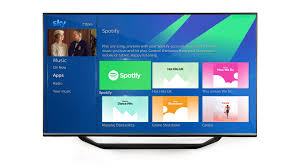
Download Spotify on Smart Tv: A Step-by-step Guide
Are you tired of listening to music on your smartphone while watching TV? Do you want to enjoy your favorite tunes directly on your smart TV? Look no further! In this article, we will guide you through the process of downloading Spotify on your smart TV.
Why Download Spotify on Smart Tv?
Downloading Spotify on your smart TV allows you to:
- Enjoy music directly from your TV without needing a smartphone or tablet
- Access millions of songs, playlists, and radio stations
- Create and manage your own playlists using the Spotify app
Which Smart Tvs Can I Use?
Spotify is available on various smart TV platforms, including:
- Android TV (LG, Sony, etc.)
- Samsung Smart TV
- LG WebOS
- Apple TV
Step-by-step Guide to Downloading Spotify on Smart TV
Smart Tvs With Built-in Spotify App
If your smart TV has a built-in Spotify app, you can follow these steps:
- Open the Spotify app on your TV.
- Sign in or create an account if you don’t have one already.
- Browse through the app and enjoy music directly from your TV.
Smart Tvs Without Built-in Spotify App
If your smart TV doesn’t have a built-in Spotify app, you can use alternative solutions:
- Chromecast: Connect Chromecast to your TV and download the Spotify app on your mobile device.
- Amazon Fire TV Stick/cube: Use Amazon Fire TV Stick or Cube to access the Spotify app directly on your TV.
- Console For Video Games: If you have a gaming console like PlayStation 4, Xbox One, or Nintendo Switch, you can download the Spotify app directly from the console’s store.
Step-by-step Instructions For Each Solution
Download Spotify on Android TV (LG, Sony, Etc.)
- Open the Google Play Store on your TV.
- Search for “Spotify” and select the app.
- Click on the “Install” button to download and install the app.
- Launch the Spotify app and sign in or create an account.
Download Spotify on Amazon Fire TV Stick/cube
- Connect your Fire TV Stick or Cube to your TV.
- Open the Amazon App Store on your device.
- Search for “Spotify” and select the app.
- Click on the “Install” button to download and install the app.
- Launch the Spotify app and sign in or create an account.
Download Spotify on Console For Video Games (PS4, Xbox One, Etc.)
- Connect your console to the internet.
- Open the PlayStation Store (for PS4) or Microsoft Store (for Xbox One).
- Search for “Spotify” and select the app.
- Click on the “Install” button to download and install the app.
- Launch the Spotify app and sign in or create an account.
Common Issues And Solutions
If you encounter any issues during the process, check our FAQ section below for solutions.
Conclusion
Downloading Spotify on your smart TV is a straightforward process that can be completed within minutes. With this guide, you can enjoy music directly from your TV without needing a smartphone or tablet. Happy listening!
Frequently Asked Questions (FAQs)
- What Are The System Requirements For Downloading Spotify on Smart Tv?
- The system requirements vary depending on the smart TV platform and device.
- Can I Download Spotify on Any Smart Tv?
- Yes, but not all smart TVs have a built-in Spotify app or support alternative solutions like Chromecast or Amazon Fire TV Stick/Cube.
- How do I Troubleshoot Issues With Downloading Spotify on my Smart Tv?
- Refer to our FAQ section below for common issues and solutions.
- Can I Use The Same Spotify Account on Multiple Devices?
- Yes, you can use your Spotify account across all your devices, including smart TVs.
Troubleshooting Issues
If you encounter any issues during the process, try the following:
- Check your internet connection.
- Restart your device and app.
- Sign out of your Spotify account on other devices.
- Update your TV’s software to the latest version.
- Contact Spotify support for further assistance.
We hope this article has been helpful in guiding you through the process of downloading Spotify on your smart TV!


