
Getting Started With Steam: A Beginner’s Guide
Are you ready to dive into the world of video games and digital content? Look no further than Steam, a leading platform developed by Valve. With its vast library of games, software, and hardware offerings, Steam is a one-stop-shop for all your gaming needs.
What is Steam?
Steam is a digital distribution platform that allows users to purchase and download video games, software, and other digital content. Founded in 2003, Steam has grown to become one of the largest and most popular online gaming platforms.
Creating a Steam Account
Before you can start using Steam, you’ll need to create an account. Don’t worry; it’s free and easy! Here’s how:
- Visit the Steam website (www.Steam.Com) and click on “Create a new account.”
- Fill out the registration form with your email address, password, and other basic information.
- Verify your account by clicking on the link sent to your email address.
Downloading Steam on PC
Now that you have a Steam account, it’s time to download the software on your PC. Here’s how:
- Visit the Steam website and click on “Install Steam.”
- Download the Steam installer file (.Exe) and run it.
- Follow the installation prompts to install Steam on your PC.
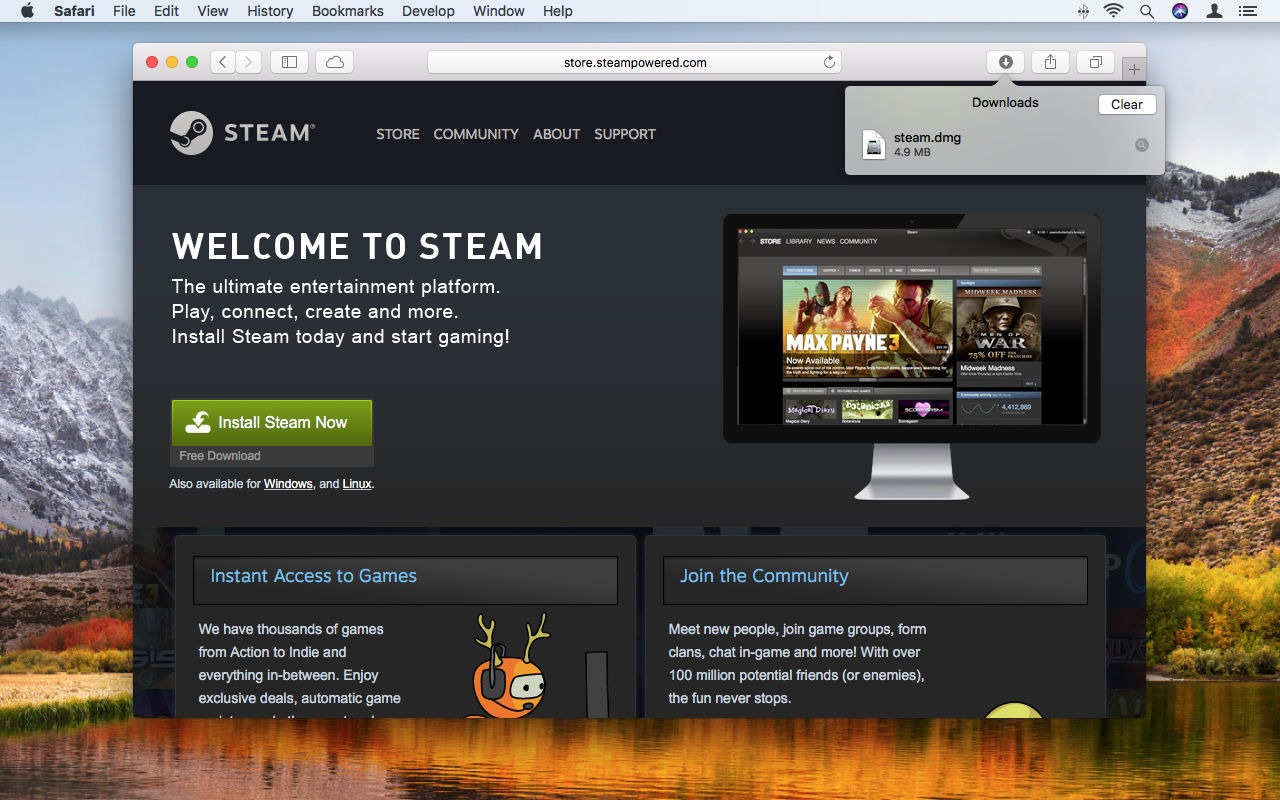
Downloading Steam on Mac
If you’re using a Mac, here’s how to download Steam:
- Visit the Steam website and click on “Install Steam” in the top-right corner of the page.
- Click on “Install Steam” again and follow the prompts to download the .Dmg file.
- Double-click on the .Dmg file and drag the Steam icon to your Applications folder.
Downloading Steam on Mobile Devices
For mobile users, Steam offers an app that allows you to access the platform’s features directly from your device. Here’s how:
- Search for “Steam” in the App Store (for iOS devices) or Google Play Store (for Android devices).
- Download and install the Steam app.
- Log in with your Steam account credentials.
Downloading Steam on Consoles
Unfortunately, Steam is not available on consoles like PS4, PS5, Xbox, or Nintendo Switch. For now, you can only access Steam through a PC or mobile device.
Conclusion
Steam is an incredible platform that offers a vast library of games, software, and digital content. With its user-friendly interface and robust features, it’s no wonder why millions of gamers worldwide have made Steam their go-to destination for all things gaming. If you’re new to Steam, we hope this guide has helped you get started on your gaming journey!
Frequently Asked Questions (FAQs)
- What is The Minimum System Requirement For Playing Games on Steam?
The minimum system requirements for playing games on Steam vary depending on the game and your device. However, a general guideline is to ensure that your computer meets the recommended specifications for running Windows 10 or macOS High Sierra.
- Can I Download Steam on Multiple Devices at Once?
Yes! You can download Steam on multiple devices simultaneously, but you’ll need to log in with your Steam account credentials each time.
- How do I Update my Steam Client to The Latest Version?
To update your Steam client, simply click on “Check for updates” within the app or visit the Steam website and follow the prompts to download the latest version.
- Can I Use Steam on a Chromebook or Other Non-traditional Computers?
Steam is available on some non-traditional devices like Chromebooks and Linux PCs. However, compatibility may vary depending on your device specifications.
- How do I Report a Problem or Issue With my Steam Account?
To report an issue with your Steam account, click on the “Help” button within the app or visit the Steam Support website for more information.
- Can I Gift Games And Software to Friends Through Steam?
Yes! You can purchase and gift games and software to friends using Steam’s gifting feature.
- How do I Redeem a Steam Code or Gift Card?
To redeem a Steam code or gift card, visit the Steam website and follow the prompts to enter your code or card information.
- Can I Use Steam on a Virtual Machine or Emulator?
While it’s technically possible to run Steam on a virtual machine or emulator, we don’t recommend doing so as it may cause compatibility issues or other problems with your gaming experience.


