
Download Whatsapp on Iphone: A Step-by-step Guide
Are you looking to download WhatsApp on your iPhone, but not sure how to go about it? Look no further! This article will guide you through the process of downloading and installing WhatsApp on your iPhone, as well as troubleshooting any issues that may arise.
Understanding Whatsapp
Before we dive into the installation process, let’s take a moment to understand what WhatsApp is. WhatsApp is a popular messaging app that allows users to send messages, make voice and video calls, and share photos and videos with their contacts. It’s free to download and use, and can be accessed on both iPhone and Android devices.
Requirements For Downloading Whatsapp
Before you can download WhatsApp on your iPhone, there are a few requirements that need to be met:
- Your iPhone must be connected to the internet.
- You must have an Apple ID account set up on your device.
- Your iPhone must be running iOS 10 or later.
Step-by-step Instructions For Downloading Whatsapp
Now that we’ve covered the requirements, let’s move on to the step-by-step instructions for downloading WhatsApp:
Connect Your Iphone to The Internet
The first step in downloading WhatsApp is to make sure your iPhone is connected to the internet. You can check this by looking at the top of your screen, where you should see a Wi-Fi or cellular signal icon.
Why Is This Important?
Connecting your iPhone to the internet is crucial because WhatsApp needs access to the internet to function properly. If your device is not connected to the internet, you won’t be able to download and install WhatsApp.
Open The App Store
Once your iPhone is connected to the internet, open the App Store app. You can do this by tapping on the App Store icon on your home screen or searching for it in the search bar at the top of your screen.
What’s Next?
Now that you’ve opened the App Store, tap on the Search tab at the bottom of the screen to find WhatsApp.
Search For Whatsapp
In the search bar, type “WhatsApp” and tap the Search button. This will bring up a list of apps related to WhatsApp.
How Do I Know Which One Is Right?
Look for the app with the green icon featuring a white speech bubble and a white phone inside it. That’s the official WhatsApp app!
Tap on The Whatsapp App
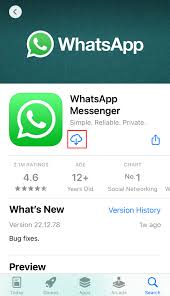
Once you’ve found the correct app, tap on it to go to its page in the App Store.
What’s Next?
Now that you’re on the WhatsApp app page, tap the Get button next to the app icon.
How Do I Install Whatsapp?
The installation process is straightforward:
- Tap Install to confirm that you want to download and install WhatsApp.
- Wait for the installation to complete. This may take a few minutes depending on your internet connection.
- Once the installation is complete, tap Open to launch WhatsApp.
Troubleshooting Tips
If you encounter any issues during the installation process, try the following:
- Make sure your iPhone is connected to the internet and that your Apple ID account is set up correctly.
- Check if there are any updates available for WhatsApp by tapping on the App Store icon and checking for updates.
- If you’re still having trouble, restart your iPhone and try installing WhatsApp again.
Additional Tips
Here are some additional tips to keep in mind when using WhatsApp:
- To configure WhatsApp and start using it, open the app and follow the prompts to set up your profile.
- You can customize your WhatsApp experience by adjusting settings such as notifications and data usage.
- If you’re having trouble with WhatsApp or need help troubleshooting an issue, visit the WhatsApp website for support.
Conclusion
Downloading and installing WhatsApp on your iPhone is a straightforward process. By following these step-by-step instructions, you should be able to successfully download and install WhatsApp on your device. Remember to troubleshoot any issues that may arise by checking your internet connection, updating the app, or restarting your iPhone.
Frequently Asked Questions (FAQs)
Here are some frequently asked questions about downloading WhatsApp:
- Q: Do I Need an Apple ID Account to Download Whatsapp?
A: Yes, you’ll need a valid Apple ID account to download and install WhatsApp. - Q: Can I Download Whatsapp Without Using The App Store?
A: No, it’s not possible to download WhatsApp without using the App Store. However, you can use alternative methods such as sideloading or jailbreaking, but these methods come with risks and are not recommended. - Q: What if I’m Having Trouble Downloading Whatsapp?
A: Try restarting your iPhone, checking for updates, or contacting Apple support for assistance.
How to Download Whatsapp Without App Store
While it’s not possible to download WhatsApp directly from the App Store without using an Apple ID account, there are alternative methods available. However, these methods come with risks and are not recommended:
- Sideloading: Sideloading involves installing apps outside of the App Store. This can be done by downloading an app from a third-party source or using a computer to download and install WhatsApp.
- Jailbreaking: Jailbreaking involves bypassing Apple’s restrictions on your iPhone, allowing you to install apps not available in the App Store.
Important Note
Keep in mind that sideloading and jailbreaking can compromise your iPhone’s security and may void its warranty. It’s recommended to use the official App Store method for downloading WhatsApp to ensure a safe and secure experience.


