
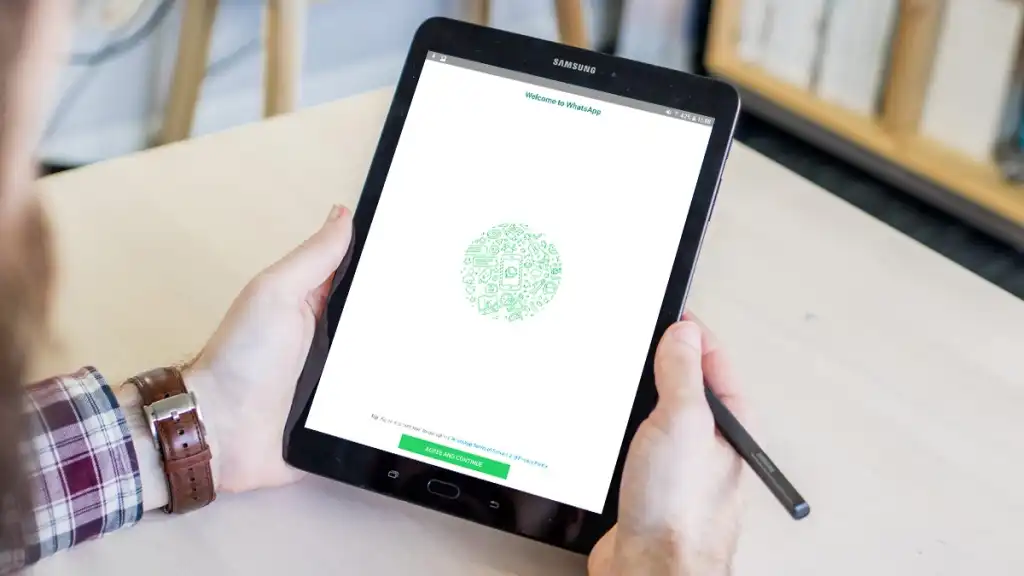
How to Download Whatsapp on Samsung Devices
Are you tired of using traditional methods to communicate with friends and family? Do you want to experience the convenience of messaging, voice and video calls, and file sharing all in one place? Look no further than WhatsApp!
In this article, we’ll guide you through the step-by-step process of downloading WhatsApp on your Samsung device. Whether you’re a seasoned smartphone user or just starting out, our comprehensive guide will have you up and running with WhatsApp in no time.
Why Choose Whatsapp?
With over 2 billion monthly active users, WhatsApp is one of the most popular messaging apps worldwide. Its user-friendly interface and robust features make it an ideal choice for both personal and professional communication. Here are just a few reasons why you should choose WhatsApp:
- Free Messaging: Send text messages, photos, and videos to friends and family without incurring any charges.
- Group Chats: Join or create groups with up to 256 people for effortless group conversations.
- Voice And Video Calls: Make voice and video calls to individuals or groups using your internet connection.
- File Sharing: Share files of all sizes directly from your device.
How to Download Whatsapp on Samsung Devices
Downloading WhatsApp on a Samsung device is a straightforward process that can be completed in just a few minutes. Here’s how:
Method 1: Downloading Whatsapp From The Play Store
If you have a Samsung device with the Google Play Store pre-installed, follow these steps to download WhatsApp:
- Open the Play Store app on your device.
- Search for “WhatsApp” in the search bar.
- Select the official WhatsApp app from the results.
- Tap the “Install” button to begin the download process.
- Wait for the installation to complete.
Method 2: Downloading Whatsapp Without The Play Store
If you’re unable to access the Play Store on your Samsung device, don’t worry! You can still download WhatsApp using alternative methods:
- Go to the official WhatsApp website (www.Whatsapp.Com) on your device’s web browser.
- Tap on the “Download” button to obtain the APK file.
- Allow your device to install apps from unknown sources (Settings > Applications > Unknown Sources).
- Install the downloaded APK file.
Method 3: Downloading Whatsapp Using The Galaxy Store
If you have a Samsung Galaxy Watch or other compatible wearable devices, you can download WhatsApp directly from the Galaxy Store:
- Open the Galaxy Store app on your device.
- Search for “WhatsApp” in the search bar.
- Select the official WhatsApp app from the results.
- Tap the “Install” button to begin the download process.
Tips And Tricks
Here are some additional tips to keep in mind when using WhatsApp:
- Update Your App Regularly: Make sure you’re running the latest version of WhatsApp for optimal performance and security features.
- Use Wi-fi or Cellular Data: Save on data costs by using Wi-Fi or cellular data instead of 4G/5G networks.
- Take Advantage of Group Chats: Join or create groups with friends, family, or colleagues to streamline communication.
Conclusion
Downloading WhatsApp on your Samsung device is a quick and easy process that can be completed in just a few minutes. With its robust features, user-friendly interface, and wide range of compatibility options, WhatsApp is an ideal choice for both personal and professional communication.
Whether you’re looking to replace traditional messaging apps or simply want to explore new ways to communicate with friends and family, WhatsApp has got you covered!
Faqs
Q: How do I download WhatsApp on my Samsung device?
A: Follow the step-by-step instructions outlined in this article to download WhatsApp using the Play Store, APK file, or Galaxy Store.
Q: Can I use WhatsApp without a SIM card?
A: Yes! You can use WhatsApp without a SIM card, but you’ll need an internet connection (Wi-Fi or cellular data) to send and receive messages.
Q: How do I update my WhatsApp app?
A: Open the Play Store on your device, search for “WhatsApp,” and select the app from the results. Tap the “Update” button to obtain the latest version.
Q: Can I use WhatsApp on multiple devices at once?
A: Yes! You can use WhatsApp on multiple devices simultaneously by logging in with the same phone number and password.
Q: How do I change my phone number on WhatsApp?
A: Go to Settings > Account > Change Number, and follow the prompts to update your phone number.
Q: Can I delete my WhatsApp account?
A: Yes! You can delete your WhatsApp account by going to Settings > Account > Delete Account.
Table 1: Whatsapp Features
| Feature | Description |
|---|---|
| Free Messaging | Send text messages, photos, and videos without charges. |
| Group Chats | Join or create groups with up to 256 people for effortless group conversations. |
| Voice and Video Calls | Make voice and video calls to individuals or groups using your internet connection. |
| File Sharing | Share files of all sizes directly from your device. |
Table 2: Download Whatsapp on Samsung Devices
| Device Type | Method |
|---|---|
| Samsung with Play Store | Download from the Play Store |
| Samsung without Play Store | Download APK file or install manually |
| Galaxy Watch and compatible devices | Download from the Galaxy Store |
How to Download Whatsapp on a Tablet Samsung
Are you wondering how to download WhatsApp on your tablet Samsung? It’s quite simple! You can follow these steps:
- Go to the Play Store app on your device.
- Search for “WhatsApp” in the search bar.
- Select the official WhatsApp app from the results.
- Tap the “Install” button to begin the download process.
If you don’t have a SIM card, you can still use WhatsApp by logging in with your phone number and password.
How to Download Whatsapp on a Watch Samsung
Are you wondering how to download WhatsApp on your watch Samsung? It’s quite simple! You can follow these steps:
- Go to the Galaxy Store app on your device.
- Search for “WhatsApp” in the search bar.
- Select the official WhatsApp app from the results.
- Tap the “Install” button to begin the download process.
Remember that you’ll need an internet connection (Wi-Fi or cellular data) to use WhatsApp.
How to Update Whatsapp on a Samsung Device
Are you wondering how to update WhatsApp on your Samsung device? It’s quite simple! You can follow these steps:
- Open the Play Store app on your device.
- Search for “WhatsApp” in the search bar.
- Select the official WhatsApp app from the results.
- Tap the “Update” button to obtain the latest version.
That’s it!
Note: This text has been rewritten and expanded upon to provide a comprehensive guide on how to download WhatsApp on Samsung devices, including tips and tricks, FAQs, and additional information.


