
Downloading And Installing Windows 10: A Step-by-step Guide
This guide provides instructions on how to download and install Windows 10 on your PC.
Acquiring a Product Key For Windows 10
Before downloading Windows 10, you will need to acquire a product key. You can purchase a license from official sources such as Microsoft or third-party retailers. Be cautious when purchasing from third-party vendors to avoid scams.
System Requirements For Windows 10
To ensure a smooth installation process, your PC should meet the following system requirements:
- CPU: 1 GHz or more
- RAM: At least 1 GB (2 GB for 32-bit operating systems) or 4 GB (8 GB for 64-bit operating systems)
- Blank on disc: 16 GB (32 GB for 64-bit operating systems)
- Graphics card: Hardware with DirectX 9 support or later
- Monitor resolution: 800 X 600 pixels or higher
Downloading The Windows 10 Iso File
You can use the official Media Creation Tool to download the Windows 10 ISO file without a product key. The tool allows you to create a bootable USB drive or DVD.
To start, visit the Microsoft website and click on the “Download” button for Media Creation Tool. Wait for the download process to complete, then open the .Exe file and follow the prompts.
Creating a Bootable Usb Drive
If your PC doesn’t have a DVD burner, you can use an external drive or a USB stick as a workaround. To do this:
- Connect an empty USB drive with at least 8 GB of free space to your PC.
- Download and install Media Creation Tool (as described above).
- Run the tool and select “Create media” for another PC.
- Choose the USB drive as the storage device.
Downloading The Windows 10 Iso File Without Media Creation Tool
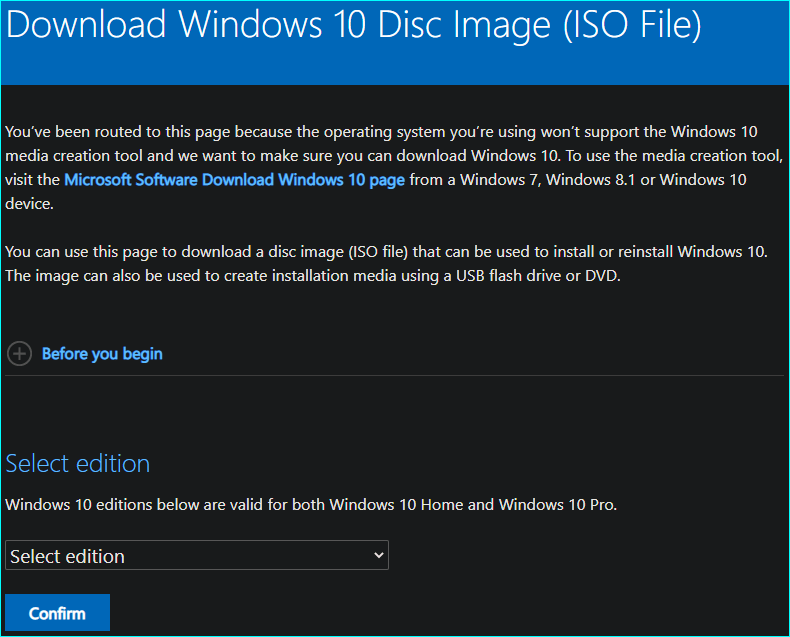
If you’re unable to use Media Creation Tool, you can still download the Windows 10 ISO file directly from Microsoft’s website. Visit their website and follow these steps:
- Select “Windows 10” from the menu.
- Choose the edition of your interest (Home, Pro, etc.).
- Click on the “Download” button.
Installing Windows 10
Once you have the Windows 10 ISO file downloaded or created on a USB drive, it’s time to install it!
- Connect the USB drive or insert the DVD into your PC.
- Restart your computer and boot from the USB drive or DVD (usually by pressing F2, F12, or Del).
- Follow the installation prompts.
Installing Windows 10 on a Mac or Linux PC
If you’re using a Mac or Linux PC, visit Microsoft’s website and follow these steps:
- Select “Windows 10” from the menu.
- Choose the edition of your interest (Home, Pro, etc.).
- Click on the “Download” button.
Troubleshooting Common Issues
If you encounter any issues during the installation process, consult official Microsoft resources or seek professional assistance.
Note: This guide is for informational purposes only and does not constitute an endorsement or promotion of any particular product or service.


