
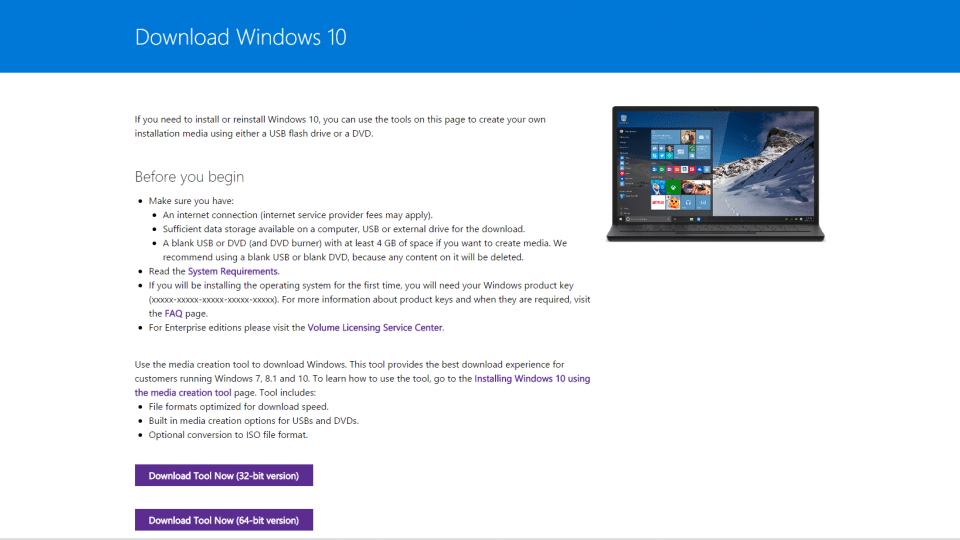
Download Windows 10 on Windows 7: A Step-by-step Guide
Are you ready to upgrade your operating system? Downloading Windows 10 on Windows 7 is a straightforward process that requires some basic computer knowledge. In this article, we’ll walk you through the steps to download and install Windows 10 on your Windows 7 device.
Prerequisites
Before we begin, make sure your computer meets the minimum requirements for installing Windows 10:
- CPU: 1 GHz or higher
- RAM: At least 1 GB (2 GB recommended)
- Disk space: 16 GB (32 GB recommended) for a 32-bit system or 32 GB (64 GB recommended) for a 64-bit system
- Video card: A hardware graphics device that supports DirectX 9 or later
Downloading Windows 10
To download Windows 10, follow these steps:
- Go to the Microsoft website and click on the “Download” button.
- Select the correct version of Windows 10 for your computer (32-bit or 64-bit).
- Choose the language you want to use for the installation process.
- Click on the “Next” button to begin the download process.
Creating a Bootable Usb Drive
Once you’ve downloaded the Windows 10 installer, you’ll need to create a bootable USB drive to install the operating system. Follow these steps:
- Insert a blank USB drive into your computer.
- Go to the Microsoft website and click on the “Download” button again.
- Select the correct version of Windows 10 for your computer (32-bit or 64-bit).
- Choose the language you want to use for the installation process.
- Click on the “Next” button to begin the download process.
- Once the download is complete, click on the “Create a bootable USB drive” option.
- Follow the prompts to create the bootable USB drive.
Installing Windows 10
Now that you have your bootable USB drive, it’s time to install Windows 10. Follow these steps:
- Insert the USB drive into your computer and restart it.
- Go into your BIOS settings (usually by pressing F2 or Del) and set the USB drive as the first boot device.
- Save your changes and exit the BIOS settings.
- Your computer will now boot from the USB drive.
- Follow the installation process to install Windows 10 on your computer.
Updating to Windows 10
If you’re already running Windows 7, you can update directly to Windows 10 without having to create a bootable USB drive. To do this:
- Go to the Microsoft website and click on the “Download” button.
- Select the correct version of Windows 10 for your computer (32-bit or 64-bit).
- Choose the language you want to use for the installation process.
- Click on the “Next” button to begin the download process.
- Follow the prompts to update your operating system.
New Installation
If you prefer to perform a new installation, deleting all files and personal settings, follow these steps:
- Create a backup of your important documents and files.
- Download and install Windows 10 on your computer using a bootable USB drive or DVD.
- Follow the installation process to install Windows 10.
Virtual Machine
If you want to try out Windows 10 before installing it physically, consider creating a virtual machine using software like VirtualBox or VMware. This will allow you to run Windows 10 in a separate environment without affecting your current operating system.
Frequently Asked Questions
Q: What are the minimum requirements for installing Windows 10?
A: Your computer must meet the following minimum requirements: CPU: 1 GHz or higher, RAM: At least 1 GB (2 GB recommended), disk space: 16 GB (32 GB recommended) for a 32-bit system or 32 GB (64 GB recommended) for a 64-bit system.
Q: Can I download Windows 10 directly on my computer?
A: Yes, you can update directly to Windows 10 from your current operating system using the Microsoft website and following the prompts.
Q: What are the benefits of installing Windows 10 on a virtual machine?
A: Running Windows 10 on a virtual machine allows you to try out the operating system without affecting your current installation, and also provides a safe testing environment.
Conclusion
Downloading Windows 10 on Windows 7 is a straightforward process that requires some basic computer knowledge. By following these steps, you can upgrade your operating system and enjoy the benefits of Windows 10.
Recommended Guides
Affiliate Disclosure
This article contains affiliate links to Amazon and eBay, which may earn us a commission if you click on them and make a purchase.


