
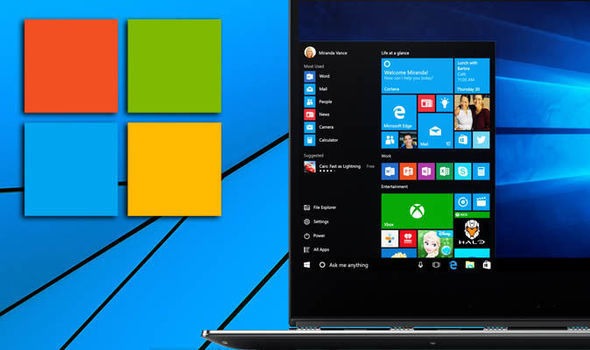
How to Download Windows 10: A Step-by-step Guide
Are you looking to upgrade your computer’s operating system to the latest version, Windows 10? Do you want to know how to download it for free or purchase a license at an affordable price? Look no further! This article will guide you through the process of downloading and installing Windows 10 on your PC.
Minimum Requirements
Before we dive into the download process, let’s take a look at the minimum requirements needed to install Windows 10:
- Processor: 1 GHz or faster, 64-bit or 32-bit
- Ram: 2 GB (4 GB recommended) for 64-bit, 1 GB (2 GB recommended) for 32-bit
- Disk Space: At least 32 GB for 64-bit, at least 16 GB for 32-bit
- Monitor Resolution: 800 X 600 pixels or higher
Why Download Windows 10?
Windows 10 is the latest operating system from Microsoft, offering a range of features and improvements over its predecessors. Some of the key benefits include:
- Improved security and performance
- Enhanced user interface and experience
- Integration with other Microsoft services such as Office and OneDrive
- Compatibility with a wide range of hardware devices
How to Download Windows 10
There are several ways to download Windows 10, depending on your needs and preferences. Let’s explore each option:
Free Download
Yes, you can download Windows 10 for free! Microsoft offers a free version of the operating system for eligible customers. To qualify, you need to have a genuine copy of Windows 7 SP1 or Windows 8.1 Installed on your PC.
To download Windows 10 for free, follow these steps:
- Go to the official Microsoft website and sign in with your Microsoft account.
- Click on the “Download” button next to Windows 10.
- Select the edition of Windows 10 you want to download (Home or Pro).
- Choose the language and architecture of your PC.
- Wait for the download process to complete.
Purchasing a License
If you don’t qualify for the free version, you can purchase a license for Windows 10 at an affordable price. Microsoft offers different editions of the operating system, including Home, Pro, and Pro for Workstations.
To purchase a license, follow these steps:
- Go to the official Microsoft website.
- Click on the “Buy” button next to Windows 10.
- Select the edition of Windows 10 you want to purchase (Home or Pro).
- Choose the language and architecture of your PC.
- Pay for the license using your preferred payment method.
Using Media Creation Tool
To download Windows 10, you can use Microsoft’s Media Creation Tool. This tool allows you to create a USB drive or DVD with the necessary files to install Windows 10.
To use the Media Creation Tool, follow these steps:
- Go to the official Microsoft website and click on the “Media Creation Tool” link.
- Download the tool and run it on your PC.
- Select the edition of Windows 10 you want to download (Home or Pro).
- Choose the language and architecture of your PC.
- Wait for the download process to complete.
Installing Windows 10
Once you’ve downloaded Windows 10, it’s time to install it on your PC. Here’s how:
- Insert the USB drive or DVD with the necessary files.
- Restart your PC and enter the BIOS settings (if required).
- Set the USB drive or DVD as the first boot device.
- Save changes and exit the BIOS settings.
- The installation process will begin automatically.
Conclusion
Downloading and installing Windows 10 is a straightforward process that can be completed in just a few steps. Whether you’re upgrading from an older operating system or purchasing a new license, we hope this guide has helped you navigate the process with ease. Happy downloading!
Frequently Asked Questions (FAQs)
-
Q: Can I Download Windows 10 For Free?
A: Yes, but only if you have a genuine copy of Windows 7 SP1 or Windows 8.1 Installed on your PC. -
Q: How do I Purchase a License For Windows 10?
A: Go to the official Microsoft website and click on the “Buy” button next to Windows 10. -
Q: What Are The System Requirements For Windows 10?
A: Processor: 1 GHz or faster, RAM: 2 GB (4 GB recommended), Disk Space: At least 32 GB for 64-bit, Monitor Resolution: 800 X 600 pixels or higher. -
Q: Can I Download Windows 10 on a Mac?
A: Yes, but only if you have a Mac with an Intel processor and macOS High Sierra or later installed. -
Q: How do I Install Windows 10 on my Pc?
A: Insert the USB drive or DVD with the necessary files, restart your PC, enter the BIOS settings (if required), set the USB drive or DVD as the first boot device, save changes, and exit the BIOS settings. The installation process will begin automatically. -
Q: Can I Use a Virtual Machine to Run Windows 10 on my Mac?
A: Yes, but only if you have a program like Parallels or VMware installed on your Mac. -
Q: How do I Access The Media Creation Tool?
A: Go to the official Microsoft website and click on the “Media Creation Tool” link. -
Q: Can I Download Windows 10 on an Older PC With Windows XP or Vista?
A: No, you need to have a genuine copy of Windows 7 SP1 or Windows 8.1 Installed on your PC to qualify for the free version.
Note: The above FAQs are based on the provided text and may not be comprehensive or up-to-date.


