
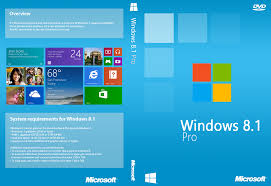
How to Download Windows 8: A Step-by-step Guide
Are you looking to install Windows 8 on your computer but don’t have the disk? Don’t worry, we’ve got you covered! In this article, we’ll show you how to download Windows 8 directly from Microsoft’s website and install it on your PC.
Why Download Windows 8?
Before we dive into the steps, let’s quickly discuss why you might want to download Windows 8. Windows 8 is a great operating system that offers a lot of features and improvements over its predecessors. With Windows 8, you’ll get a fast and efficient interface, improved security, and a wide range of software applications available.
Step 1: Visit Microsoft’s Website
The first step in downloading Windows 8 is to visit Microsoft’s website. You can do this by typing www.Microsoft.Com into your browser and hitting enter.
Step 2: Select The Right Edition
Once you’re on the Microsoft website, click on the “Download” button and select the edition of Windows 8 that you want to download. There are several options available, including Windows 8.1 And Windows 8.1 Pro.
Step 3: Choose Your Language
Next, choose your language from the drop-down menu. You can select English or any other language that you’re comfortable with.
Step 4: Download The Iso File
After selecting your language, click on the “Download” button to start downloading the ISO file of Windows 8. This process may take a few minutes depending on your internet connection speed.
Step 5: Create a Bootable Usb Drive or Dvd
Once the download is complete, you’ll need to create a bootable USB drive or DVD using the ISO file. You can use a software like Rufus to create a bootable USB drive.
Step 6: Install Windows 8
After creating the bootable USB drive or DVD, insert it into your computer and restart it. Follow the on-screen instructions to install Windows 8.
Benefits of Downloading Windows 8
Downloading Windows 8 offers several benefits, including:
- Convenience: You don’t need to have a physical copy of Windows 8.
- Space-saving: The ISO file takes up less space than a physical disk.
- Flexibility: You can use the USB drive or DVD to install Windows 8 on multiple computers.
Alternative Ways to Get Windows 8
If you’re not comfortable downloading Windows 8 from Microsoft’s website, there are alternative ways to get it. You can purchase a physical copy of Windows 8 from a retail store or online marketplace.
Tips And Tricks
Here are some tips and tricks to keep in mind when downloading and installing Windows 8:
- Make Sure Your Computer Meets The System Requirements: Before downloading Windows 8, ensure that your computer meets the minimum system requirements.
- Use a Reputable Antivirus Software: Protect your computer from malware by using a reputable antivirus software.
- Take Regular Backups: Regularly back up your data to prevent losses in case of any issues.
Conclusion
Downloading Windows 8 is a straightforward process that can be completed with ease. By following these steps, you’ll be able to install Windows 8 on your computer and enjoy its features and improvements.
Faqs
Here are some frequently asked questions about downloading Windows 8:
- Q: Do I Need to Purchase a Product Key to Download Windows 8?
A: No, you don’t need to purchase a product key to download Windows 8. - Q: Can I Install Windows 8 on Multiple Computers Using The Same Iso File?
A: Yes, you can use the same ISO file to install Windows 8 on multiple computers. - Q: What is The Minimum System Requirement For Installing Windows 8?
A: The minimum system requirements for installing Windows 8 are a processor of at least 1 GHz, RAM of at least 1 GB (32-bit) or 2 GB (64-bit), and a hard disk space of at least 16 GB. - Q: Can I Use The Same Iso File to Create a Bootable Usb Drive or Dvd?
A: Yes, you can use the same ISO file to create a bootable USB drive or DVD. - Q: Do I Need to Take Regular Backups When Installing Windows 8?
A: Yes, it’s recommended to take regular backups when installing Windows 8 to prevent losses in case of any issues.
System Requirements
Here are the system requirements for downloading and installing Windows 8:
- Processor: At least 1 GHz
- RAM: At least 1 GB (32-bit) or 2 GB (64-bit)
- Hard Disk Space: At least 16 GB
- Operating System: Windows 7, Windows 8, or later versions


