
How to Download Windows Xp: A Step-by-step Guide
Are you looking for a way to download Windows XP, the classic operating system that was once the norm? While Microsoft has stopped supporting and distributing Windows XP, there are still ways to access it, albeit with some limitations.
The History of Windows XP
Released in 2001, Windows XP was a major improvement over its predecessors, Windows 98 and Windows ME. It brought many new features, such as improved security, better hardware support, and a more intuitive interface. Despite its age, Windows XP remains a popular choice for some users who need to run legacy software or test compatibility with older systems.
Why You Might Need Windows XP
There are several reasons why you might still want to use Windows XP:
- Legacy Software: Some applications, such as older games and productivity software, may only be compatible with Windows XP.
- Compatibility Testing: Developers and testers often need to verify that their software works on multiple operating systems, including Windows XP.
- Old Hardware: If you have an old computer or laptop that still runs Windows XP, it’s essential to know how to troubleshoot and maintain it.
Downloading Windows XP
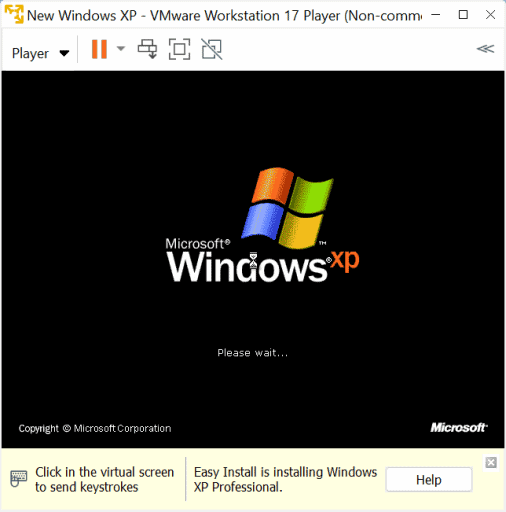
Microsoft has made a virtual machine of Windows XP available for free download. This allows you to run the operating system in a virtual environment without affecting your actual computer.
- System Requirements: To run Windows XP on a virtual machine, you’ll need at least 1 GB of RAM and a relatively fast internet connection.
- Virtualization Software: You can use VirtualBox, VMWare, or Parallels Desktop to create a virtual machine.
Step-by-step Instructions
To download and install Windows XP:
- Go to The Microsoft Website: Visit the Microsoft website and search for “Windows XP virtual machine”.
- Select The Correct Option: Choose the IE6 on XP virtual machine from the list of available options.
- Download The Zip File: Click on the Download button to get the virtual machine package in a zip file.
- Extract The Files: Unzip the contents to a folder on your computer, following the instructions provided by Microsoft.
Installing Windows XP
Once you’ve downloaded and extracted the files:
- Launch Virtualbox or Vmware: Open the virtualization software of your choice and create a new virtual machine.
- Select The Windows XP Virtual Machine: Choose the virtual machine package that you downloaded earlier.
- Migrate The Virtual Machine: Use the Import feature in VirtualBox or VMWare to transfer the virtual machine into your chosen platform.
Configuring Windows XP
After installing Windows XP, you’ll need to configure it for use:
- Language Settings: Set the language and keyboard layout to Italian (Italy) in the Control Panel.
- Regional Options: Adjust the regional settings to match your location.
- Create a Snapshot: Take a snapshot of the virtual machine after 90 days to avoid issues with the deadline.
Limitations of Windows XP
Keep in mind that Windows XP has some significant limitations:
- No Updates or Security Patches: Microsoft stopped supporting Windows XP, which means no more security updates or bug fixes.
- Compatibility Issues: Some modern applications and hardware may not be compatible with Windows XP.
- Deadline For Use: The virtual machine will stop working after 90 days.
Conclusion
While downloading Windows XP is possible, it’s essential to understand the limitations and potential issues that come with using an outdated operating system. If you still need to access legacy software or test compatibility with older systems, this guide should help you get started.


